To many, MIDI mapping in Traktor is a dark world full of confusion and endless frustration. In this complex world, it seems like only the truly worthy are able to unlock the mysteries of TSI files and use Traktor to its full potential. The reason for all of this heartache boils down to primarily one thing: Traktor’s ridiculously small and unyielding mapping window (the Controller Manager). There you’ll find no use of the arrow keys, no hot keys, and no cut and paste functionality; in other words, none of the things that the modern computer user has come to take for granted nowadays.
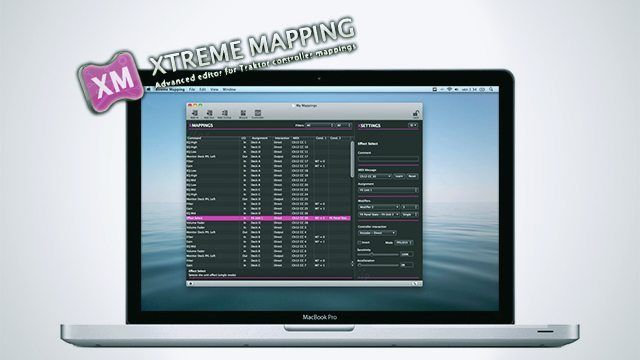
However, one brave soul has taken the torch for the righteous and sought to do something about this problem. Enter Extreme Mapping, a new Mac-only app that promises to make the long and extenuating mapping sessions a thing of the past.
Product Reviewed: Xtreme Mapping
Price: $5.99 launch price
Platform: Mac OSX 10.6 (only available in the Apple App Store), and at least Traktor 1.2.4 or any version of Traktor 2
THE GOOD
- Full keyboard support.
- The ability to drag and drop between different .tsi files.
- Descriptions of modifiers and parameters.
- Filters for the different mapping commands.
- Resizable and customizable user interface.
- A mapping wizard for common mappings.
- Allows you to use learn for MIDI out commands.
THE BAD
- Dragging between two .tsi’s brings all of the info over except the CC#’s (A bug that has been fixed and the update is just awaiting approval from Apple).
- Odd behavior has been reported with MIDI out from some users.
- Some have also reported that dragging a known good .tsi file into the app, saving, then loading the Xtreme Mapping version into Traktor did not work quite the same.
- Can’t view or sort by comment in the main mapping window.
- The biggest downside at this point though is it does not work with Traktor’s NHL mappings so forget doing complicated S4 or X1 mappings; however, on that subject one of the developers has said “who knows what’s gonna happen”.
- Currently only available for Mac users.
THE BOTTOM LINE
If you’re new to MIDI mapping in Traktor, this app will make the basic mapping tasks a breeze. For the more experienced user, the app can help tame complicated .tsi files and perhaps provide the inspiration needed to finish that ambitious mapping project you’ve been continually putting off until you really “get it”.
OVERVIEW
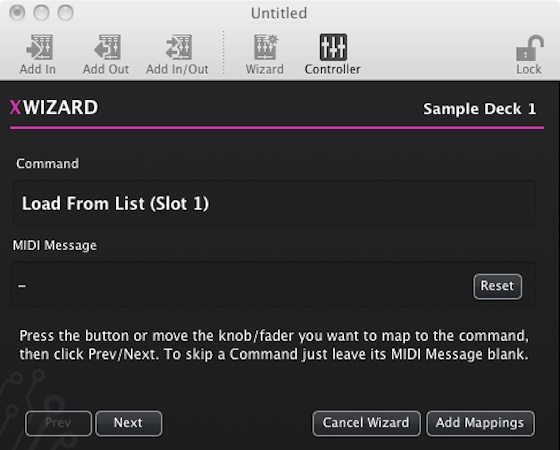
Most people who just want basic controls to work can get away with using the intuitive mapping wizard. You simply set your controller in the app and tell the wizard what you want to map. Your options in the mapping wizard are:
- 2 and 4 deck mixer
- Decks A, B, C, and D
- Sample Decks 1, 2, 3 and 4
- Four FX units in either Group or Single mode
- Loop Recorder
Once you make your selection a window pops up telling you to move the knob, fader, or button you want to control the specific task. Doing so connects that MIDI CC#/Note to that command. Then you simply hit next to get to the next control, skipping over the things that you may not want to map. When you’re done, click “add mapping” and whamo! You now have a mapping complete with MIDI In and Out commands where relevant.
I was able to map the four channel mixer section of my Denon DNX1600 mixer in just a few minutes. It’s a significant improvement even though this was a simple task that would have taken maybe 15 minutes using Traktor’s mapping window, which in the scheme of MIDI mapping in Traktor is still a quick job.
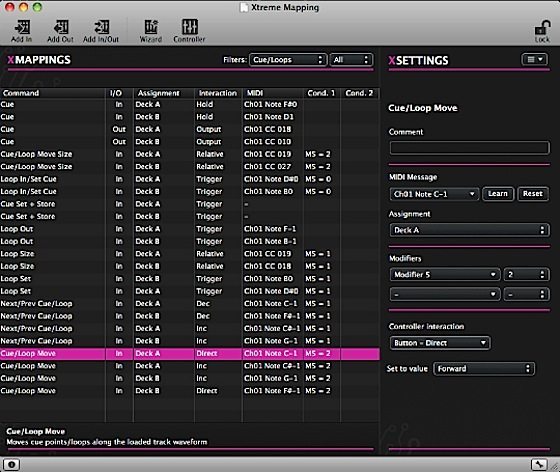
For the more ambitious user you still have full control of the Add In and Add Out functions. As a nice bonus you’re provided with handy textual descriptions of each command. The keyboard control is also a huge advantage especially when it comes to arrowing (i.e., navigating) through large mappings and duplicating commands, not to mention the support for undo and redo commands. I can’t remember how many times I’ve accidentally deleted an important command when bulk deleting stuff while editing older .tsi files. Oh how I wished for an undo button then.
Even with the (current) slight bugginess, the app is a huge step forward in the Traktor mapping world. Being able to filter specific commands in complicated MIDI mappings can be a huge learning tool for people new to mapping and could potentially spark creativity from other more experienced mappers.
With the promised updates coming from the developer, the Xtreme Mapping app has the potential to be that shinning torch, lighting the way through the dark and mysterious world of Traktor mapping. If you’ve tried out the app let us know how it worked for you in the comments.
A Note from our Mapping Engineer, Chris Lim (flashflooder)
I was ecstatic to learn about Xtreme Mapping because it offers a much-needed service by making MIDI mapping in Traktor more readable, understandable, and easy to navigate (and the window is scalable!). It’s built-in Wizard is a great tool that not only takes a lot of the time out of the mapping work, but also provides an easy way to map MIDI In and Out signals in one fell swoop (MIDI Out can sometimes be a bit more complicated, especially with Traktor lacking a learn function).
With that being said, there are a few things which I would like to see improved that I think would add a lot of value to the product. The first is the addition of the Comments section as a column (they currently show up in the side bar when you select a command). The other main quibble is the inability to edit a mapping in Xtreme Mapping while having it loaded in Traktor so you can troubleshoot bugs or issues while simultaneously making changes. This is often how I work through bugs or weird unexpected behavior when mappings start to get a bit more complex with modifers, MIDI Out controlling LEDs, etc. This ties into the fact that while the software is great at explaining the new Traktor parameter modifiers (e.g., FX Panel state, Slot state, Is In Loop, etc) in easy to understand textual values, it does not really demystify the common modifier (i.e., M1 to M8) if that is still a foreign concept to you. Lastly, the software is currently exclusive to Mac users, which is understandable but not ideal for all of the Windows users out there (including myself).