DJ TechTools
  • Blog
    • DJ Gear
      • DIY Projects
      • Gear Reviews
      • New Products
      • Controllerism
    • Techniques + Tips
      • Beginner DJ
      • Advanced DJ
      • Producer
      • Finger Drummer
    • News + Culture
      • Editorials + Opinions
      • Artist Interviews
      • Performances + Routines
      • How I Play
    • DJ Software Tutorials
      • Serato Tips
        • Traktor Tips
      • CDJ Tips
      • Ableton Live Tips
  • Store
    • Run by real DJs, not a corporation
    • DJ Controllers
      • Midi Fighter Twister
      • Midi Fighter Spectra
      • Midi Fighter 64
      • View All
    • Accessories
      • Chroma USB Drive for DJs
      • Chroma Caps
      • Chroma Cables Audio
      • Chroma Cables USB-A
      • Chroma Cables: USB-C
      • DJTT Gift Card
      • Midi Fighter T-Shirt
      • Keyboard Covers
      • Earplugs by V-Moda
    • Production Gear
    • Soundcards & Mixers
  • Community
    • Popular Forums
      • General Discussion
      • Buy & Sell
      • Reviews
      • Mixes
      • Music Production
      • Show Your Setup
      • Off Topic
    • Handy Links
      • New Posts
      • Private Messages
      • Register
      • Search
    • Midi Maps
      • Traktor
      • Ableton
      • Serato DJ
      • Midi Fighter 3D
      • Midi Fighter Twister
      • Midi Fighter Spectra
  • Midi Fighter
  • Chroma
No Result
View All Result
DJ TechTools
  • Blog
    • DJ Gear
      • DIY Projects
      • Gear Reviews
      • New Products
      • Controllerism
    • Techniques + Tips
      • Beginner DJ
      • Advanced DJ
      • Producer
      • Finger Drummer
    • News + Culture
      • Editorials + Opinions
      • Artist Interviews
      • Performances + Routines
      • How I Play
    • DJ Software Tutorials
      • Serato Tips
        • Traktor Tips
      • CDJ Tips
      • Ableton Live Tips
  • Store
    • Run by real DJs, not a corporation
    • DJ Controllers
      • Midi Fighter Twister
      • Midi Fighter Spectra
      • Midi Fighter 64
      • View All
    • Accessories
      • Chroma USB Drive for DJs
      • Chroma Caps
      • Chroma Cables Audio
      • Chroma Cables USB-A
      • Chroma Cables: USB-C
      • DJTT Gift Card
      • Midi Fighter T-Shirt
      • Keyboard Covers
      • Earplugs by V-Moda
    • Production Gear
    • Soundcards & Mixers
  • Community
    • Popular Forums
      • General Discussion
      • Buy & Sell
      • Reviews
      • Mixes
      • Music Production
      • Show Your Setup
      • Off Topic
    • Handy Links
      • New Posts
      • Private Messages
      • Register
      • Search
    • Midi Maps
      • Traktor
      • Ableton
      • Serato DJ
      • Midi Fighter 3D
      • Midi Fighter Twister
      • Midi Fighter Spectra
  • Midi Fighter
  • Chroma
No Result
View All Result
DJ TechTools

Using A Hardware Synth With Ableton Live

Mad Zach by Mad Zach
February 11, 2014
in Ableton Live Tips, Production Hardware, Production Tips
Reading Time: 3 mins read
0
Using A Hardware Synth With Ableton Live
183
VIEWS
Post on FacebookTweet thisUpvote on Reddit

Integrating a hardware synth into an Ableton Live production workflow can really improve your workflow, as well as create some awesome and powerful sounds. In today’s tutorial, Mad Zach covers three techniques that he uses with his Moog Sub Phatty when working on a project.

Here’s a bit more on the techniques mentioned in the video:

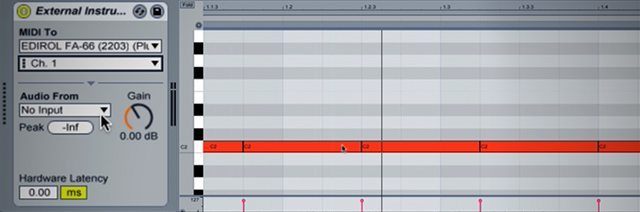
Technique 1: Send Basic MIDI Loops To The Synth while playing a Drum Loop
external-instrument-setup

This is the quickest way to start using a hardware synthesizer with a Ableton – we’re including it here because it’s the building blocks of tons of interactions between computer and synthesizer. The main steps here are:

  • Connect your synth (MIDI out of the computer/soundcard to synth, Audio back in from the synth)
  • Create a new MIDI track with an External Instrument on it and set up the MIDI/Audio settings
  • Make a new MIDI clip and enter a sweet melody
  • Hit play!

This enables you to tweak all of the controls on the synth while playing back the same notes – a great way to learn how your synth works and discover new sounds. Especially perfect for techno, house, and other loop based music.

Technique 2: Record A Noodling Session + Chop The Best Parts In Ableton
synth-audio-chop

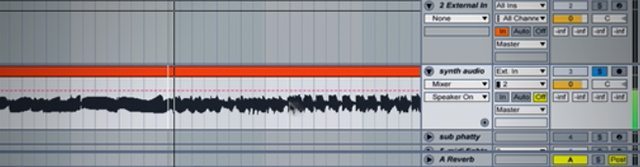
Experimenting on a synth leads to sounds that sometimes seem wildly unique. Recording yourself and the progression of playing around with the patches and manipulating the synth gives you a great palette to pull from. Having the session in audio format also allows for additional types of manipulation which are not possible with just midi.

You’ll want to create a new audio track in the arrangement view of Ableton that records your synthesizer audio, but since the synth is still being monitored in the MIDI track, mute your new audio track. Record yourself for at least a few minutes so that you get plenty of material to work with. I usually recommend turning the lights down low and getting “lost” with the synth for however long you are into it. You can also use effects to spice things up.

When you’ve finished, chop up your favorite parts in time with a drum playing – try duplicating clips of audio and reversing them, as well as adding some effects automation on top of that for serious flair.

Download Mad Zach’s sub phatty session and chop it up yourself. 

Technique 3: Use MIDI Clip Automation To Control Synth Parameters
synth-automation-in-ableton

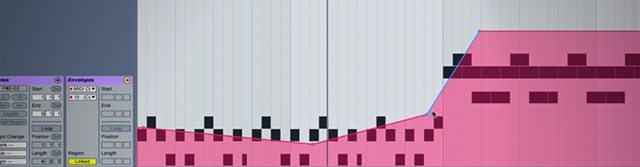
This technique works well especially with MIDI tracks that you’ve already put a lot of work into. In the video, I show a project I’m working on with G Jones. I’ve put together a cool-sounding bass line, and then (as in technique 1), run it through the hardware synth.

When you do this, look for specific parameters on the synth that sound good consistently. These will be the ones you select to be controlled with MIDI automation. Every synth as a unique set of MIDI input codes that correlate with the hardware controls – so open up the manual and find the correct code.

In the individual MIDI clips that you want to automate, open up the envelop controls and select “MIDI Control” and the correct CC code for the synth parameter. Then you can draw in automation in the clip just as you would if it were a software synth!

Note: Make sure you have “Remote” enabled in the Audio/MIDI preferences for your synth in order for this to work. 
Tags: Abletonhardware synthmad zachmoogsubphatty
Share2Tweet1Share
Previous Post

Routine: Cotts & Ravine 51-Minute Mix On 12 CDJs

Next Post

One DJ 1.5: New MIDI Mapping Interface, Colored Waveforms

Related Posts

Ableton launches Live 12 Suite rent-to-own plan – and it’s not a subscription
Ableton

Ableton launches Live 12 Suite rent-to-own plan – and it’s not a subscription

October 1, 2025
Control an entire studio with Midi Fighter Spectra (like Mad Zach)
Finger Drumming

Control an entire studio with Midi Fighter Spectra (like Mad Zach)

May 9, 2025
Mad Zach playing soundpacks on a Midi Fighter Spectra
Finger Drumming

Mad Zach Returns: Playing soundpacks in 2025

March 25, 2025
Load More
Next Post
One DJ 1.5: New MIDI Mapping Interface, Colored Waveforms

One DJ 1.5: New MIDI Mapping Interface, Colored Waveforms

Want to reach DJTT's audience here?

Shoot an email to advertising@djtechtools.com

DJTT ads
DJTT newsletter
Midi Fighter
Chat with us
  • ABOUT DJTT
  • CONTACT
  • PRIVACY
  • MIDI FIGHTER HELP
  • ABOUT DJTT
  • JOBS
  • CONTACT US
  • ADVERTISE
  • PRIVACY POLICY
  • ACCESSIBILITY STATEMENT

© 2024 DJ Techtools all rights reserved by DJ TechTools on all content unless otherwise noted.

No Result
View All Result
  • Blog
    • DJ Gear
      • DIY Projects
      • Gear Reviews
      • New Products
      • Controllerism
    • Techniques + Tips
      • Beginner DJ
      • Advanced DJ
      • Producer
      • Finger Drummer
    • News + Culture
      • Editorials + Opinions
      • Artist Interviews
      • Performances + Routines
      • How I Play
    • DJ Software Tutorials
      • Serato Tips
      • CDJ Tips
      • Ableton Live Tips
  • Store
    • Run by real DJs, not a corporation
    • DJ Controllers
      • Midi Fighter Twister
      • Midi Fighter Spectra
      • Midi Fighter 64
      • View All
    • Accessories
      • Chroma USB Drive for DJs
      • Chroma Caps
      • Chroma Cables Audio
      • Chroma Cables USB-A
      • Chroma Cables: USB-C
      • DJTT Gift Card
      • Midi Fighter T-Shirt
      • Keyboard Covers
      • Earplugs by V-Moda
    • Production Gear
    • Soundcards & Mixers
  • Community
    • Popular Forums
      • General Discussion
      • Buy & Sell
      • Reviews
      • Mixes
      • Music Production
      • Show Your Setup
      • Off Topic
    • Handy Links
      • New Posts
      • Private Messages
      • Register
      • Search
    • Midi Maps
      • Traktor
      • Ableton
      • Serato DJ
      • Midi Fighter 3D
      • Midi Fighter Twister
      • Midi Fighter Spectra
  • Midi Fighter
  • Chroma

© 2024 DJ Techtools all rights reserved by DJ TechTools on all content unless otherwise noted.

This website uses cookies. By continuing to use this website you are giving consent to cookies being used. Visit our Privacy and Cookie Policy.