DJ TechTools
  • Blog
    • DJ Gear
      • DIY Projects
      • Gear Reviews
      • New Products
      • Controllerism
    • Techniques + Tips
      • Beginner DJ
      • Advanced DJ
      • Producer
      • Finger Drummer
    • News + Culture
      • Editorials + Opinions
      • Artist Interviews
      • Performances + Routines
      • How I Play
    • DJ Software Tutorials
      • Serato Tips
        • Traktor Tips
      • CDJ Tips
      • Ableton Live Tips
  • Store
    • Run by real DJs, not a corporation
    • DJ Controllers
      • Midi Fighter Twister
      • Midi Fighter Spectra
      • Midi Fighter 64
      • View All
    • Accessories
      • Chroma USB Drive for DJs
      • Chroma Caps
      • Chroma Cables Audio
      • Chroma Cables USB-A
      • Chroma Cables: USB-C
      • DJTT Gift Card
      • Midi Fighter T-Shirt
      • Keyboard Covers
      • Earplugs by V-Moda
    • Production Gear
    • Soundcards & Mixers
  • Community
    • Popular Forums
      • General Discussion
      • Buy & Sell
      • Reviews
      • Mixes
      • Music Production
      • Show Your Setup
      • Off Topic
    • Handy Links
      • New Posts
      • Private Messages
      • Register
      • Search
    • Midi Maps
      • Traktor
      • Ableton
      • Serato DJ
      • Midi Fighter 3D
      • Midi Fighter Twister
      • Midi Fighter Spectra
  • Midi Fighter
  • Chroma
No Result
View All Result
DJ TechTools
  • Blog
    • DJ Gear
      • DIY Projects
      • Gear Reviews
      • New Products
      • Controllerism
    • Techniques + Tips
      • Beginner DJ
      • Advanced DJ
      • Producer
      • Finger Drummer
    • News + Culture
      • Editorials + Opinions
      • Artist Interviews
      • Performances + Routines
      • How I Play
    • DJ Software Tutorials
      • Serato Tips
        • Traktor Tips
      • CDJ Tips
      • Ableton Live Tips
  • Store
    • Run by real DJs, not a corporation
    • DJ Controllers
      • Midi Fighter Twister
      • Midi Fighter Spectra
      • Midi Fighter 64
      • View All
    • Accessories
      • Chroma USB Drive for DJs
      • Chroma Caps
      • Chroma Cables Audio
      • Chroma Cables USB-A
      • Chroma Cables: USB-C
      • DJTT Gift Card
      • Midi Fighter T-Shirt
      • Keyboard Covers
      • Earplugs by V-Moda
    • Production Gear
    • Soundcards & Mixers
  • Community
    • Popular Forums
      • General Discussion
      • Buy & Sell
      • Reviews
      • Mixes
      • Music Production
      • Show Your Setup
      • Off Topic
    • Handy Links
      • New Posts
      • Private Messages
      • Register
      • Search
    • Midi Maps
      • Traktor
      • Ableton
      • Serato DJ
      • Midi Fighter 3D
      • Midi Fighter Twister
      • Midi Fighter Spectra
  • Midi Fighter
  • Chroma
No Result
View All Result
DJ TechTools

Building A Basic Midi Mapping With Traktor

Ean Golden by Ean Golden
February 26, 2015
in Basic DJ Tips, DJ Software Tips, DJ Techniques / Tips, How-To Video Tutorials, Native Instruments, Traktor Tips
Reading Time: 4 mins read
0
Building A Basic Midi Mapping With Traktor
2.1k
VIEWS
Post on FacebookTweet thisUpvote on Reddit

One of the most powerful features of Traktor is it’s midi mapping capabilities. Midi mapping allows DJs to create custom controller mappings that are unique to their workflow or performance and it is what has made things like the Midi Fighter Instant Gratification mapping possible with Traktor. It can be intimidating to create a mapping so today Ean Golden is going to walk through the basics of making a simple midi mapping.

Midi mapping is really the secret sauce for Traktor and there are a lot of cool things that can be done with mappings. For more advanced midi mapping tips and tricks check out these great articles:

  • How To Read A Midi Mapping File
  • Midi Mapping 101: The Traktor Modifier (Re-Explained)
  • How To Midi Map Traktor Vu Meters To A DJ Controller

What Is A Midi Controller?
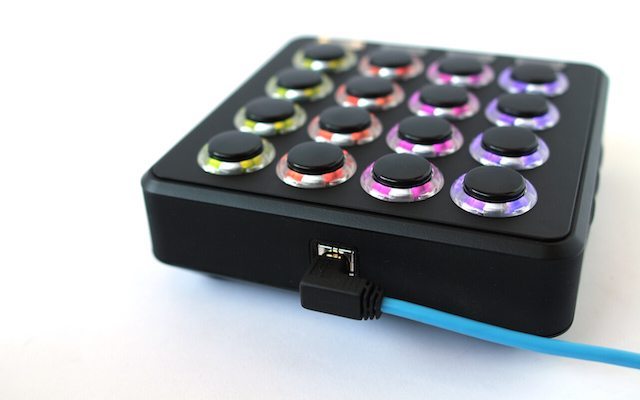
Midi Fighter 3D

Midi controllers (such as the Midi Fighter 3D) send a series of control messages or notes, these messages can be used to control software that supports midi such as Traktor, Serato, Ableton and many other DJ software/DAW. Using a program like Midi Pipe you can see the messages that a midi controller sends, each button sends a unique message/value so that it doesn’t conflict with other commands.
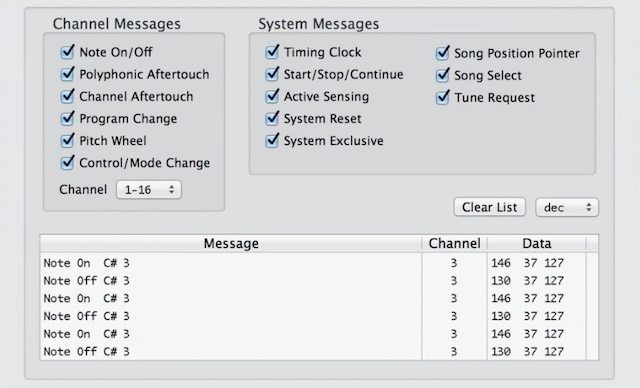
Midi Pipe
Midi Pipe will display midi messages that controllers send..

No Midi Controller? No Problem

If you don’t have a midi controller it’s possible to follow along by creating a new keyboard mapping in Traktor. The keyboard can be used in the same way as a midi controller with Traktor. There are a lot of keys to work with making it a great place to start creating a mapping. When you do pick up a controller the process is very similar to mapping the keyboard so you can quickly get started making a mapping with a controller.
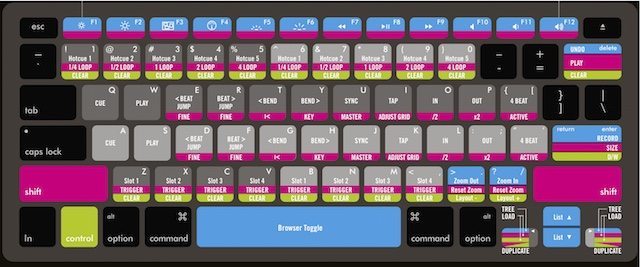
Traktor Keyboard Shortcuts
The default Traktor keyboard mapping shows how many commands can be jammed onto a keyboard.

Starting Simple Traktor: Simple Keyboard Mapping

To get started, add a new keyboard mapping to Traktor, through the controller manager. The controller manager is where all mappings are managed and where new commands can be assigned. To start we’re going to create a command that will load and play a song. There are a lot of commands that can be mapped in Traktor but we’ll start simple. After a command has been added to a mapping, click “Learn”, then click any key on the keyboard to assign the command. Once the command is mapped, click “Learn” again the key will trigger “Play”.
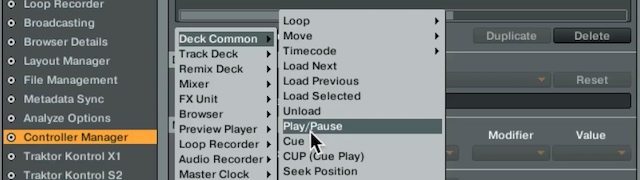
Adding Midi Commands
Add in —> Deck Common —> Play/Pause

Mapping Details: Interaction Mode + Assignment

There are 2 important functions that will need to be assigned for each command, the Interaction Mode and Assignment. The interaction mode consists of hold, toggle, and direct. Hold will only trigger the command as long as the key is being held (ex. track play will only play as long as key is held down), toggle triggers the command on/off (press key to play, press it again to pause), and direct which assigns the key to a specific state (pressing key can only be assigned to one value ex. play or pause). For buttons toggle is usually the best choice so that buttons or on/off switches in Traktor can be turned on/off with one button/key.

Assignment determines which deck (or FX bank in the case of FX) the command is assigned to. This makes it easy to split the keyboard or controller into groups or sections of Deck A and Deck B commands. So one row of keys could be assigned to Deck A commands and another could be assigned to Deck B commands.
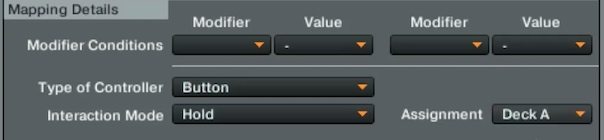
Interaction Mode and Assignment 

Safety Measures: Creating Shift Commands

One of the dangers of using the computer keyboard for mappings is that it can be easy to accidentally trigger commands when trying to search for a track. To prevent this from happening we can assign mappings to shift command, so the mapping will only be triggered when we have shift held and we press a key.
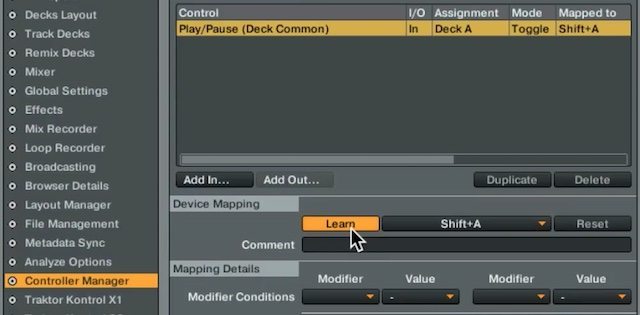
Failsafe shift command

Advanced Mapping: Multiple Commands, One Button

So far we’ve only assigned one command to one key which is pretty basic. The real power of midi mapping comes from mapping several commands to one key or button, which can help speed up the workflow and reduce the amount of buttons that need to be pressed to achieve a desired result. A great combination of commands to map to a button would be Play (toggle), Sync (direct), Select/Set+Store Hotcue (hot cue 1). Most DJs set the first cue point at the very start of this track. With this combination of commands DJs can throw in a new track, press a button and the track will start playing, in sync, and jump to the beginning of the song.
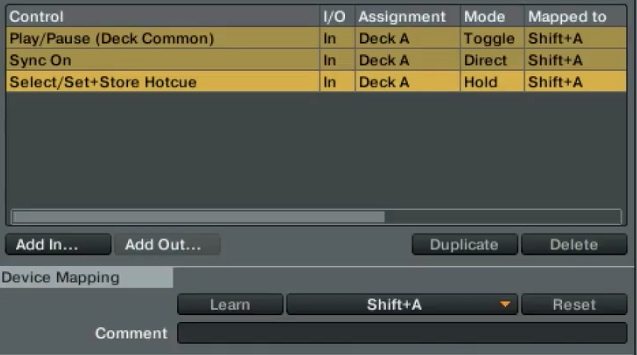
Multiple Commands
Assigning multiple commands to single keys can speed up your workflow and unlock new creative possibilities.

Create And Share Your Mapping

One of the greatest parts about being part of the DJ TechTools community is having access to “Maps“. Members of the community can upload/download custom mappings created by other DJs, this is a great way to breath life into an old controller and add some new functionality to it. So start creating your own mapping today and share it with the world.

Looking for your first controller?

Check out midi controllers in the DJTT Store!
 

Tags: basic midi mappingean goldenhow to mapkeyboard mappingmidi mappingmidi mapping tutorialTraktor Tipswhat is midi?
Share17Tweet11Share
Previous Post

djay 2 Now On Android, Pioneer DDJ-WeGo Support

Next Post

Plug and Play Pioneer CDJs with Traktor

Related Posts

Use your Midi Fighter Twister as an Audio-Reactive Visualizer
Ableton Live Tips

Use your Midi Fighter Twister as an Audio-Reactive Visualizer

June 23, 2025
Midi Fighter Twister controlling Traktor Pro 4 Stem decks
DJ Techniques / Tips

Ean’s powerful Midi Fighter Twister mapping for Traktor Pro 4’s Stems + Pattern Player

July 17, 2024
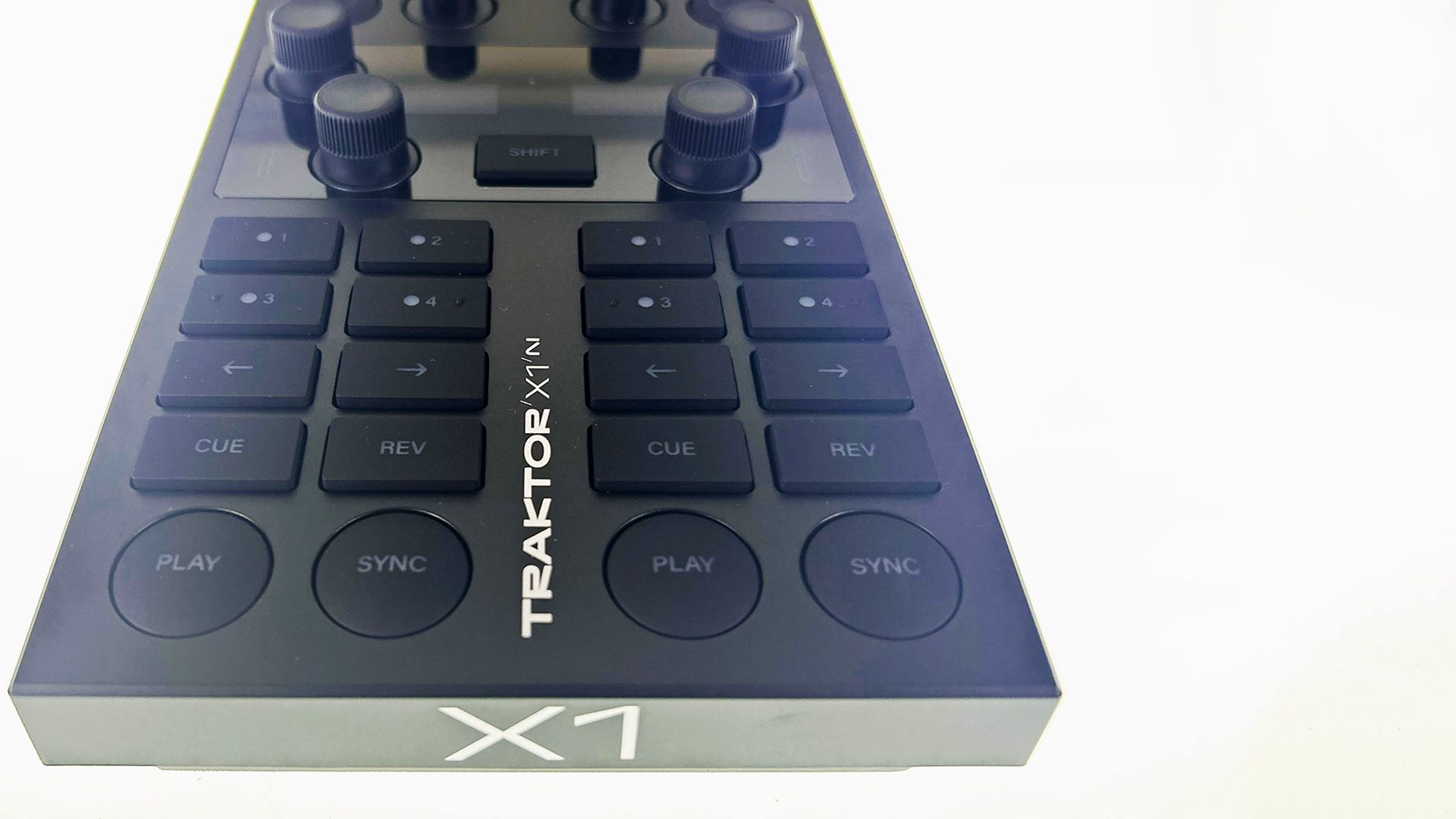
Traktor X1 MK3 – First Look
Controllerism

Traktor X1 MK3 – First Look

August 29, 2023
Load More
Next Post
Plug and Play Pioneer CDJs with Traktor

Plug and Play Pioneer CDJs with Traktor

Want to reach DJTT's audience here?

Shoot an email to advertising@djtechtools.com

DJTT ads
DJTT newsletter
Midi Fighter
Chat with us
  • ABOUT DJTT
  • CONTACT
  • PRIVACY
  • MIDI FIGHTER HELP
  • ABOUT DJTT
  • JOBS
  • CONTACT US
  • ADVERTISE
  • PRIVACY POLICY
  • ACCESSIBILITY STATEMENT

© 2024 DJ Techtools all rights reserved by DJ TechTools on all content unless otherwise noted.

No Result
View All Result
  • Blog
    • DJ Gear
      • DIY Projects
      • Gear Reviews
      • New Products
      • Controllerism
    • Techniques + Tips
      • Beginner DJ
      • Advanced DJ
      • Producer
      • Finger Drummer
    • News + Culture
      • Editorials + Opinions
      • Artist Interviews
      • Performances + Routines
      • How I Play
    • DJ Software Tutorials
      • Serato Tips
      • CDJ Tips
      • Ableton Live Tips
  • Store
    • Run by real DJs, not a corporation
    • DJ Controllers
      • Midi Fighter Twister
      • Midi Fighter Spectra
      • Midi Fighter 64
      • View All
    • Accessories
      • Chroma USB Drive for DJs
      • Chroma Caps
      • Chroma Cables Audio
      • Chroma Cables USB-A
      • Chroma Cables: USB-C
      • DJTT Gift Card
      • Midi Fighter T-Shirt
      • Keyboard Covers
      • Earplugs by V-Moda
    • Production Gear
    • Soundcards & Mixers
  • Community
    • Popular Forums
      • General Discussion
      • Buy & Sell
      • Reviews
      • Mixes
      • Music Production
      • Show Your Setup
      • Off Topic
    • Handy Links
      • New Posts
      • Private Messages
      • Register
      • Search
    • Midi Maps
      • Traktor
      • Ableton
      • Serato DJ
      • Midi Fighter 3D
      • Midi Fighter Twister
      • Midi Fighter Spectra
  • Midi Fighter
  • Chroma

© 2024 DJ Techtools all rights reserved by DJ TechTools on all content unless otherwise noted.

This website uses cookies. By continuing to use this website you are giving consent to cookies being used. Visit our Privacy and Cookie Policy.