

Every thursday we’ll be bringing back a helpful article from the DJTT archive. The article will be updated where necessary if any information is outdated. This article is from 2011.
My Macbook is a pretty powerful DJ laptop, but even that powerhouse has started taking a dump over the past 6 months. The problem is caused by 2 main culprits. First, more tracks every week means the 250 GB hard drive is always maxed out. Last, the system drive (HDD) is dragging its sorry butt and taking forever to process data.
The good news is that a close friend offered a clever way to solve both of those problems with one simple upgrade that costs anywhere from $250-$600. We would replace my CD/DVD drive with a 250 GB SSD drive (this would become my super fast system drive) and then swap out the old drive for a 750 GB HDD (3x the music space!) which would house all data. In today’s article, DJTT called up a professional IT specialist to show everyone how to perform the same mod yourself and super power any laptop into the ultimate DJ data machine.
2014 Update: If you have a Retina MacBook Pro or a Macbook Air, these models use different SSD drives so these steps won’t apply. You can purchase SSD’s for the Retina MacBook Pro here. However if you have a MacBook/MacBook Pro that’s uses a HDD and has a DVD/CD drive then this upgrade is for you.
Super Speed!
To really understand how much of an improvement an SSD can have on your computer, it’s best to see it in action. Check out the video below to see an SSD in action in a 2011 MacBook Pro.

Bring Your Laptop Back to Life
By Brandon Espinoza
The common answer to increasing the speed of your old laptop is to add more RAM. It is a common misconception that adding more RAM will make your computer drastically faster. Although increasing your RAM may help, it still has to receive data from your hard drive.
What is RAM?
RAM (Random Access Memory), simply put, is just a swap between your CPU and hard drive. In other words, the hard drive is sending programs and files to the RAM each time you do something on your computer. Things such as, starting your computer, opening programs or rendering music all heavily impact the RAM. One way of improving your computer memory performance is by installing a SSD drive.
What is an SSD?
SSD (Solid State Disk) is a storage drive that uses flash memory instead of disc platters. In the past, flash memory would lose its data once it had lost its power source, very similar to the function of RAM. Today, chip producers use NAND-based flash memory that is non-volatile, meaning that it can retain data even without power.
How do SSD’s differ from HDD’s?
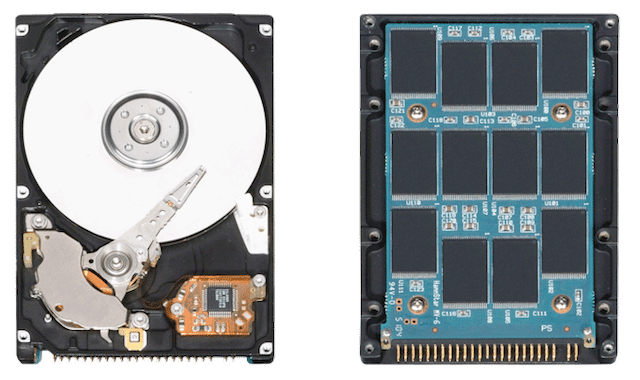
Physically speaking, SSD’s have moved to flash memory as mentioned above. In the past, hard drives functioned much like a record player. There are platters that spin, and a head that reads the data. Solid State Drives use electrical signals to access data, thus very fast compared to Rotary Hard Drives.
What are the Pro’s of SSD?
- Energy Efficient: Solid State Drives use less power than traditional Hard Disks. This is a great thing for laptop users as it can slightly increase your battery life.
- Durability: Solid State Drives are made to operate in extreme environments. They can withstand degrees up to 70 Celsius and are more impervious to shock and vibration because of their lack of moving parts. With no moving parts, you can rest assured that your music won’t cut out at the club when the bass is shaking your laptop apart!
- Speed: The latest Solid State Drives for laptops can push up to 550MB/s read speeds and 500MB/s write speeds. Regular 7200 RPM Rotary Hard Drives push about 60MB/s read and write. As you can see, Solid State Drives offer almost 10x the performance!
What are the Con’s of SSD?
- Life Expectancy: Solid States Drives haven’t been around for very long. With that said, it is hard to estimate how long these drives will last. Many Solid State Drive producers say that on average, SSD’s will last around 1,000,000 to 2,000,000 hours. Obviously if there is any accuracy to this claim, you won’t need to swap out your drive for a long time!
- Price: As of now, Solid State Drives cost about $2 per GB, where normal Rotary Hard Drives cost about 10 cents per GB. This is the main reason Solid State Drives haven’t made it into the consumer computing market.
2014 Update: The price of SSD’s have come down quite a bit since this article was originally posted. The cost per GB ranges from .50 – .90 cents depending on how big of an SSD you get. More storage usually gives you more bang for your buck.
INSTALLATION
WHERE TO GET THE GEAR
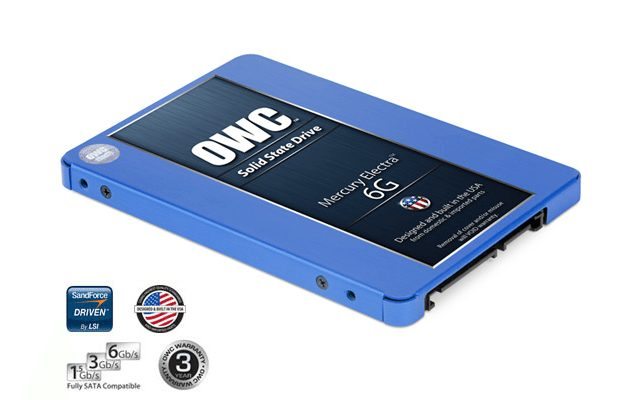
To do the full upgrade, you are going to need a few items:
- MacBook with CD/DVD drive
- OWC Data Doubler (for the SSD to live where your CD drive once did)
- 1 SSD Drive
- 1 Large Standard Drive (or SSD if you like to go really big!)
2014 Update: Most MacBooks (Pro) in the last couple years have shipped with 500GB as the standard HDD size. To help save some money you can use this drive as your storage/data drive rather than purchasing a new one.
Here are our recommended components followed by a less expensive option for those on a budget:
2011 Recommended Route $620
2011 Less Expensive Route $250
- Universal IBM OptiBay $20
- OCZ Vertex 2 SSD (60GB) $120
- Lite On CD/DVD Burner $37
- 750GB Toshiba 5400 RPM $70
2014 Recommended Route (For MacBooks with CD/DVD drives) $249
As you can see the price for this kind of upgrade has dropped substantially. So if you have an older MacBook that’s been running slow, consider this upgrade rather then spending $2000 on a new laptop. Another thing to note is that although you could purchase a cheaper 120 GB SSD, you can quickly fill it and find yourself constantly swapping files to the storage drive. A 240 GB SSD is the minimum I recommend to avoid this issue.
Have you installed an SSD in your computer? Let us know the improvements in the comments!



