DJ TechTools
  • Blog
    • DJ Gear
      • DIY Projects
      • Gear Reviews
      • New Products
      • Controllerism
    • Techniques + Tips
      • Beginner DJ
      • Advanced DJ
      • Producer
      • Finger Drummer
    • News + Culture
      • Editorials + Opinions
      • Artist Interviews
      • Performances + Routines
      • How I Play
    • DJ Software Tutorials
      • Serato Tips
        • Traktor Tips
      • CDJ Tips
      • Ableton Live Tips
  • Store
    • Run by real DJs, not a corporation
    • DJ Controllers
      • Midi Fighter Twister
      • Midi Fighter Spectra
      • Midi Fighter 64
      • View All
    • Accessories
      • Chroma USB Drive for DJs
      • Chroma Caps
      • Chroma Cables Audio
      • Chroma Cables USB-A
      • Chroma Cables: USB-C
      • DJTT Gift Card
      • Midi Fighter T-Shirt
      • Keyboard Covers
      • Earplugs by V-Moda
    • Production Gear
    • Soundcards & Mixers
  • Community
    • Popular Forums
      • General Discussion
      • Buy & Sell
      • Reviews
      • Mixes
      • Music Production
      • Show Your Setup
      • Off Topic
    • Handy Links
      • New Posts
      • Private Messages
      • Register
      • Search
    • Midi Maps
      • Traktor
      • Ableton
      • Serato DJ
      • Midi Fighter 3D
      • Midi Fighter Twister
      • Midi Fighter Spectra
  • Midi Fighter
  • Chroma
No Result
View All Result
DJ TechTools
  • Blog
    • DJ Gear
      • DIY Projects
      • Gear Reviews
      • New Products
      • Controllerism
    • Techniques + Tips
      • Beginner DJ
      • Advanced DJ
      • Producer
      • Finger Drummer
    • News + Culture
      • Editorials + Opinions
      • Artist Interviews
      • Performances + Routines
      • How I Play
    • DJ Software Tutorials
      • Serato Tips
        • Traktor Tips
      • CDJ Tips
      • Ableton Live Tips
  • Store
    • Run by real DJs, not a corporation
    • DJ Controllers
      • Midi Fighter Twister
      • Midi Fighter Spectra
      • Midi Fighter 64
      • View All
    • Accessories
      • Chroma USB Drive for DJs
      • Chroma Caps
      • Chroma Cables Audio
      • Chroma Cables USB-A
      • Chroma Cables: USB-C
      • DJTT Gift Card
      • Midi Fighter T-Shirt
      • Keyboard Covers
      • Earplugs by V-Moda
    • Production Gear
    • Soundcards & Mixers
  • Community
    • Popular Forums
      • General Discussion
      • Buy & Sell
      • Reviews
      • Mixes
      • Music Production
      • Show Your Setup
      • Off Topic
    • Handy Links
      • New Posts
      • Private Messages
      • Register
      • Search
    • Midi Maps
      • Traktor
      • Ableton
      • Serato DJ
      • Midi Fighter 3D
      • Midi Fighter Twister
      • Midi Fighter Spectra
  • Midi Fighter
  • Chroma
No Result
View All Result
DJ TechTools

Playing Vocal Samples Like An Instrument In Ableton

Post on FacebookTweet thisUpvote on Reddit

Ever wonder how artists like Flume and Flosstradamus are able to bend vocal samples and pitch them up/down like an instrument? It’s actually quite simple and is an extremely popular technique used in lots of trap, future bass, and new R&B tracks. Today, Multiplier, is going to show you how to create a vocal instrument that can be played with a MIDI controller in Ableton Live.

Choosing Your Vocal Samples

Vocal samples
Loopmasters has a large collection of vocal sample packs.

The first thing you’re going to need is a vocal sample. You can record your own, but often sample packs from Loopmasters will contain one shot vocal samples that can be used for this. Rap vocals tend to have a bit of edge and character with a strong attack which makes them really suitable for this technique. Since vocals from these packs have already been processed, you’ll start with a nice clean vocal that won’t need a lot of work to make it usable in the track. This lets you focus on creative fx processing on the vocal.

Finding The Root Note

Once you’ve chosen a vocal sample the next step is to determine the root note. Even though it may not sound like it, there is a defined root note. There are 2 ways to determine the room note. The first requires Ableton Live 9 or higher. Drag the clip onto an empty track, right click the clip and select “Convert Melody to Midi“. Ableton will attempt to determine the root note of the sample and create a new midi track with the root note in a midi clip.
Spectrum
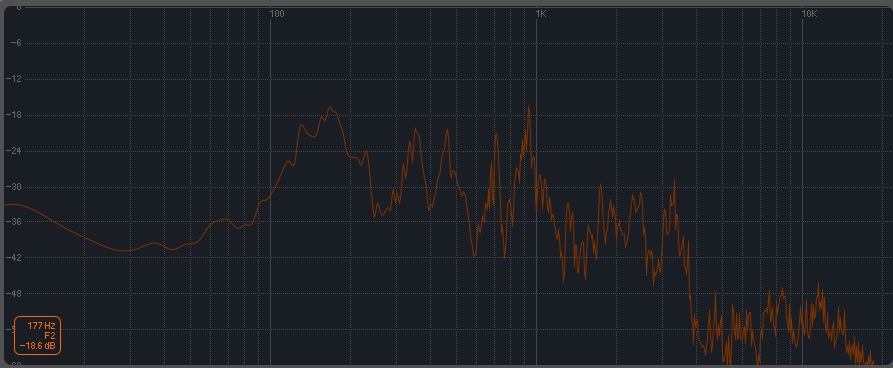
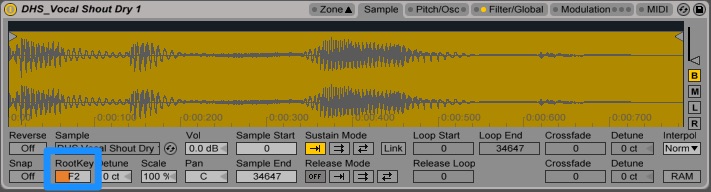
The root note of this particular vocal is F2.

If you don’t have Ableton Live 9, you can use Ableton’s Spectrum device (located in audio effects). Drag this device onto the track where your vocal sample is. Change the range of the spectrum analyzer to between 0 – (-60). This will limit the spectrum and make it easier to find the peaks. Now trigger the vocal sample. We want to look for the highest peak on the waveform. If you hover your mouse over the waveform at the highest point you’ll see the note and hertz displayed.

Creating The Instrument With Sampler
Root Note

Once you have the root note of the vocal sample the next step is to drag the vocal into Ableton’s “Sampler” device. Now this will turn the vocal into an instrument that can be played with a midi keyboard or a pad controller like Ableton Push 2 where the sample will be transposed across the keys. If necessary you may need to trim the start and end points of the sample in Sampler.

Spicing Up The Vocal With Effects

Now it’s time to add some effects to the vocal. Sometimes the vocal samples from sample packs can almost be too clean, making them sound flat and boring. An easy way to add some grit to the vocal is by adding a saturator. Additionally adding reverbs and delays to vocals are a great way to add some depth and space.

What other techniques would you like to learn in Ableton?

Let us know in the comments below!

Upgrade to the latest and greatest! get Ableton 10 from the DJTT Shop

Want to reach DJTT's audience here?

Shoot an email to advertising@djtechtools.com

DJTT ads
DJTT newsletter
Midi Fighter
Chat with us
  • ABOUT DJTT
  • CONTACT
  • PRIVACY
  • MIDI FIGHTER HELP
  • ABOUT DJTT
  • JOBS
  • CONTACT US
  • ADVERTISE
  • PRIVACY POLICY
  • ACCESSIBILITY STATEMENT

© 2024 DJ Techtools all rights reserved by DJ TechTools on all content unless otherwise noted.

No Result
View All Result
  • Blog
    • DJ Gear
      • DIY Projects
      • Gear Reviews
      • New Products
      • Controllerism
    • Techniques + Tips
      • Beginner DJ
      • Advanced DJ
      • Producer
      • Finger Drummer
    • News + Culture
      • Editorials + Opinions
      • Artist Interviews
      • Performances + Routines
      • How I Play
    • DJ Software Tutorials
      • Serato Tips
      • CDJ Tips
      • Ableton Live Tips
  • Store
    • Run by real DJs, not a corporation
    • DJ Controllers
      • Midi Fighter Twister
      • Midi Fighter Spectra
      • Midi Fighter 64
      • View All
    • Accessories
      • Chroma USB Drive for DJs
      • Chroma Caps
      • Chroma Cables Audio
      • Chroma Cables USB-A
      • Chroma Cables: USB-C
      • DJTT Gift Card
      • Midi Fighter T-Shirt
      • Keyboard Covers
      • Earplugs by V-Moda
    • Production Gear
    • Soundcards & Mixers
  • Community
    • Popular Forums
      • General Discussion
      • Buy & Sell
      • Reviews
      • Mixes
      • Music Production
      • Show Your Setup
      • Off Topic
    • Handy Links
      • New Posts
      • Private Messages
      • Register
      • Search
    • Midi Maps
      • Traktor
      • Ableton
      • Serato DJ
      • Midi Fighter 3D
      • Midi Fighter Twister
      • Midi Fighter Spectra
  • Midi Fighter
  • Chroma

© 2024 DJ Techtools all rights reserved by DJ TechTools on all content unless otherwise noted.

This website uses cookies. By continuing to use this website you are giving consent to cookies being used. Visit our Privacy and Cookie Policy.