DJ TechTools
  • Blog
    • DJ Gear
      • DIY Projects
      • Gear Reviews
      • New Products
      • Controllerism
    • Techniques + Tips
      • Beginner DJ
      • Advanced DJ
      • Producer
      • Finger Drummer
    • News + Culture
      • Editorials + Opinions
      • Artist Interviews
      • Performances + Routines
      • How I Play
    • DJ Software Tutorials
      • Serato Tips
        • Traktor Tips
      • CDJ Tips
      • Ableton Live Tips
  • Store
    • Run by real DJs, not a corporation
    • DJ Controllers
      • Midi Fighter Twister
      • Midi Fighter Spectra
      • Midi Fighter 64
      • View All
    • Accessories
      • Chroma USB Drive for DJs
      • Chroma Caps
      • Chroma Cables Audio
      • Chroma Cables USB-A
      • Chroma Cables: USB-C
      • DJTT Gift Card
      • Midi Fighter T-Shirt
      • Keyboard Covers
      • Earplugs by V-Moda
    • Production Gear
    • Soundcards & Mixers
  • Community
    • Popular Forums
      • General Discussion
      • Buy & Sell
      • Reviews
      • Mixes
      • Music Production
      • Show Your Setup
      • Off Topic
    • Handy Links
      • New Posts
      • Private Messages
      • Register
      • Search
    • Midi Maps
      • Traktor
      • Ableton
      • Serato DJ
      • Midi Fighter 3D
      • Midi Fighter Twister
      • Midi Fighter Spectra
  • Midi Fighter
  • Chroma
No Result
View All Result
DJ TechTools
  • Blog
    • DJ Gear
      • DIY Projects
      • Gear Reviews
      • New Products
      • Controllerism
    • Techniques + Tips
      • Beginner DJ
      • Advanced DJ
      • Producer
      • Finger Drummer
    • News + Culture
      • Editorials + Opinions
      • Artist Interviews
      • Performances + Routines
      • How I Play
    • DJ Software Tutorials
      • Serato Tips
        • Traktor Tips
      • CDJ Tips
      • Ableton Live Tips
  • Store
    • Run by real DJs, not a corporation
    • DJ Controllers
      • Midi Fighter Twister
      • Midi Fighter Spectra
      • Midi Fighter 64
      • View All
    • Accessories
      • Chroma USB Drive for DJs
      • Chroma Caps
      • Chroma Cables Audio
      • Chroma Cables USB-A
      • Chroma Cables: USB-C
      • DJTT Gift Card
      • Midi Fighter T-Shirt
      • Keyboard Covers
      • Earplugs by V-Moda
    • Production Gear
    • Soundcards & Mixers
  • Community
    • Popular Forums
      • General Discussion
      • Buy & Sell
      • Reviews
      • Mixes
      • Music Production
      • Show Your Setup
      • Off Topic
    • Handy Links
      • New Posts
      • Private Messages
      • Register
      • Search
    • Midi Maps
      • Traktor
      • Ableton
      • Serato DJ
      • Midi Fighter 3D
      • Midi Fighter Twister
      • Midi Fighter Spectra
  • Midi Fighter
  • Chroma
No Result
View All Result
DJ TechTools

Midi Fighter Multi-Sample: Button Length = Different Sounds

Post on FacebookTweet thisUpvote on Reddit

During any type of performance, being able to have unique layers on your set of controls is key – that’s why shift layers and pages exist on MIDI controllers. But what if all you needed for a second and third set of sounds was to change the button length (how long you hold a button for)? That’s exactly what this Midi Fighter Multi-Sample Patch for Ableton Live does. Read on get a free download of this powerful tool!

Midi Fighter Multi-Sample is a Max for Live patch designed to work in conjunction with the Drum Rack in Ableton Live in order to facilitate the allocation of up to three separate samples to each arcade trigger button on the Midi Fighter controller by assigning to the buttons a different output velocity depending of the duration for which they are depressed.

To get this powerful patch, hit the button below to download it for free
(DJTT membership is just a quick login)

free-download-djtt-members-new

How To Set Up Midi Fighter Multi-Sample

Once you’ve downloaded the patch, there’s just a few steps to get it set up:

  • First ensure the output velocity of the Midi Fighter is set to 127 in the Midi Fighter Utility
  • Drop the first sample you wish to assign to any one of the trigger buttons on the Midi Fighter into the corresponding pitch slot in the Drum Rack and set its decay and release levels to maximum (60s).
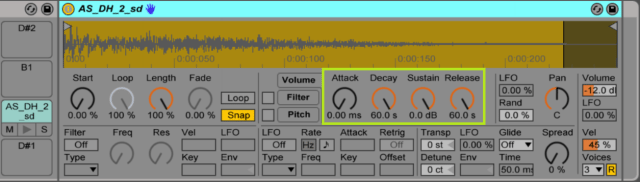
1. ADSR-Highlight

  • Create a secondary Instrument Rack containing the sample by highlighting the Simpler sample-editing window and pressing cmd+G (Mac) or ctrl+G (Windows).
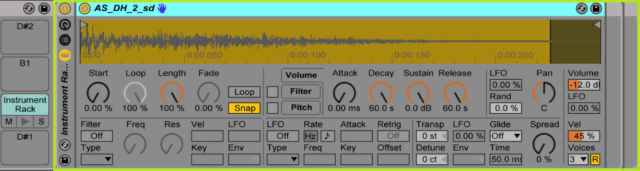
2. Group-Highlight

  • Next, select the Chain List editor in the newly created Instrument Rack and drop any other samples you wish to assign to the same trigger button on the Midi Fighter into the Chain List window (up to three in total), remembering to again set their decay and release levels to maximum.
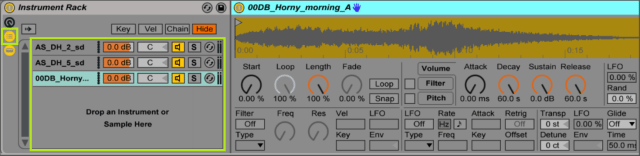
3. Chain List-Highlight

  • Now drop the Midi Fighter Multi-Sample patch into the appropriate pitch slot within the Drum Rack before the newly created Instrument Rack containing your samples.
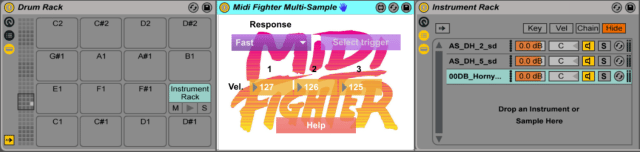
4. MF Multi-Sample

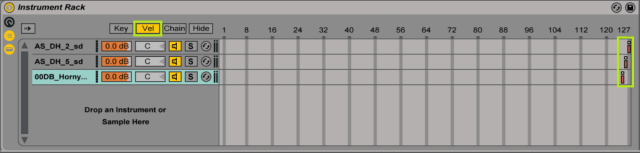
  • Position the corresponding sliders for each of the samples in the Velocity Zone Editor of the Chain List to match the velocities displayed on the interface of the Midi Fighter Multi-Sample patch.5. Velocity Zone-Highlight
    These are listed from first to last in order of which they will be triggered, depending on the duration for which the trigger button is depressed, and are set by default to 127, 126 and 125 to result in as little variation as possible between the output amplitudes of each of the samples. However, all three velocity values are customizable, which provides the added benefit of being able to trigger a single sample with different output velocities by bypassing the use of a secondary Instrument Rack along with the Chain List and Velocity Zone Editor.
  • Finally, while the trigger selection button on the Midi Fighter Multi-Sample patch is deactivated and reads “Select trigger”, press the trigger button on the Midi Fighter to which you have assigned the samples and then activate the trigger selection button so that it reads “Ready”.

Where’d This Idea Come From?

The inspiration for this patch came while watching ill.Gates’ How I Play video, where he achieves a similar result using the Note Length MIDI Effect in Ableton Live, which can be seen here (jump to 6:45):

How Midi Fighter Multi-Sample Works

The patch works by ascertaining the duration in milliseconds between note-on and note-off messages received from the Midi Fighter and comparing the value against those of three predetermined time brackets, which are themselves subject to the response speed setting of either “fast” or “slow”. Triggering of the third sample in the chronological order involves a slightly different process as it does not require a note-off message from the Midi Fighter and instead happens as soon as the maximum duration threshold of the time bracket for the second sample is exceeded.

For a more in-depth explanation as to the inner workings of the patch, check out this video tutorial:

Want to reach DJTT's audience here?

Shoot an email to advertising@djtechtools.com

DJTT ads
DJTT newsletter
Midi Fighter
Chat with us
  • ABOUT DJTT
  • CONTACT
  • PRIVACY
  • MIDI FIGHTER HELP
  • ABOUT DJTT
  • JOBS
  • CONTACT US
  • ADVERTISE
  • PRIVACY POLICY
  • ACCESSIBILITY STATEMENT

© 2024 DJ Techtools all rights reserved by DJ TechTools on all content unless otherwise noted.

No Result
View All Result
  • Blog
    • DJ Gear
      • DIY Projects
      • Gear Reviews
      • New Products
      • Controllerism
    • Techniques + Tips
      • Beginner DJ
      • Advanced DJ
      • Producer
      • Finger Drummer
    • News + Culture
      • Editorials + Opinions
      • Artist Interviews
      • Performances + Routines
      • How I Play
    • DJ Software Tutorials
      • Serato Tips
      • CDJ Tips
      • Ableton Live Tips
  • Store
    • Run by real DJs, not a corporation
    • DJ Controllers
      • Midi Fighter Twister
      • Midi Fighter Spectra
      • Midi Fighter 64
      • View All
    • Accessories
      • Chroma USB Drive for DJs
      • Chroma Caps
      • Chroma Cables Audio
      • Chroma Cables USB-A
      • Chroma Cables: USB-C
      • DJTT Gift Card
      • Midi Fighter T-Shirt
      • Keyboard Covers
      • Earplugs by V-Moda
    • Production Gear
    • Soundcards & Mixers
  • Community
    • Popular Forums
      • General Discussion
      • Buy & Sell
      • Reviews
      • Mixes
      • Music Production
      • Show Your Setup
      • Off Topic
    • Handy Links
      • New Posts
      • Private Messages
      • Register
      • Search
    • Midi Maps
      • Traktor
      • Ableton
      • Serato DJ
      • Midi Fighter 3D
      • Midi Fighter Twister
      • Midi Fighter Spectra
  • Midi Fighter
  • Chroma

© 2024 DJ Techtools all rights reserved by DJ TechTools on all content unless otherwise noted.

This website uses cookies. By continuing to use this website you are giving consent to cookies being used. Visit our Privacy and Cookie Policy.