

DJ TechTools
  • Blog
    • DJ Gear
      • DIY Projects
      • Gear Reviews
      • New Products
      • Controllerism
    • Techniques + Tips
      • Beginner DJ
      • Advanced DJ
      • Producer
      • Finger Drummer
    • News + Culture
      • Editorials + Opinions
      • Artist Interviews
      • Performances + Routines
      • How I Play
    • DJ Software Tutorials
      • Serato Tips
        • Traktor Tips
      • CDJ Tips
      • Ableton Live Tips
  • Store
    • Run by real DJs, not a corporation
    • DJ Controllers
      • Midi Fighter Twister
      • Midi Fighter Spectra
      • Midi Fighter 64
      • View All
    • Accessories
      • Chroma USB Drive for DJs
      • Chroma Caps
      • Chroma Cables Audio
      • Chroma Cables USB-A
      • Chroma Cables: USB-C
      • DJTT Gift Card
      • Midi Fighter T-Shirt
      • Keyboard Covers
      • Earplugs by V-Moda
    • Production Gear
    • Soundcards & Mixers
  • Community
    • Popular Forums
      • General Discussion
      • Buy & Sell
      • Reviews
      • Mixes
      • Music Production
      • Show Your Setup
      • Off Topic
    • Handy Links
      • New Posts
      • Private Messages
      • Register
      • Search
    • Midi Maps
      • Traktor
      • Ableton
      • Serato DJ
      • Midi Fighter 3D
      • Midi Fighter Twister
      • Midi Fighter Spectra
  • Midi Fighter
  • Chroma
No Result
View All Result
DJ TechTools
  • Blog
    • DJ Gear
      • DIY Projects
      • Gear Reviews
      • New Products
      • Controllerism
    • Techniques + Tips
      • Beginner DJ
      • Advanced DJ
      • Producer
      • Finger Drummer
    • News + Culture
      • Editorials + Opinions
      • Artist Interviews
      • Performances + Routines
      • How I Play
    • DJ Software Tutorials
      • Serato Tips
        • Traktor Tips
      • CDJ Tips
      • Ableton Live Tips
  • Store
    • Run by real DJs, not a corporation
    • DJ Controllers
      • Midi Fighter Twister
      • Midi Fighter Spectra
      • Midi Fighter 64
      • View All
    • Accessories
      • Chroma USB Drive for DJs
      • Chroma Caps
      • Chroma Cables Audio
      • Chroma Cables USB-A
      • Chroma Cables: USB-C
      • DJTT Gift Card
      • Midi Fighter T-Shirt
      • Keyboard Covers
      • Earplugs by V-Moda
    • Production Gear
    • Soundcards & Mixers
  • Community
    • Popular Forums
      • General Discussion
      • Buy & Sell
      • Reviews
      • Mixes
      • Music Production
      • Show Your Setup
      • Off Topic
    • Handy Links
      • New Posts
      • Private Messages
      • Register
      • Search
    • Midi Maps
      • Traktor
      • Ableton
      • Serato DJ
      • Midi Fighter 3D
      • Midi Fighter Twister
      • Midi Fighter Spectra
  • Midi Fighter
  • Chroma
No Result
View All Result
DJ TechTools

Ill Gates’ Top 5 Tips For Midi Fighter Twister and 3D

Post on FacebookTweet thisUpvote on Reddit

ill.Gates has been a die-hard Midi Fighter fan for years – both in the studio and in live DJing/finger drumming environments. In today’s tutorial video, ill shares five of his favorite tips for both the Midi Fighter Twister and the Midi Fighter 3D. Watch the full thing inside; many of these tips are useful even if you don’t use Ableton or Midi Fighters!

Want a quick reference of some of the Midi Fighter tips that ill.Gates shares in the video above? All five are quickly detailed below: 

Tip #1: Push and Twist

(for Midi Fighter Twister)

This one is pretty simple – but a powerful way to use a Twister. Simply MIDI-map the On/Off switch of an effect to an encoder’s push button. Then map the same encoder’s rotation to the FX parameters – so you have a push-down and twist effects box!

Works well with: filters, beat repeats, distortion – almost any type of effect!

Tip #2: Effects Chain Selector

(for Midi Fighter Twister)

One knob is used to select the effect in an effects chain, and the second modulates the effect. Drag two Audio Effects into an Audio Effect Rack in Ableton Live. Then, use the Chain selector button and make half of the chain into the first effect and the second half into the other.

Effects Chain Selector

Map the Chain selector to the first Macro knob in the Effect Rack, and the audio effect controls (amount, frequency, etc) to the second Macro.

You can do this with any number of effects, splitting up one knob into a mega-selector for the rest of your controls.

Tip #3: Visual Metronomes
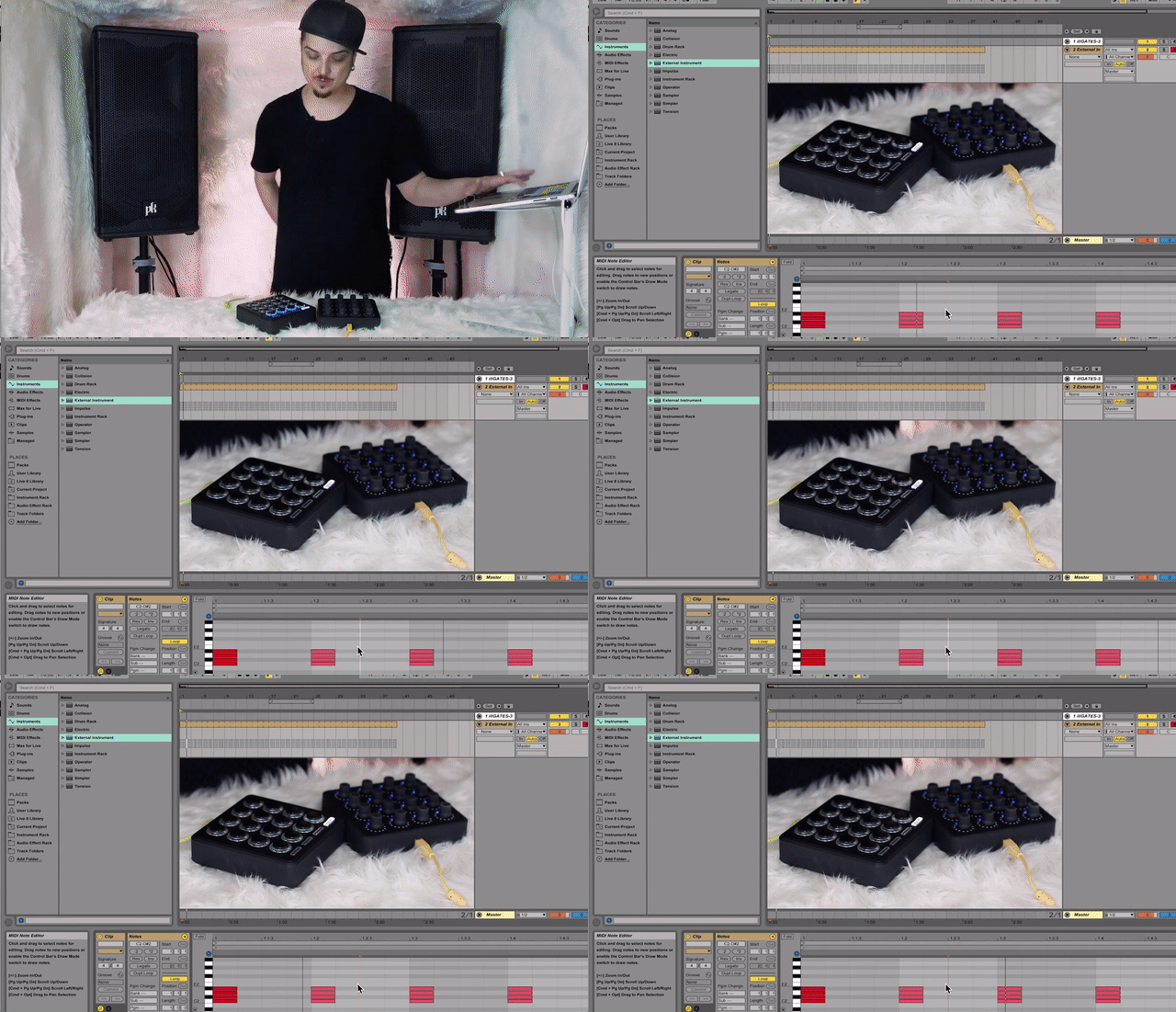
Metronome Midi Fighter

This is useful for finger drumming routines, and keeping time during them. You can quickly make a visual metronome by sending MIDI from Ableton into any Midi Fighter.

  • Make a new MIDI channel in Ableton
  • Under MIDI To output for the device, select “Configure” – this opens the MIDI devices
  • Select Track and Remote MIDI output for the Midi Fighter
  • Select the Midi Fighter in the Midi To output
  • Select the channel to illuminate the lights on your controller (on MF3D, its Channel 4)
  • Make a looping MIDI clip every beat for the lights of your choice – it will flash in time with your Ableton project.
  • The Velocity of the MIDI notes will change the color that the lights illuminate

When making a four-beat pattern, you can have the downbeat be a different color – so you always know when you’re back on the one.

Tip #4: Cue Point Takeover

for Midi Fighter 3D

This tip allows you to quickly take a finished and mastered track and turn it into a live routine – ill.Gates compares this to what DMC-style DJs do.

Dylan also uses this technique as a way to play the entire track through from the cue point – it can be a great fail-safe if anything goes wrong during a routine.

You’ll use choke groups with a Drum Rack to differentiate – this one is a bit more complicated, so we recommend watching the video to get the full instructions (this tip starts around 11:45).

Tip #5: The Ill Gate

This is a gate designed for “getting ill” – similar to a transform button on early DJ mixers.

To do this:

  • Create an effects chain
  • Add a Utility plugin and map the Gain to a Macro in the rack – minimize at 0 with maximum all the way down
  • Duplicate the Utility plugin twice (it will retain the Macro mapping) – this will mute your completely
  • Make a second effect in your chain – call it IN
  • Map the second Macro to Speaker On on the IN chain

Now you have a knob that mutes the track completely – and one next to it that turns it back on. This makes it really easy to gate and get ill! 

Have questions about these techniques or some of your own to share? Speak up in the comments below! 


Midi Fighter Questions? Talk with our Live Chat team in the DJTT store to find out why we get nearly 100% positive feedback from DJs like you.

matias

  • Who? Matias
  • Years experience: DJing since 2005 and producing since 2008
  • Why he’s helpful: Matias has used nearly every DJ software out there, has helped create tons of DJTT’s best mappings with over 25k downloads, is a DJTT product expert, teacher, and can answer pretty much any gear question you can think of. Think of him as the super helpful guy behind the counter at a record store with lots of great suggestions. He’s an amazing resource.


 

Want to reach DJTT's audience here?

Shoot an email to advertising@djtechtools.com

DJTT ads
DJTT newsletter
Midi Fighter
Chat with us
  • ABOUT DJTT
  • CONTACT
  • PRIVACY
  • MIDI FIGHTER HELP
  • ABOUT DJTT
  • JOBS
  • CONTACT US
  • ADVERTISE
  • PRIVACY POLICY
  • ACCESSIBILITY STATEMENT

© 2024 DJ Techtools all rights reserved by DJ TechTools on all content unless otherwise noted.

No Result
View All Result
  • Blog
    • DJ Gear
      • DIY Projects
      • Gear Reviews
      • New Products
      • Controllerism
    • Techniques + Tips
      • Beginner DJ
      • Advanced DJ
      • Producer
      • Finger Drummer
    • News + Culture
      • Editorials + Opinions
      • Artist Interviews
      • Performances + Routines
      • How I Play
    • DJ Software Tutorials
      • Serato Tips
      • CDJ Tips
      • Ableton Live Tips
  • Store
    • Run by real DJs, not a corporation
    • DJ Controllers
      • Midi Fighter Twister
      • Midi Fighter Spectra
      • Midi Fighter 64
      • View All
    • Accessories
      • Chroma USB Drive for DJs
      • Chroma Caps
      • Chroma Cables Audio
      • Chroma Cables USB-A
      • Chroma Cables: USB-C
      • DJTT Gift Card
      • Midi Fighter T-Shirt
      • Keyboard Covers
      • Earplugs by V-Moda
    • Production Gear
    • Soundcards & Mixers
  • Community
    • Popular Forums
      • General Discussion
      • Buy & Sell
      • Reviews
      • Mixes
      • Music Production
      • Show Your Setup
      • Off Topic
    • Handy Links
      • New Posts
      • Private Messages
      • Register
      • Search
    • Midi Maps
      • Traktor
      • Ableton
      • Serato DJ
      • Midi Fighter 3D
      • Midi Fighter Twister
      • Midi Fighter Spectra
  • Midi Fighter
  • Chroma

© 2024 DJ Techtools all rights reserved by DJ TechTools on all content unless otherwise noted.

This website uses cookies. By continuing to use this website you are giving consent to cookies being used. Visit our Privacy and Cookie Policy.