

DJ TechTools
  • Blog
    • DJ Gear
      • DIY Projects
      • Gear Reviews
      • New Products
      • Controllerism
    • Techniques + Tips
      • Beginner DJ
      • Advanced DJ
      • Producer
      • Finger Drummer
    • News + Culture
      • Editorials + Opinions
      • Artist Interviews
      • Performances + Routines
      • How I Play
    • DJ Software Tutorials
      • Serato Tips
        • Traktor Tips
      • CDJ Tips
      • Ableton Live Tips
  • Store
    • Run by real DJs, not a corporation
    • DJ Controllers
      • Midi Fighter Twister
      • Midi Fighter Spectra
      • Midi Fighter 64
      • View All
    • Accessories
      • Chroma USB Drive for DJs
      • Chroma Caps
      • Chroma Cables Audio
      • Chroma Cables USB-A
      • Chroma Cables: USB-C
      • DJTT Gift Card
      • Midi Fighter T-Shirt
      • Keyboard Covers
      • Earplugs by V-Moda
    • Production Gear
    • Soundcards & Mixers
  • Community
    • Popular Forums
      • General Discussion
      • Buy & Sell
      • Reviews
      • Mixes
      • Music Production
      • Show Your Setup
      • Off Topic
    • Handy Links
      • New Posts
      • Private Messages
      • Register
      • Search
    • Midi Maps
      • Traktor
      • Ableton
      • Serato DJ
      • Midi Fighter 3D
      • Midi Fighter Twister
      • Midi Fighter Spectra
  • Midi Fighter
  • Chroma
No Result
View All Result
DJ TechTools
  • Blog
    • DJ Gear
      • DIY Projects
      • Gear Reviews
      • New Products
      • Controllerism
    • Techniques + Tips
      • Beginner DJ
      • Advanced DJ
      • Producer
      • Finger Drummer
    • News + Culture
      • Editorials + Opinions
      • Artist Interviews
      • Performances + Routines
      • How I Play
    • DJ Software Tutorials
      • Serato Tips
        • Traktor Tips
      • CDJ Tips
      • Ableton Live Tips
  • Store
    • Run by real DJs, not a corporation
    • DJ Controllers
      • Midi Fighter Twister
      • Midi Fighter Spectra
      • Midi Fighter 64
      • View All
    • Accessories
      • Chroma USB Drive for DJs
      • Chroma Caps
      • Chroma Cables Audio
      • Chroma Cables USB-A
      • Chroma Cables: USB-C
      • DJTT Gift Card
      • Midi Fighter T-Shirt
      • Keyboard Covers
      • Earplugs by V-Moda
    • Production Gear
    • Soundcards & Mixers
  • Community
    • Popular Forums
      • General Discussion
      • Buy & Sell
      • Reviews
      • Mixes
      • Music Production
      • Show Your Setup
      • Off Topic
    • Handy Links
      • New Posts
      • Private Messages
      • Register
      • Search
    • Midi Maps
      • Traktor
      • Ableton
      • Serato DJ
      • Midi Fighter 3D
      • Midi Fighter Twister
      • Midi Fighter Spectra
  • Midi Fighter
  • Chroma
No Result
View All Result
DJ TechTools

How To Color Code Tracks In Your DJ Collection

Post on FacebookTweet thisUpvote on Reddit

Looking for a good New Year’s resolution? How about adding a new level of organization to your DJ music collection; using color coding. In today’s article, we’ve rounded up a few great ways to use track color coding to your advantage when prepping your library.
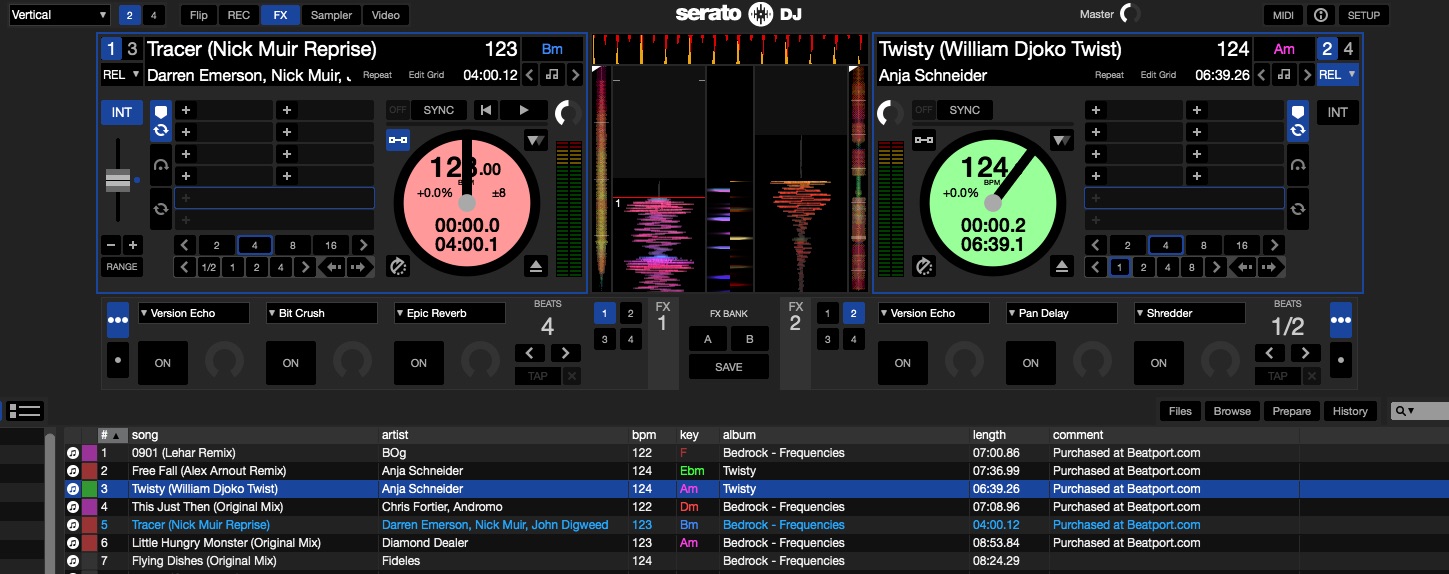
Every single modern DJ platform now has track-based color coding – from CDJs to Serato DJ, and (just recently), Traktor Pro. Serato DJ probably has the best implementation – they also have color-codable cues and loops, and when you drop a color-coded track onto a deck, the platter changes colors to match the code.
Serato DJ’s color coding changes the actual platter colors


What’s Worth Color Coding?

The number one tip I give to anyone looking to organize their DJ library is always the same:

Organize tracks in a way that will help you remember things better.

Create a system specifically for you and your music - not for someone else's collection.

Color coding is great for picking out secondary groups within larger collections of objects. Your brain is able to quickly pick out colors, and it doesn’t involve reading any information.

You already have crates or playlists – so in general, it doesn’t make much sense to use colors for concepts like “play these songs for tonight’s gig” or “these are techno songs I bought this month”. You also have to consider what your DJ software will already make apparent in the interface. For instance, you probably won’t want to use a color for marking a track after you’ve already played it in a night – every DJ software already does this.

Ideas For What DJs Can Color Code
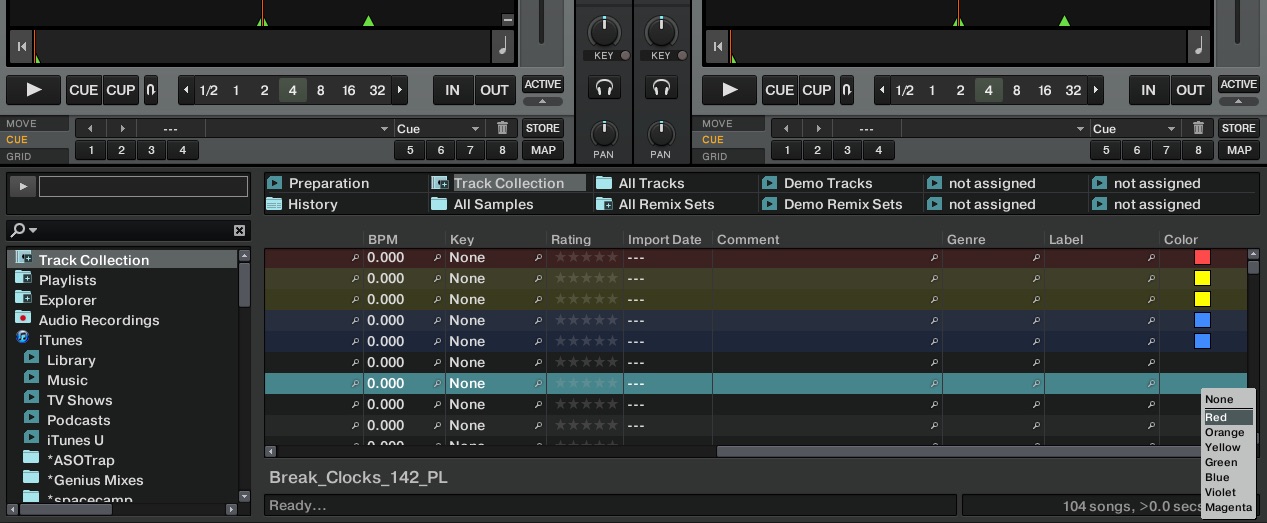
Color coding column in Traktor Pro 2.11.1

We’ve collected a few different ideas of color coding below for DJ libraries. Remember – a great litmus test for a color-based idea is asking yourself “What do I need to be able to pick out from my playlists at a glance?”

1. Group Tracks That Mix Well Together

When practicing, you’ll often find great combinations of tracks that work really well together. This might not be at all obvious from their name, key, and BPM information – so instead, use color to tag the tracks and have them stand out.

Worth noting, in Rekordbox DJ, there’s a better way to do this: you can mark two tracks as “Matching Tracks”, and then they will show up in the “Related Tracks” filter in the software.
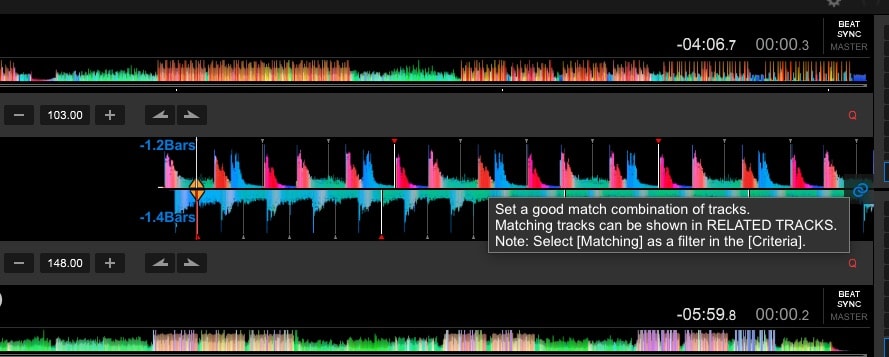
The link icon in Rekordbox DJ is good for remembering great mixes

2. Color Code Energy/Mood/Vibe

Based on a quick survey around various forums, the most common way for DJs to use color coding seems to be on their own system of mood, energy, or vibe. Here’s one comment on the Virtual DJ forums that shares his own system:
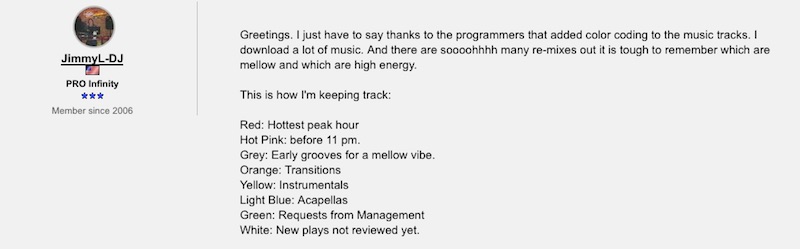
You could also use an energy detection algorithm like Mixed In Key and use the results from that to add color labels. But be warned, anything that becomes automated is far less likely to be something that helps you remember. If you mark every track that you know fills the dance floor with a Red color (for “red hot bangers!”), that’s far more valuable than marking hundreds of tracks at the same time based on what an algorithm tells you.

3. Group Tracks With Their Appropriate Samples

Are you a DJ who does a lot of routines, sampling, and scratching? Even if you have all your routines well-ordered in playlists, it makes a lot of sense to color code a routine. Put all the tracks that you use in one segment as the same color. This helps divide up individual routine segments if you’re pulling from a larger playlist.

4. Explicit / Clean / Do Not Play
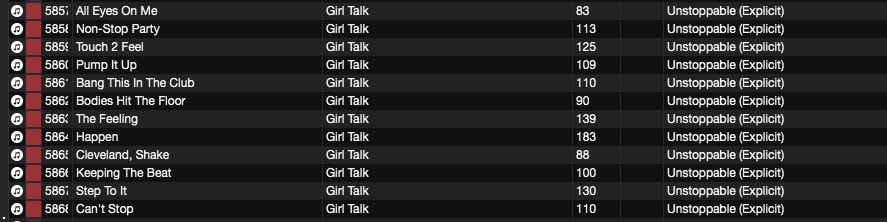
Red colors indicating “Hey, don’t play these tracks around people who are easily offended.”

Ever played an explicit track and realized that maybe it wasn’t the right time or place for it? This tip is for every mobile DJ that plays family friendly gigs or is hired out by schools / parents for various events.

If you have all of your explicit tracks marked as one color (red) and clean versions marked as another (green), it makes it very easy to verify, at a glance, that you’re playing the right version. Adding “(Explicit)” to the title sometimes works, but that’s more information in the track field. Try using colors instead.

5. During-Gig Library Maintenance Notes

A great thing about color is that it can be easily changed during a gig as you notice things. For that reason, many DJs will use it to mark tracks that they want to remove entirely from their collection. Download a crappy version of a song, or hate a remix and never want to play it again? Mark that track with a distinct color (black or white might work well).

Then, when you do your regular library prep/maintenance, select all songs of that color and delete them. Done!

6. Key, Maybe

Some DJ software shows colors with keys already – but often they’re preselected by the program. If you want to set your own colors for keys, it might be beneficial to you to quickly see what songs mix well. The Camelot/Open key notation already does a pretty good job of being a quick-to-see piece of metadata, so thus our “maybe” label on this tip.
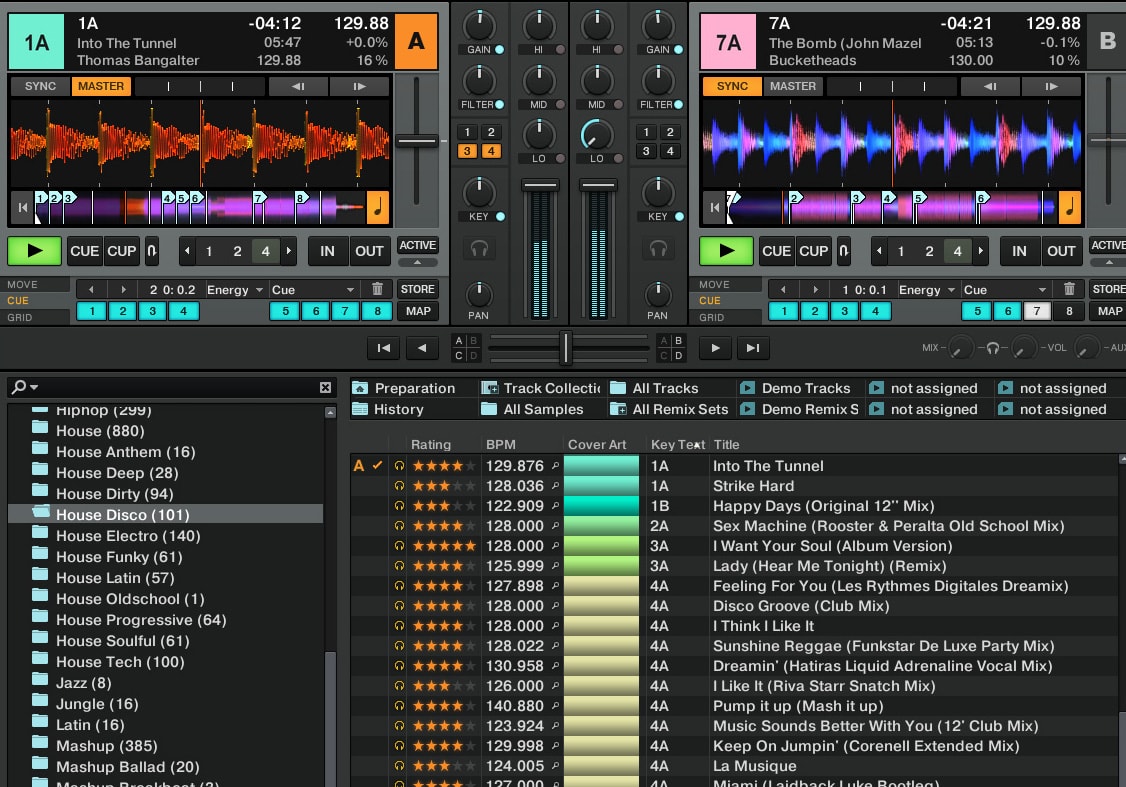
bascurtiz’s cover art key colorization in Traktor Pro

We did want to point out a very clever alternative that DJTT forum member bascurtiz made. Traktor only shows color for key when you sort by it, so instead, he’s using album/cover art for keys. This also means that the color shows up in the deck header (see screenshot above) – making it a lot more like Serato’s colorization. Read the post here and download his custom cover art labels.

Do you use colors in a different way that what we’ve outlined here? Share your unique system in the comments below.


Want to reach DJTT's audience here?

Shoot an email to advertising@djtechtools.com

DJTT ads
DJTT newsletter
Midi Fighter
Chat with us
  • ABOUT DJTT
  • CONTACT
  • PRIVACY
  • MIDI FIGHTER HELP
  • ABOUT DJTT
  • JOBS
  • CONTACT US
  • ADVERTISE
  • PRIVACY POLICY
  • ACCESSIBILITY STATEMENT

© 2024 DJ Techtools all rights reserved by DJ TechTools on all content unless otherwise noted.

No Result
View All Result
  • Blog
    • DJ Gear
      • DIY Projects
      • Gear Reviews
      • New Products
      • Controllerism
    • Techniques + Tips
      • Beginner DJ
      • Advanced DJ
      • Producer
      • Finger Drummer
    • News + Culture
      • Editorials + Opinions
      • Artist Interviews
      • Performances + Routines
      • How I Play
    • DJ Software Tutorials
      • Serato Tips
      • CDJ Tips
      • Ableton Live Tips
  • Store
    • Run by real DJs, not a corporation
    • DJ Controllers
      • Midi Fighter Twister
      • Midi Fighter Spectra
      • Midi Fighter 64
      • View All
    • Accessories
      • Chroma USB Drive for DJs
      • Chroma Caps
      • Chroma Cables Audio
      • Chroma Cables USB-A
      • Chroma Cables: USB-C
      • DJTT Gift Card
      • Midi Fighter T-Shirt
      • Keyboard Covers
      • Earplugs by V-Moda
    • Production Gear
    • Soundcards & Mixers
  • Community
    • Popular Forums
      • General Discussion
      • Buy & Sell
      • Reviews
      • Mixes
      • Music Production
      • Show Your Setup
      • Off Topic
    • Handy Links
      • New Posts
      • Private Messages
      • Register
      • Search
    • Midi Maps
      • Traktor
      • Ableton
      • Serato DJ
      • Midi Fighter 3D
      • Midi Fighter Twister
      • Midi Fighter Spectra
  • Midi Fighter
  • Chroma

© 2024 DJ Techtools all rights reserved by DJ TechTools on all content unless otherwise noted.

This website uses cookies. By continuing to use this website you are giving consent to cookies being used. Visit our Privacy and Cookie Policy.