DJ TechTools
  • Blog
    • DJ Gear
      • DIY Projects
      • Gear Reviews
      • New Products
      • Controllerism
    • Techniques + Tips
      • Beginner DJ
      • Advanced DJ
      • Producer
      • Finger Drummer
    • News + Culture
      • Editorials + Opinions
      • Artist Interviews
      • Performances + Routines
      • How I Play
    • DJ Software Tutorials
      • Serato Tips
        • Traktor Tips
      • CDJ Tips
      • Ableton Live Tips
  • Store
    • Run by real DJs, not a corporation
    • DJ Controllers
      • Midi Fighter Twister
      • Midi Fighter Spectra
      • Midi Fighter 64
      • View All
    • Accessories
      • Chroma USB Drive for DJs
      • Chroma Caps
      • Chroma Cables Audio
      • Chroma Cables USB-A
      • Chroma Cables: USB-C
      • DJTT Gift Card
      • Midi Fighter T-Shirt
      • Keyboard Covers
      • Earplugs by V-Moda
    • Production Gear
    • Soundcards & Mixers
  • Community
    • Popular Forums
      • General Discussion
      • Buy & Sell
      • Reviews
      • Mixes
      • Music Production
      • Show Your Setup
      • Off Topic
    • Handy Links
      • New Posts
      • Private Messages
      • Register
      • Search
    • Midi Maps
      • Traktor
      • Ableton
      • Serato DJ
      • Midi Fighter 3D
      • Midi Fighter Twister
      • Midi Fighter Spectra
  • Midi Fighter
  • Chroma
No Result
View All Result
DJ TechTools
  • Blog
    • DJ Gear
      • DIY Projects
      • Gear Reviews
      • New Products
      • Controllerism
    • Techniques + Tips
      • Beginner DJ
      • Advanced DJ
      • Producer
      • Finger Drummer
    • News + Culture
      • Editorials + Opinions
      • Artist Interviews
      • Performances + Routines
      • How I Play
    • DJ Software Tutorials
      • Serato Tips
        • Traktor Tips
      • CDJ Tips
      • Ableton Live Tips
  • Store
    • Run by real DJs, not a corporation
    • DJ Controllers
      • Midi Fighter Twister
      • Midi Fighter Spectra
      • Midi Fighter 64
      • View All
    • Accessories
      • Chroma USB Drive for DJs
      • Chroma Caps
      • Chroma Cables Audio
      • Chroma Cables USB-A
      • Chroma Cables: USB-C
      • DJTT Gift Card
      • Midi Fighter T-Shirt
      • Keyboard Covers
      • Earplugs by V-Moda
    • Production Gear
    • Soundcards & Mixers
  • Community
    • Popular Forums
      • General Discussion
      • Buy & Sell
      • Reviews
      • Mixes
      • Music Production
      • Show Your Setup
      • Off Topic
    • Handy Links
      • New Posts
      • Private Messages
      • Register
      • Search
    • Midi Maps
      • Traktor
      • Ableton
      • Serato DJ
      • Midi Fighter 3D
      • Midi Fighter Twister
      • Midi Fighter Spectra
  • Midi Fighter
  • Chroma
No Result
View All Result
DJ TechTools

MacBook USB Port Inequality

pilmat by pilmat
July 14, 2010
in Basic DJ Tips, DJ Equipment / Accessories, DJ Software
Reading Time: 4 mins read
0
MacBook USB Port Inequality
159
VIEWS
Post on FacebookTweet thisUpvote on Reddit

An audio issue is every DJ’s worst nightmare, after all audio is our art!  For digital DJs, there are two sets of audio to worry about: analogue and digital, with USB being the most popular means for our digital hook-up.  For MacBook and MacBook Pro users, the choice of which of the two available USB ports to use for your sound card hook-up may have never occurred to you.  New evidence is showing, that especially with the new i5 and i7 models, you might be missing out on performance by choosing the wrong port.

Background
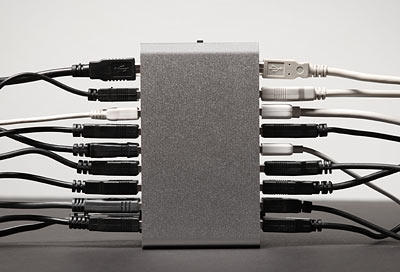
As digital audio performance increases, with higher sampling rates and greater bit depth, the speed of our USB port becomes more significant.  Most high end sound cards require USB 2.0 to even operate, with some cards even have multiple configurations.  For example, the Numark Omni will only provide 4 channel output if it detects a USB 2.0 connection, defaulting to 2 channels if it detects anything lower.

How does this affect you? The ability for a port to receive and transmit at specified rates affects our audio settings.  If we want to have a high sample rate working at a low latency, the port needs be reading and writing quickly.  When audio drop outs occur, often our only remedy is to increase latency.  And we know that when the latency is too high, our actions become noticeably out of sync with the audio.

With only 2 USB ports on the 13″ and 15″ MB and MBP, Apple have shuffled around USB users on its internal USB hub scheme over the years.   Hardware like the keyboard/trackpad, iSight, memory card reader, Bluetooth and the IR receiver are all USB devices attached to the internal hub.  And depending on the configuration of the laptop, the devices are piggybacked differently onto your 2 USB ports.

Native Instruments thinks that the issue is serious enough to include recommended USB ports for Mac users in all it’s soundcard manuals in the Troubleshooting section.  Hercules also have it in their FAQ.  Serato do not go into specifics as to which port to use, but acknowledge that one port is “good” and the other “bad”.

PC users may rejoice at this one, but should first check their internal USB hub is functioning optimally.  Then, after disabling USB energy saver mode, they can shout back “Get a PC” at the Mac users!

Core/Core Duo MacBooks
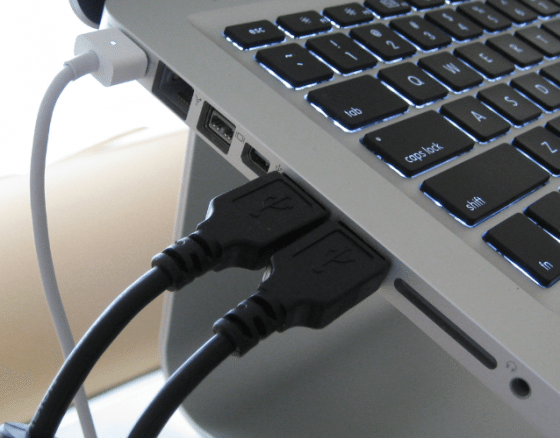
For MBP models with ports on the left and right, only those on the left are recommended.  For MB and MBP models with the both ports on the left (as in the above photo), only the port furthest from the screen is recommended (often referred to as the front port).  These recommendations have stood since the early days of the MBP, with the trackpad and iSight specifically pointed out as devices causing poor port performance.

To quantify the difference between the ports on my Dec 2009 MBP 13”, I used Ableton Live’s audio test tone with a NI Audio Kontrol 1 on both ports.  For those unfamiliar, Live provides a test tone with a simulated CPU load for testing audio latency.  After setting the sample rate to 192 kbps and the CPU load to 80%, I reduced the samples to minimum (lowest latency) and started increasing until there were no more drop-outs. The results were very similar (74 samples or 3.30 ms latency for the front and 88 samples or 3.38 ms latency for the rear), but the front port repeatably required a few less samples before the drop outs stopped.  The relatively small difference indicates that either port could successfully be used for a sound card and that Apple seem to have distributed the USB peripherals evenly on the latest builds.

Core i5 and i7 MacBook Pros

DJRiO sent us an article on the new Core iX family of MacBook Pros that indicates the newer models are subject to one “good” port and one “bad” port too, but that the good and bad are reversed from the old norm.  The article from Hardmac has graphical representation that the rear port has a much higher read/write performance than the front.

To illustrate the difference, hereafter are captures of a test performed with a SSD drive installed in an external enclosure USB 2.0:

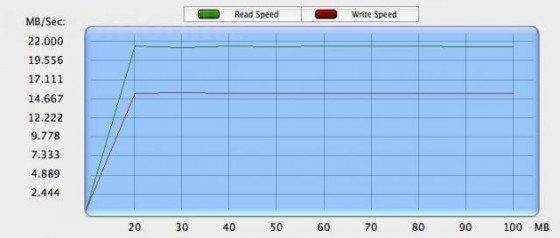
On the USB port located close to the user sitting in front of his MBP, the following results are obtained:

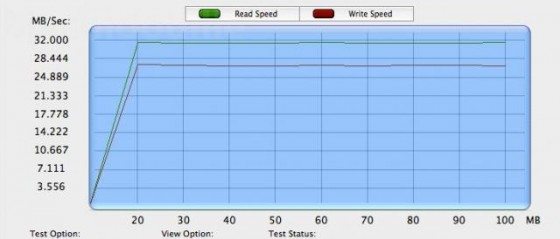
On the most distant USB port from the user:

The first port is almost twice slower than the second one, limited to 15 MB/s in writing and 22 MB/s in reading, while the other port reaches the maximal performance level offered by the USB 2.0 enclosure.
They go on to list the keyboard/trackpad, memory card reader and Bluetooth all connected to the front port, while the rear has the iSight and IR receiver, indicating a possible overload on the front port.

A quick Google search found a user on MacRumors forum with very similar results.

What should I do?

For those that don’t have issues and feel there system is working as it should, there is nothing to do except keep using the ports in the same way you always have.  But for those that have had issues in the past, especially if you have a habit of changing how you hook-up your equipment, it is worth while testing to see which port is best for your audio card and then always connecting in that configuration. After all, you owe it to your dance floor to make sure your sound is optimized, and with only 2 ports to check this is an easy one to check and get right.

Special thanks to DJRiO for bringing this information to our attention.
Tags: appleDj BasicsDj EquipmentDj softwareperformanceSound CardsTips
Share1Tweet1Share
Previous Post

Make It loud! DJ’s guide to Mastering Pt 2

Next Post

Glitch Mob- Live Footage and Interview

Related Posts

A Prime 4+ and a Kontrol S3 intercut against eachother over a black background
Breaking News

InMusic just bought Native Instruments. So what now for Traktor?

May 8, 2026
Traktor MX2: Native Instruments’ New 2-Channel Controller
DJ Gear Announcements

Traktor MX2: Native Instruments’ New 2-Channel Controller

October 8, 2025
Ableton launches Live 12 Suite rent-to-own plan – and it’s not a subscription
Ableton

Ableton launches Live 12 Suite rent-to-own plan – and it’s not a subscription

October 1, 2025
Load More
Next Post
Glitch Mob- Live Footage and Interview

Glitch Mob- Live Footage and Interview

Want to reach DJTT's audience here?

Shoot an email to advertising@djtechtools.com

DJTT ads
DJTT newsletter
Midi Fighter
Chat with us
  • ABOUT DJTT
  • CONTACT
  • PRIVACY
  • MIDI FIGHTER HELP
  • ABOUT DJTT
  • JOBS
  • CONTACT US
  • ADVERTISE
  • PRIVACY POLICY
  • ACCESSIBILITY STATEMENT

© 2024 DJ Techtools all rights reserved by DJ TechTools on all content unless otherwise noted.

No Result
View All Result
  • Blog
    • DJ Gear
      • DIY Projects
      • Gear Reviews
      • New Products
      • Controllerism
    • Techniques + Tips
      • Beginner DJ
      • Advanced DJ
      • Producer
      • Finger Drummer
    • News + Culture
      • Editorials + Opinions
      • Artist Interviews
      • Performances + Routines
      • How I Play
    • DJ Software Tutorials
      • Serato Tips
      • CDJ Tips
      • Ableton Live Tips
  • Store
    • Run by real DJs, not a corporation
    • DJ Controllers
      • Midi Fighter Twister
      • Midi Fighter Spectra
      • Midi Fighter 64
      • View All
    • Accessories
      • Chroma USB Drive for DJs
      • Chroma Caps
      • Chroma Cables Audio
      • Chroma Cables USB-A
      • Chroma Cables: USB-C
      • DJTT Gift Card
      • Midi Fighter T-Shirt
      • Keyboard Covers
      • Earplugs by V-Moda
    • Production Gear
    • Soundcards & Mixers
  • Community
    • Popular Forums
      • General Discussion
      • Buy & Sell
      • Reviews
      • Mixes
      • Music Production
      • Show Your Setup
      • Off Topic
    • Handy Links
      • New Posts
      • Private Messages
      • Register
      • Search
    • Midi Maps
      • Traktor
      • Ableton
      • Serato DJ
      • Midi Fighter 3D
      • Midi Fighter Twister
      • Midi Fighter Spectra
  • Midi Fighter
  • Chroma

© 2024 DJ Techtools all rights reserved by DJ TechTools on all content unless otherwise noted.

This website uses cookies. By continuing to use this website you are giving consent to cookies being used. Visit our Privacy and Cookie Policy.