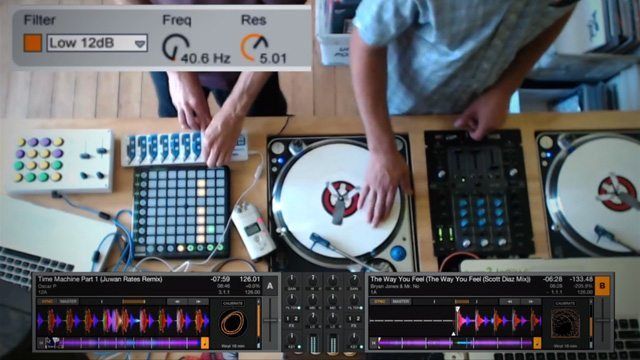
The combination of Traktor and Ableton in a DJ setup is a toolkit that (for now) is unparalleled for performers looking for versatile software solutions. We’ve read plenty of tutorials on how to sync Traktor and Ableton, but where most of them stop at a simple how to, today’s video focuses on why. Learn how to use four solid techniques that combine the best of both worlds in the video inside, and download a free template to try it out yourself!
THE TECHNIQUES
For simple reference, here are the four techniques we show off in today’s video:
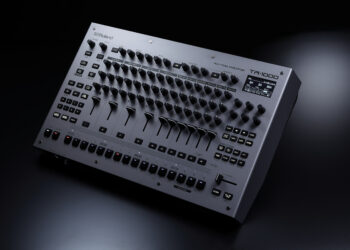
Technique 1: Traktor plays a song while Ableton runs MIDI loops on a drum machine (which is manipulated live). In this example, Traktor audio is side-chaining to the drum machine, creating a tight mix.
Technique 2: Traktor provides a beat (this example is perfect for house) while Ableton runs a MIDI loop on a synthesizer (Operator is used in the video) that does live synthesis, side-chained to the Traktor beat.
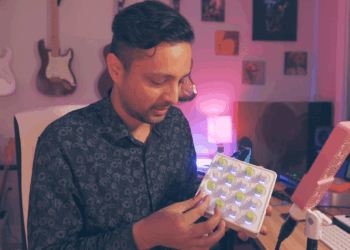
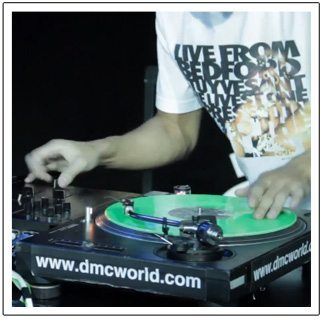
Technique 3: Old school beat and scratching from Traktor, which does live side-chaining to the finger drumming in Ableton.
Technique 4: Straight-up scratch routine and finger drumming jam (no tracks, no loops, all live) while Traktor signal side-chains to the finger drumming.
A WORKHORSE DUO
Welcome to the world of “Trakleton” – my nickname for the pairing of these two softwares. Whether running across two laptops (like in the above video or in our behind-the-booth interview with Chris Liebing), this type of setup allows for a way more dynamic performance environment than either software on its own.
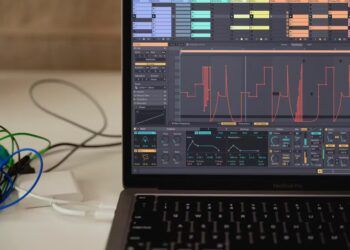
The setup used in the video combines two laptops, one running Traktor, and one running Ableton. Traktor is providing the master clock and sending MIDI sync signal via an Audio 10 interface to the Ableton laptop’s MIDI (using an Edirol FA-66 interface). Both stations require some quick and easy software setup (read on for the complete setup guide).
Traktor provides the master tempo, but Ableton is responsible for all the mixing. Traktor’s audio signal is routed into Ableton and divided into two tracks, one for deck A, and another for deck B. It’s super-awesome to run Traktor’s audio into Ableton because this allows you to dynamically side-chain the two audio sources to each other. For those unfamiliar with side-chaining, it’s the effect that drives that beat driven “pumping” that you hear in nearly all electronic music, especially noticeable in electro house when the synth gets quieter as the kick hits, then soars up in volume between kicks. When playing together or adding new sounds to a finished mix, side-chaining is absolutely critical because it makes the two elements actually sound like they go together.
The Ableton template, mapping, and soundpack are all available at the end of this article!
SYNCING TRAKTOR AND ABLETON
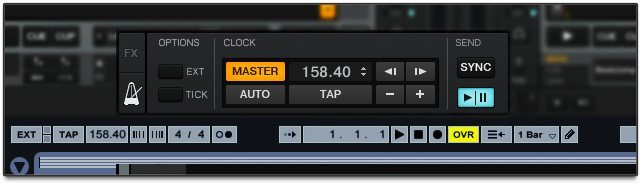
There are many resources online already on how to sync up the two softwares, so we decided to not focus on that part in the video. This configuration process is essential for the techniques we show off in today’s video, so here’s a very simple rundown of the necessary steps to get the programs playing together.
Using Two Computers:
In Traktor:
- Open Traktor’s preferences
- Navigate to MIDI clock menu
- Check “Send MIDI clock”
- Navigate to the Controller Manager
- Under “Device”, click “Add…”, then “Generic MIDI”
- Select your audio/MIDI interface (i.e. Audio 10) for both your In and Out ports
- Go to your master tempo area (by clicking the metronome icon in the left FX slot), uncheck “Auto” under Clock and hit the play/pause button in the Send section to start sending a sync signal
- In order to keep the two programs synced, we recommend using the Sync button on your decks (unless you just want to beat-match manually, but just know slippage between the programs will happen more readily)
In Ableton:
- Open Ableton’s preferences (Live > Preferences)
- Open the MIDI/Sync tab
- Where it says “Input” for your audio/MIDI interface turn “Sync” on and turn off “Remote” and “Track”
- Exit preferences and click the big “EXT” in the upper left hand corner of Ableton’s window
Finally, you’ll want to turn on both programs’ metronomes and adjust the “sending offset” in Traktor until the two metronomes play together in sync (this offsets latency). You can also do this in Ableton but try to adjust in only one program at a time otherwise you’ll contradict yourself!
Using One Computer:
Follow the exact same steps as with two computers, except in Traktor’s Step 6, instead of selecting your audio/MIDI interface when you “Add Generic MIDI”, you’ll want to select “Traktor Virtual Input” and “Traktor Virtual Output” for your In and Out ports. Likewise in Ableton, you’ll want to activate “Sync” from “Traktor Virtual Output” instead of your audio/MIDI interface. You’ll also need to download and install a simple audio router called Soundflower (for Mac – Windows users, please post suggestions for similar internal routing programs in the comments!). Simply select “Soundflower (2ch)” as your audio device in Traktor and in Ableton select “Soundflower (2ch)” as your audio input device. Create a new audio track and arm it and you’ll have your Trakor audio ready to go.
Connecting Ableton and Traktor together can get complicated – so feel free to ask questions you have in the comments below!
MAD ZACH’S ON-THE-FLY SYNCING SECRET
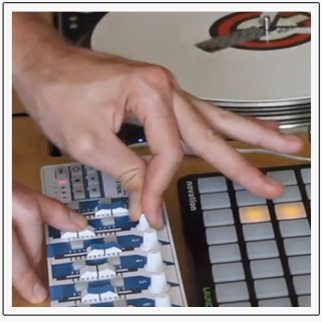 Unfortunately, MIDI is an antiquated format and syncing MIDI clocks is not always a very reliable solution. To compensate and prepare for MIDI mishaps (mostly the two softwares getting off sync), I’ve built in a very convenient delay which I put on the Ableton bus (the track I have all my other tracks routed through). It’s essentially a simple delay set to free mode (not sync) with the dry/wet turned up to 100% and the feedback at 0%. I then have a knob assigned to the delay time, effectively creating a track delay (which is normally disabled when receiving external MIDI sync). This knob does the same thing that MIDI offset does in the preferences, but is much cleaner live and does not cause any system glitches.
FREE DOWNLOADS TO GET STARTED!
I’ve put together a super-handy Ableton template complete with side chain macros, an all-purpose drum machine, a Simpler loaded up with a saw and square wave (already mapped for awesome arpeggiations and modulations), a free sound pack, and tracks set up to replicate all the techniques demonstrated in the video. The most exciting part of the mapping are the pre-mapped side-chain macros, which allow you to easily determine and adjust what’s side-chaining to what without the need for any complicated routing or programming knowledge.
- Sign Up on the Weekly email to get Mad Zach’s Template for Ableton this thursday.
- Pick up the free scratch samples Mitch was using!