DJ TechTools
  • Blog
    • DJ Gear
      • DIY Projects
      • Gear Reviews
      • New Products
      • Controllerism
    • Techniques + Tips
      • Beginner DJ
      • Advanced DJ
      • Producer
      • Finger Drummer
    • News + Culture
      • Editorials + Opinions
      • Artist Interviews
      • Performances + Routines
      • How I Play
    • DJ Software Tutorials
      • Serato Tips
        • Traktor Tips
      • CDJ Tips
      • Ableton Live Tips
  • Store
    • Run by real DJs, not a corporation
    • DJ Controllers
      • Midi Fighter Twister
      • Midi Fighter Spectra
      • Midi Fighter 64
      • View All
    • Accessories
      • Chroma USB Drive for DJs
      • Chroma Caps
      • Chroma Cables Audio
      • Chroma Cables USB-A
      • Chroma Cables: USB-C
      • DJTT Gift Card
      • Midi Fighter T-Shirt
      • Keyboard Covers
      • Earplugs by V-Moda
    • Production Gear
    • Soundcards & Mixers
  • Community
    • Popular Forums
      • General Discussion
      • Buy & Sell
      • Reviews
      • Mixes
      • Music Production
      • Show Your Setup
      • Off Topic
    • Handy Links
      • New Posts
      • Private Messages
      • Register
      • Search
    • Midi Maps
      • Traktor
      • Ableton
      • Serato DJ
      • Midi Fighter 3D
      • Midi Fighter Twister
      • Midi Fighter Spectra
  • Midi Fighter
  • Chroma
No Result
View All Result
DJ TechTools
  • Blog
    • DJ Gear
      • DIY Projects
      • Gear Reviews
      • New Products
      • Controllerism
    • Techniques + Tips
      • Beginner DJ
      • Advanced DJ
      • Producer
      • Finger Drummer
    • News + Culture
      • Editorials + Opinions
      • Artist Interviews
      • Performances + Routines
      • How I Play
    • DJ Software Tutorials
      • Serato Tips
        • Traktor Tips
      • CDJ Tips
      • Ableton Live Tips
  • Store
    • Run by real DJs, not a corporation
    • DJ Controllers
      • Midi Fighter Twister
      • Midi Fighter Spectra
      • Midi Fighter 64
      • View All
    • Accessories
      • Chroma USB Drive for DJs
      • Chroma Caps
      • Chroma Cables Audio
      • Chroma Cables USB-A
      • Chroma Cables: USB-C
      • DJTT Gift Card
      • Midi Fighter T-Shirt
      • Keyboard Covers
      • Earplugs by V-Moda
    • Production Gear
    • Soundcards & Mixers
  • Community
    • Popular Forums
      • General Discussion
      • Buy & Sell
      • Reviews
      • Mixes
      • Music Production
      • Show Your Setup
      • Off Topic
    • Handy Links
      • New Posts
      • Private Messages
      • Register
      • Search
    • Midi Maps
      • Traktor
      • Ableton
      • Serato DJ
      • Midi Fighter 3D
      • Midi Fighter Twister
      • Midi Fighter Spectra
  • Midi Fighter
  • Chroma
No Result
View All Result
DJ TechTools

Controllerism basics: Cue Point Juggling

Ean Golden by Ean Golden
January 3, 2008
in Advanced DJ Tips, Controllerism
Reading Time: 4 mins read
0
Controllerism basics: Cue Point Juggling
294
VIEWS
Post on FacebookTweet thisUpvote on Reddit

By now a few of you may have seen my performance at the Vestax Extravaganza in Tokyo. Several people on stage all said the same thing: “Man, none of us could figure out what the hell you are doing in your videos, we thought we could figure it out by being here- now we really have no idea!” Although I certainly did step up the level of performance for that gig the core principles are very simple and have not changed in several years. Everything in the Japan video is just different ways of “cue point juggling” or jumping between different points in a song instantly. There are 2 different kinds of cue point juggling: direct play and sample play.

DIRECT PLAY

Here you can assume the song is already playing and you want it to instantly play from another position in the song. The most basic use of this handy feature is to always place the initial cue point on the first down-beat of every song. Now while mixing, you never have to worry about finding the beginning again- you can just directly jump to the first cue and you know the song will always re-start on time. Just this single cue point offers a lot of creative opportunities to re-play any song and jazz up your mix transitions. To take it to the next level we need to add more cue points.

KICK, SNARE, HAT

If your first cue is on the down beat which is almost always a kick, then might I suggest the 2nd should always be on the the next beat which is usually a snare sound? Now with just 2 cues you can do some simple kick, snare fill combos- drum along with another song or completely replay the beat. You can make the third cue a hat, cymbal or some sound with a little space behind it to break up the beat and keep it interesting. Next, the 4th cue is always placed on a fill cue that leads into the beginning of the next bar. Then for the final cherry on top I like to always make my 5th cue on the down beat of the first major section of a song.

Why 5 cues? besides being just enough for any song, they work nicely with the way I play the VCI-100. The 4 cues are always assigned to the 4 buttons under the jog wheels. Then the 5 cue, which is great for juggling doubles is triggered by the large and playable jog wheels. in this layout its quite easy to drum with the buttons and then juggle with the wheels and the crossfader.

LAYING DOWN THE CUES

laying down your cues in a consistent pattern that fits the way you like to dj will allow you to pull off crazy routines on the fly without thinking about them in advance. The cues dont have to always be on the exact same sounds but rather parts of the song that could be used as a kick, snare, hat sounds. Even dropping cues on specific words can create very cool rhythmic tones that play wonderfully over other beats.

Here is what that might look like on a reggae tune. The yellow line is the first cue, the kick, the white line is the 2nd (the snare) the third blue cue point is a hi-hat and the fourth is the fill at the end of the phrase(off screen)

SAMPLE PLAY

The other way of playing with the same cue point layout is by temporarily triggering each cue point. Also called “sample and hold” this technique only plays each cue point as long as the trigger is held down. The advantage to this method is that a song can be played just like a sampler and played at any tempo, speed or rhythm. This is the preferred method if you are sampling one track over another for instance a hip hop acapella over an instrumental. Direct play is better if you are working with one deck or juggling so its easier to keep the rhythm on time.

REAL WORLD APPLICATION

So how do I use both methods in one performance and cue up new songs all from 4 buttons? Simple: you may remember that I added a pair of foot switches to my vc-100 about a month ago? Well, when none of the foot switches are pressed the 4 buttons act as normal dj transport controls including SYNC, CUE, PLAY etc.. Then depending on which foot switch is being held down, they become direct cue point triggers that engage Sample Play and Direct Play mode! You dont even have to install your own foot switches, you could simply buy an extra set of midi switches like these here and program those to do the same thing. Dont know how to program all this stuff? Not to worry: this layout, although slightly modified for the everyday user, will be available soon to everyone after NAMM. Check out this post for more info.

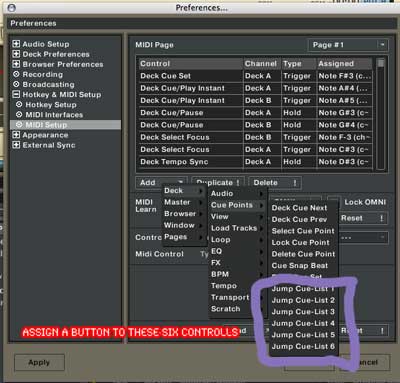
Where to set this up in Traktor?
jumpcue-list.jpg

Tags: Controllerismdj performance tricksDj TutorialsTipsTraktor Tips
Share2Tweet2Share
Previous Post

New Dj program for Mac “Djay 2”

Next Post

Free Beta Test Anyone?

Related Posts

Use your Midi Fighter Twister as an Audio-Reactive Visualizer
Ableton Live Tips

Use your Midi Fighter Twister as an Audio-Reactive Visualizer

June 23, 2025
traktor-pro plus 3.8 pattern player controls
Dj and Production Tutorials

Review: Traktor Pro Plus 3.8 – After 8 months, is the subscription worth it?

April 20, 2023
Meet the Koala sampler app: a mobile production powerhouse, now with stems
DJ Gear

Meet the Koala sampler app: a mobile production powerhouse, now with stems

February 7, 2023
Load More
Next Post
Free Beta Test Anyone?

Free Beta Test Anyone?

Want to reach DJTT's audience here?

Shoot an email to advertising@djtechtools.com

DJTT ads
DJTT newsletter
Midi Fighter
Chat with us
  • ABOUT DJTT
  • CONTACT
  • PRIVACY
  • MIDI FIGHTER HELP
  • ABOUT DJTT
  • JOBS
  • CONTACT US
  • ADVERTISE
  • PRIVACY POLICY
  • ACCESSIBILITY STATEMENT

© 2024 DJ Techtools all rights reserved by DJ TechTools on all content unless otherwise noted.

No Result
View All Result
  • Blog
    • DJ Gear
      • DIY Projects
      • Gear Reviews
      • New Products
      • Controllerism
    • Techniques + Tips
      • Beginner DJ
      • Advanced DJ
      • Producer
      • Finger Drummer
    • News + Culture
      • Editorials + Opinions
      • Artist Interviews
      • Performances + Routines
      • How I Play
    • DJ Software Tutorials
      • Serato Tips
      • CDJ Tips
      • Ableton Live Tips
  • Store
    • Run by real DJs, not a corporation
    • DJ Controllers
      • Midi Fighter Twister
      • Midi Fighter Spectra
      • Midi Fighter 64
      • View All
    • Accessories
      • Chroma USB Drive for DJs
      • Chroma Caps
      • Chroma Cables Audio
      • Chroma Cables USB-A
      • Chroma Cables: USB-C
      • DJTT Gift Card
      • Midi Fighter T-Shirt
      • Keyboard Covers
      • Earplugs by V-Moda
    • Production Gear
    • Soundcards & Mixers
  • Community
    • Popular Forums
      • General Discussion
      • Buy & Sell
      • Reviews
      • Mixes
      • Music Production
      • Show Your Setup
      • Off Topic
    • Handy Links
      • New Posts
      • Private Messages
      • Register
      • Search
    • Midi Maps
      • Traktor
      • Ableton
      • Serato DJ
      • Midi Fighter 3D
      • Midi Fighter Twister
      • Midi Fighter Spectra
  • Midi Fighter
  • Chroma

© 2024 DJ Techtools all rights reserved by DJ TechTools on all content unless otherwise noted.

This website uses cookies. By continuing to use this website you are giving consent to cookies being used. Visit our Privacy and Cookie Policy.