DJ TechTools
  • Blog
    • DJ Gear
      • DIY Projects
      • Gear Reviews
      • New Products
      • Controllerism
    • Techniques + Tips
      • Beginner DJ
      • Advanced DJ
      • Producer
      • Finger Drummer
    • News + Culture
      • Editorials + Opinions
      • Artist Interviews
      • Performances + Routines
      • How I Play
    • DJ Software Tutorials
      • Serato Tips
        • Traktor Tips
      • CDJ Tips
      • Ableton Live Tips
  • Store
    • Run by real DJs, not a corporation
    • DJ Controllers
      • Midi Fighter Twister
      • Midi Fighter Spectra
      • Midi Fighter 64
      • View All
    • Accessories
      • Chroma USB Drive for DJs
      • Chroma Caps
      • Chroma Cables Audio
      • Chroma Cables USB-A
      • Chroma Cables: USB-C
      • DJTT Gift Card
      • Midi Fighter T-Shirt
      • Keyboard Covers
      • Earplugs by V-Moda
    • Production Gear
    • Soundcards & Mixers
  • Community
    • Popular Forums
      • General Discussion
      • Buy & Sell
      • Reviews
      • Mixes
      • Music Production
      • Show Your Setup
      • Off Topic
    • Handy Links
      • New Posts
      • Private Messages
      • Register
      • Search
    • Midi Maps
      • Traktor
      • Ableton
      • Serato DJ
      • Midi Fighter 3D
      • Midi Fighter Twister
      • Midi Fighter Spectra
  • Midi Fighter
  • Chroma
No Result
View All Result
DJ TechTools
  • Blog
    • DJ Gear
      • DIY Projects
      • Gear Reviews
      • New Products
      • Controllerism
    • Techniques + Tips
      • Beginner DJ
      • Advanced DJ
      • Producer
      • Finger Drummer
    • News + Culture
      • Editorials + Opinions
      • Artist Interviews
      • Performances + Routines
      • How I Play
    • DJ Software Tutorials
      • Serato Tips
        • Traktor Tips
      • CDJ Tips
      • Ableton Live Tips
  • Store
    • Run by real DJs, not a corporation
    • DJ Controllers
      • Midi Fighter Twister
      • Midi Fighter Spectra
      • Midi Fighter 64
      • View All
    • Accessories
      • Chroma USB Drive for DJs
      • Chroma Caps
      • Chroma Cables Audio
      • Chroma Cables USB-A
      • Chroma Cables: USB-C
      • DJTT Gift Card
      • Midi Fighter T-Shirt
      • Keyboard Covers
      • Earplugs by V-Moda
    • Production Gear
    • Soundcards & Mixers
  • Community
    • Popular Forums
      • General Discussion
      • Buy & Sell
      • Reviews
      • Mixes
      • Music Production
      • Show Your Setup
      • Off Topic
    • Handy Links
      • New Posts
      • Private Messages
      • Register
      • Search
    • Midi Maps
      • Traktor
      • Ableton
      • Serato DJ
      • Midi Fighter 3D
      • Midi Fighter Twister
      • Midi Fighter Spectra
  • Midi Fighter
  • Chroma
No Result
View All Result
DJ TechTools

Effects Tricks in M-Audio Torq 1.5

Markkus Rovito by Markkus Rovito
September 6, 2009
in Advanced DJ Tips, DJ Software
Reading Time: 4 mins read
0
Effects Tricks in M-Audio Torq 1.5
370
VIEWS
Post on FacebookTweet thisUpvote on Reddit

Today we’re giving M-Audio Torq a little love. Torq users, holler back if you’re out there and let us know what you’d like to see in future Torq articles.

One of the many features that M-Audio snuck into its Torq 1.5 update was the Chain Effects Mode, which gives you an additional routing option for effects and greater creative possibilities. Every effect in Torq can work as either a send effect, which is designed to blend the original audio with the effect’s output, or as an insert effect, which is  “inserted” between the deck and the mixer so as to replace the the original audio with the effect’s output.

DEFAULT AND CHAIN EFFECT MODES
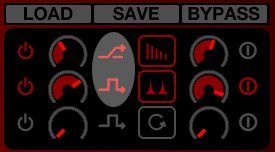
ChainEffects1
When you launch an effect in Torq, the software automatically sets the effect routing Routing button to the most appropriate setting: Send for Reverb and Delay and Insert for the rest of the standard effects.
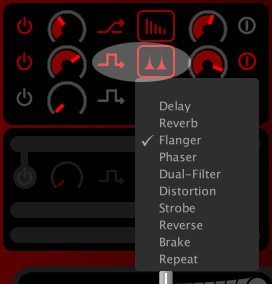
ChainEffects2

In Default mode, an Insert effect will be inserted between the output of the deck and the mixer. However, in Chain mode, that effect is instead chained to the output of a Send effect. That means the Chain effect does not apply to the entire song, but rather only the amount of the song passing through the Send effect. So the Send Amount control for the Send effect also determines the amount of the Chain effect you’ll hear.

ChainEffects3
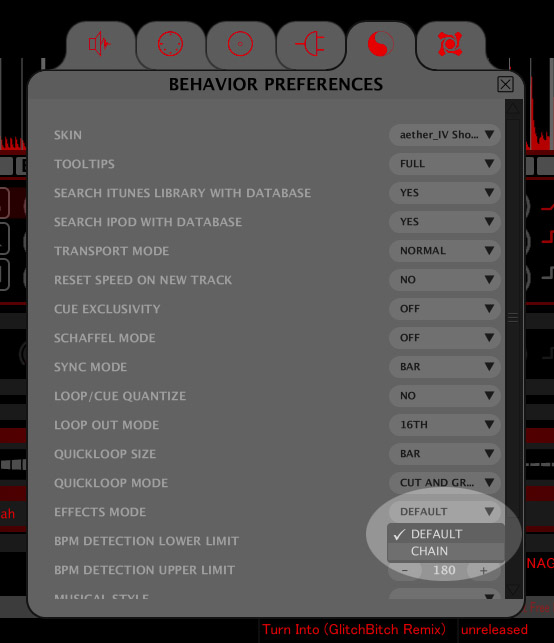
You choose the effect mode in the Behavior tab of the Preferences window.
ChainEffects4

To hear the difference between Chain and Default modes, listen to the following audio clips.

Audio Clip 1: Flanger in Default Mode

[audio:http://djtechtools.com/wp-content/uploads/2009/09/FlangeDefault.mp3]

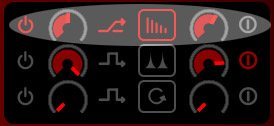
In the first clip, the effects are in Default mode. A loop is playing with a Send effect — Delay — with the feedback set to 80 percent and the send amount set to 50 percent.
ChainEffects5
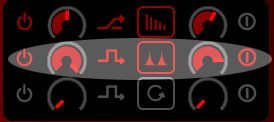
After four bars, an Insert effect — Flanger — drops in.
ChainEffects6
After another four bars, the Delay send amount increases steadily up to 100 percent, drops down to 0 and then goes back up to 100 percent, to show that the Flanger remains constant as the Delay send amount changes.

Audio Clip 2: Flanger in Chain Mode
[audio:https://s11234.pcdn.co/wp-content/uploads/2009/09/FlangeChain.mp3]

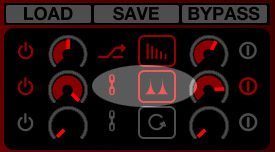
Here is the same clip as before except that the Flanger is now a Chain effect, meaning that instead of being inserted between the deck and the mixer, the Flanger is now effecting the output of the Delay.
ChainEffects7
Again a Delay send effect has the feedback set to 80 percent, and the send amount set to 50 percent. After four bars, the Flanger drops in. After another four bars the send amount goes all the way up, then all the way down and then all the way up again. Notice that in Chain mode, the Flanger drops out as the Delay send amount drops down, because the Flanger is chained to the Delay’s output. The overall flange sound is also subtle, because you can hear more of the unflanged song.

Audio Clip 3: Repeat in Default mode

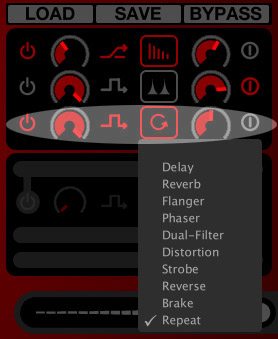
[audio:http://djtechtools.com/wp-content/uploads/2009/09/RepeatDefault.mp3] To further illustrate the purpose of the chain mode, let’s look at Torq’s Repeat effect, which chops up audio into rhythmic stutters.
ChainEffects8
With Delay as a Send effect and Repeat an Insert effect in Default mode, Repeat’s level is unchanged if the Delay send level fluctuates. In this clip, Repeat is invoked in Default mode as the send level of the Delay goes up and down.

Audio Clip 4: Repeat in Chain mode
[audio:https://s11234.pcdn.co/wp-content/uploads/2009/09/RepeatChain.mp3]

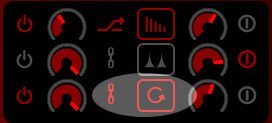
In Chain mode, with Delay as a send effect, Repeat only chops up the output of the Delay, so if you prefer, you can use Repeat and other effects like it as an enhancement to the track you’re playing rather than being so overbearing that they interrupt the whole song.
ChainEffects9
In this clip, Repeat is invoked in Chain mode as the send level of the Delay goes up and down. Again, the more you reduce the send level of the Delay, the less you’ll hear the Repeat effect. If you turn off the Send effect entirely, the Chain effect has no effect on the music.

These basic audio examples serve to illustrate the difference between Torq’s Default and Chain effect modes, but the sky’s the limit for where you take Chain effects in your performances. As this blog always emphasizes, practice up, and you’ll figure out how to make the Chain effects uniquely yours. And if anyone at M-Audio happens to read this, consider making it quicker to access Chain mode. Having to open the Preferences window kills some of the spontaneity.

Tags: Tips
Share3Tweet2Share
Previous Post

Let the Heads Roll

Next Post

Create Cool Audio Drops in Traktor

Related Posts

Meet the Koala sampler app: a mobile production powerhouse, now with stems
DJ Gear

Meet the Koala sampler app: a mobile production powerhouse, now with stems

February 7, 2023
Tips for DJing in Extreme Cold: DJTT readers share their advice
DJ Techniques / Tips

Tips for DJing in Extreme Cold: DJTT readers share their advice

January 30, 2023
One Thing Ableton Production Tips
Production Tips

One Thing: Super Quick Ableton Tips From Professional Producers

March 10, 2017
Load More
Next Post
Create Cool Audio Drops in Traktor

Create Cool Audio Drops in Traktor

Want to reach DJTT's audience here?

Shoot an email to advertising@djtechtools.com

DJTT ads
DJTT newsletter
Midi Fighter
Chat with us
  • ABOUT DJTT
  • CONTACT
  • PRIVACY
  • MIDI FIGHTER HELP
  • ABOUT DJTT
  • JOBS
  • CONTACT US
  • ADVERTISE
  • PRIVACY POLICY
  • ACCESSIBILITY STATEMENT

© 2024 DJ Techtools all rights reserved by DJ TechTools on all content unless otherwise noted.

No Result
View All Result
  • Blog
    • DJ Gear
      • DIY Projects
      • Gear Reviews
      • New Products
      • Controllerism
    • Techniques + Tips
      • Beginner DJ
      • Advanced DJ
      • Producer
      • Finger Drummer
    • News + Culture
      • Editorials + Opinions
      • Artist Interviews
      • Performances + Routines
      • How I Play
    • DJ Software Tutorials
      • Serato Tips
      • CDJ Tips
      • Ableton Live Tips
  • Store
    • Run by real DJs, not a corporation
    • DJ Controllers
      • Midi Fighter Twister
      • Midi Fighter Spectra
      • Midi Fighter 64
      • View All
    • Accessories
      • Chroma USB Drive for DJs
      • Chroma Caps
      • Chroma Cables Audio
      • Chroma Cables USB-A
      • Chroma Cables: USB-C
      • DJTT Gift Card
      • Midi Fighter T-Shirt
      • Keyboard Covers
      • Earplugs by V-Moda
    • Production Gear
    • Soundcards & Mixers
  • Community
    • Popular Forums
      • General Discussion
      • Buy & Sell
      • Reviews
      • Mixes
      • Music Production
      • Show Your Setup
      • Off Topic
    • Handy Links
      • New Posts
      • Private Messages
      • Register
      • Search
    • Midi Maps
      • Traktor
      • Ableton
      • Serato DJ
      • Midi Fighter 3D
      • Midi Fighter Twister
      • Midi Fighter Spectra
  • Midi Fighter
  • Chroma

© 2024 DJ Techtools all rights reserved by DJ TechTools on all content unless otherwise noted.

This website uses cookies. By continuing to use this website you are giving consent to cookies being used. Visit our Privacy and Cookie Policy.