DJ TechTools
  • Blog
    • DJ Gear
      • DIY Projects
      • Gear Reviews
      • New Products
      • Controllerism
    • Techniques + Tips
      • Beginner DJ
      • Advanced DJ
      • Producer
      • Finger Drummer
    • News + Culture
      • Editorials + Opinions
      • Artist Interviews
      • Performances + Routines
      • How I Play
    • DJ Software Tutorials
      • Serato Tips
        • Traktor Tips
      • CDJ Tips
      • Ableton Live Tips
  • Store
    • Run by real DJs, not a corporation
    • DJ Controllers
      • Midi Fighter Twister
      • Midi Fighter Spectra
      • Midi Fighter 64
      • View All
    • Accessories
      • Chroma USB Drive for DJs
      • Chroma Caps
      • Chroma Cables Audio
      • Chroma Cables USB-A
      • Chroma Cables: USB-C
      • DJTT Gift Card
      • Midi Fighter T-Shirt
      • Keyboard Covers
      • Earplugs by V-Moda
    • Production Gear
    • Soundcards & Mixers
  • Community
    • Popular Forums
      • General Discussion
      • Buy & Sell
      • Reviews
      • Mixes
      • Music Production
      • Show Your Setup
      • Off Topic
    • Handy Links
      • New Posts
      • Private Messages
      • Register
      • Search
    • Midi Maps
      • Traktor
      • Ableton
      • Serato DJ
      • Midi Fighter 3D
      • Midi Fighter Twister
      • Midi Fighter Spectra
  • Midi Fighter
  • Chroma
No Result
View All Result
DJ TechTools
  • Blog
    • DJ Gear
      • DIY Projects
      • Gear Reviews
      • New Products
      • Controllerism
    • Techniques + Tips
      • Beginner DJ
      • Advanced DJ
      • Producer
      • Finger Drummer
    • News + Culture
      • Editorials + Opinions
      • Artist Interviews
      • Performances + Routines
      • How I Play
    • DJ Software Tutorials
      • Serato Tips
        • Traktor Tips
      • CDJ Tips
      • Ableton Live Tips
  • Store
    • Run by real DJs, not a corporation
    • DJ Controllers
      • Midi Fighter Twister
      • Midi Fighter Spectra
      • Midi Fighter 64
      • View All
    • Accessories
      • Chroma USB Drive for DJs
      • Chroma Caps
      • Chroma Cables Audio
      • Chroma Cables USB-A
      • Chroma Cables: USB-C
      • DJTT Gift Card
      • Midi Fighter T-Shirt
      • Keyboard Covers
      • Earplugs by V-Moda
    • Production Gear
    • Soundcards & Mixers
  • Community
    • Popular Forums
      • General Discussion
      • Buy & Sell
      • Reviews
      • Mixes
      • Music Production
      • Show Your Setup
      • Off Topic
    • Handy Links
      • New Posts
      • Private Messages
      • Register
      • Search
    • Midi Maps
      • Traktor
      • Ableton
      • Serato DJ
      • Midi Fighter 3D
      • Midi Fighter Twister
      • Midi Fighter Spectra
  • Midi Fighter
  • Chroma
No Result
View All Result
DJ TechTools

Ableton Live: Drum Racks?

Chris Cartledge by Chris Cartledge
October 12, 2011
in Ableton Live Tips, Basic DJ Tips, DJ Techniques / Tips
Reading Time: 4 mins read
0
Ableton Live: Drum Racks?
64
VIEWS
Post on FacebookTweet thisUpvote on Reddit

On the surface, Ableton Live’s drum racks seem to be surplus to a DJ’s requirements with clips being able to deal with everything we need. Look a little deeper, though, and that’s not the case; let’s look at where we can use drum racks to our advantage.

One of the biggest advantages to using Ableton Live is its flexibility. Whilst it can’t quite boast the straight to business simplicity of Traktor, Torq, Itch, and the like, it’s got a clear lead when it comes to setting things up how you want; there’s so much choice that sometimes knowing what tools to use where can be a bit confusing, and drum racks are definitely one of the more specialised tools.

Clips

There are advantages to using clips, and there are also advantages to using drum racks. First off, let’s look at what using clips is perfect for anyway.

• Available in all versions of Live
• Great for full tracks and loops
• Good for quantising

Clips are a lot more flexible than you may have realised. Despite defaulting to the global quantise settings and acting like loops, clips can be set to be more or less independent. To use a clip as a one shot, simply go to its launch settings and turn both quantisation and warp off. In doing this, you can set some clips up to play tracks, others to play loops, and throw one shots into the mix as well.
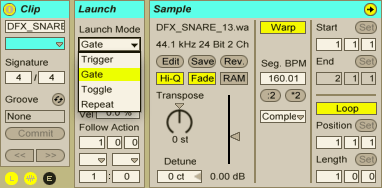
There are some important limitations to consider when using clips, though, that by using drum racks we can overcome:

• Only one clip can play in a track at a time
• Clips between different tracks can’t ‘interact’
• One shot clips can’t be put into MIDI loops
• Editing options for audio clips are limited

Drum Racks

Drum racks are included in all versions of Live 8, but they are only editable in the full version. That caveat aside, let’s take a look at the pros of drum racks.

• Great for single hits and kits
• Can have a MIDI clip assigned to them for sequencing
• Simpler and sampler are more capable for editing than audio clips

Because only one clip can play simultaneously in a track, setting up a bunch of one shots to trigger will spread across your clip view quite quickly. This is not only messy, and a bit of a waste of precious screen real estate, but can also be a bit of a puzzle because of the ambiguity about what’s controlling what on your controller. In reality, a drum rack is just a container for audio/instrument tracks, and the rack can be expanded to show them as such (although MIDI clips can’t be stored within individual rack tracks), but the grid view that the rack uses is much easier to align with pads and buttons of controllers.
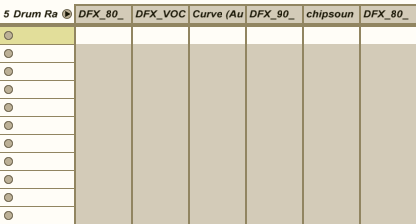
Another advantage to using a drum rack to trigger samples is that MIDI clips can be recorded into the main track, allowing all the samples and devices in a rack to become one big instrument – this is something that can’t be done if you use clips to trigger sounds.
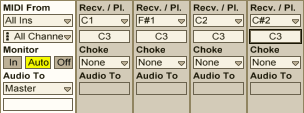
Drum racks default to triggering instruments at C3, which may not be what you want. To change this setting, expand the drum rack track to show all of the tracks within, and you’ll see the receive/play section, which you can alter as you see fit. You’ll also notice a choke setting; 16 flexible choke groups are another advantage to using drum racks.

Hot Tips

• Although it may seem like a bottomless pit of expenditure, to get real control over your samples you’ll need to get hold of Sampler, Ableton’s ‘step up’ sample player from the bundled Simpler device. Simpler’s still plenty powerful enough for the majority of tasks, but one thing it can’t do is set samples to one shot. The workaround? Increase the release time on your sample to ensure it plays out fully.

• When you’re working on your sounds, rather than tiresomely doing the same thing over and over again you can right click on a device control and select ‘copy to siblings’ to copy the setting across to all the other drum pads that share the same instrument.
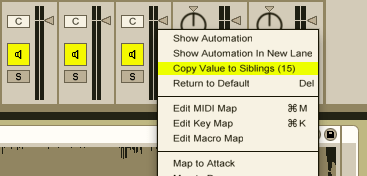
• The name drum rack is slightly misleading: don’t feel restricted to drums! Whilst the drum racks are by nature a percussive tool, loading in instruments, perhaps combined with MIDI effects like arpeggiator, can give you a handful of different sounds all on one MIDI track that you can dip into with much more flexibility than an audio track.

• Want to chop up a sample, MPC style? Instead of using clips and editing the start points manually (which can take forever!), take advantage of a not quite hidden, but not front of stage feature of drum racks. Simply right click an audio clip and choose Slice to New MIDI Track to bring up a dialogue box that will allow you to use timing or warp marker info to chop a sample up in a drum rack of Simplers. Simple!
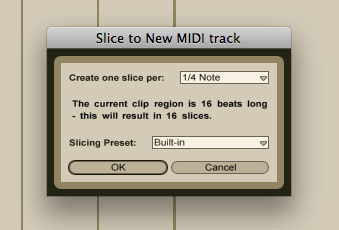
The most important thing to glean from this article is that the best way to use Ableton Live is to mix and match its myriad features into something that works for you! Clips will almost certainly be your workhorse tool for the structure of a Live set, but the strengths of drum racks can take your performance to the next level. When mapping your controller, consider working your clip launch MIDI around a grid of MIDI notes and making sure that you always use those notes in drum racks so that when you switch between them everything stays a finger press away. This way you’ll get to have your cake and eat it too. Good luck!
Tags: Abletonableton drum rackAbleton Live Tipsdrum rack tips
ShareTweetShare
Previous Post

Optimizing Windows for DJing – Part II (Dual Booting)

Next Post

New Stands for Controllers and Laptops from Aviiq

Related Posts

Ableton launches Live 12 Suite rent-to-own plan – and it’s not a subscription
Ableton

Ableton launches Live 12 Suite rent-to-own plan – and it’s not a subscription

October 1, 2025
Control an entire studio with Midi Fighter Spectra (like Mad Zach)
Finger Drumming

Control an entire studio with Midi Fighter Spectra (like Mad Zach)

May 9, 2025
How I Play: Hybrasil’s DAWless live techno setup
How I Play

How I Play: Hybrasil’s DAWless live techno setup

October 3, 2024
Load More
Next Post
New Stands for Controllers and Laptops from Aviiq

New Stands for Controllers and Laptops from Aviiq

Want to reach DJTT's audience here?

Shoot an email to advertising@djtechtools.com

DJTT ads
DJTT newsletter
Midi Fighter
Chat with us
  • ABOUT DJTT
  • CONTACT
  • PRIVACY
  • MIDI FIGHTER HELP
  • ABOUT DJTT
  • JOBS
  • CONTACT US
  • ADVERTISE
  • PRIVACY POLICY
  • ACCESSIBILITY STATEMENT

© 2024 DJ Techtools all rights reserved by DJ TechTools on all content unless otherwise noted.

No Result
View All Result
  • Blog
    • DJ Gear
      • DIY Projects
      • Gear Reviews
      • New Products
      • Controllerism
    • Techniques + Tips
      • Beginner DJ
      • Advanced DJ
      • Producer
      • Finger Drummer
    • News + Culture
      • Editorials + Opinions
      • Artist Interviews
      • Performances + Routines
      • How I Play
    • DJ Software Tutorials
      • Serato Tips
      • CDJ Tips
      • Ableton Live Tips
  • Store
    • Run by real DJs, not a corporation
    • DJ Controllers
      • Midi Fighter Twister
      • Midi Fighter Spectra
      • Midi Fighter 64
      • View All
    • Accessories
      • Chroma USB Drive for DJs
      • Chroma Caps
      • Chroma Cables Audio
      • Chroma Cables USB-A
      • Chroma Cables: USB-C
      • DJTT Gift Card
      • Midi Fighter T-Shirt
      • Keyboard Covers
      • Earplugs by V-Moda
    • Production Gear
    • Soundcards & Mixers
  • Community
    • Popular Forums
      • General Discussion
      • Buy & Sell
      • Reviews
      • Mixes
      • Music Production
      • Show Your Setup
      • Off Topic
    • Handy Links
      • New Posts
      • Private Messages
      • Register
      • Search
    • Midi Maps
      • Traktor
      • Ableton
      • Serato DJ
      • Midi Fighter 3D
      • Midi Fighter Twister
      • Midi Fighter Spectra
  • Midi Fighter
  • Chroma

© 2024 DJ Techtools all rights reserved by DJ TechTools on all content unless otherwise noted.

This website uses cookies. By continuing to use this website you are giving consent to cookies being used. Visit our Privacy and Cookie Policy.