It’s undeniable that a lot of DJs who have entered the field in the last decade lack proficiency at one of the core skills of DJing – beatmatching records by ear. Today, guest contributor Steven Maude shares insight on using features in DJ software to your advantage while learning how to beatmatch.
MORE THAN BEATMATCHING
There’s a view (one often propagated by people who were DJing long before Traktor and Serato came along) that using software on laptops doesn’t really “count” as DJing because you don’t need to beatmatch. Algorithms for beat detection usually work well enough these days that software can usually have a good go at this for you.
It’s a slightly odd opinion, and one that might actually do DJing a disservice. The implication is that beatmatching is so important that there’s little more to DJing than that. Just get the beats matching up or push the sync button, and, that’s it, congratulations, you are now a DJ and your membership card will be in the post!
Track selection and sequencing, transitions between tracks, EQing, and harmonic mixing are major skills that sync won’t handle – and lot of it is down to personal preference and choice, as well as the type of music you’re playing. Beat matching or syncing should also be that same personal preference, but knowing how to do both is extremely advantageous…
WHY BEATMATCHING IS WORTH LEARNING
Having said all that, there are still good reasons why it’s still worth learning:
- Lets you use other equipment: Imagine you only ever rode a bicycle with training wheels; great, you can ride a bike all day long – until you have to use a bike without them. It shouldn’t be too much of a struggle to adjust if you end up playing on CDJs or vinyl/DVS.
- Sync is good, but not always perfect: Annoyingly, Traktor still uses a fixed beatgrid. (Serato actually has beat warp markers) Provided a track has a well-defined BPM, which most electronic dance music does, it does pretty well at detecting it. However, a simple beatgrid can break down with tracks with live, unquantized percussion or where there are particularly unusual rhythms or switch ups. Knowing how to handle cases where sync fails completely or where minor adjustments (e.g. with tempo bend) are necessary is essential to keep beats from drifting.
- No need to analyze and beatgrid tracks in advance: Analyzing is always a good idea, as Traktor’s tempo-based effects and looping will be off without a correct beatgrid. On the other hand, being able to throw a new track into software and immediately play it without worry is really convenient.
- Mixing into the end of someone else’s set: Some DJs will start afresh; some will beatmatch into it. Choice is a good thing. No DJ software beat matches to an external sound source (as far as I’m aware).
- Beatmatching is good practice for listening closely, especially when you’re trying to selectively “tune” in and out from the track being faded in. This is useful regardless of how you’re beatmatching (e.g. for EQ purposes).
A BEATMATCHING WORKFLOW WITH DJ SOFTWARE
First, you’ll consider the computer to no longer be a focal point – but a reference and grading device for your attempts at matching two records. We recommend:
- Putting the laptop off to the side
- Dimming the screen brightness completely
- Covering up the waveforms + BPMs with other windows or even a sticky note
You can beatmatch manually with any controller that has jogwheels or (of course) with digital vinyl systems. Need a guide on the core concepts of matching tempo and phasing? We recommend watching this classic DJ tutorial from Ellaskins (note that he’s got cards over the BPM readouts).
WHAT TRAKTOR OFFERS FOR A BUDDING BEATMATCHER
Traktor has several features to aid beatmatching. If you’re learning to do this manually, the natural inclination is to think, “OK, if I’m learning to do this myself, I shouldn’t use any of these tools .” But when you’re learning to manually beatmatch, these features are can be used as self-teaching tools.
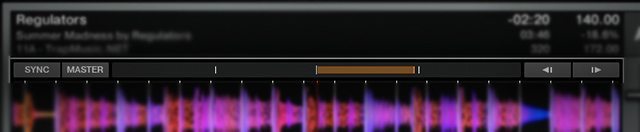
Phase meter: You can practice with the phase meter to see how far off you are after you think you’ve beatmatched correctly, or just check how far off the beat you are when hitting play or scratching in a track. The phase meter shows you how far ahead or behind the current track is relative to the playing master track. If the bar is in the middle of the phase meter, the track is in phase with the master. In the example above, the track is over a quarter of a beat ahead.
(Note that both tracks you’re playing need to have correct beatgrids otherwise the phase meter is likely to be misleading.)
Of course, you can always use your ears for this, but the phase meter gives you a quick visual indication of how well you’ve done.
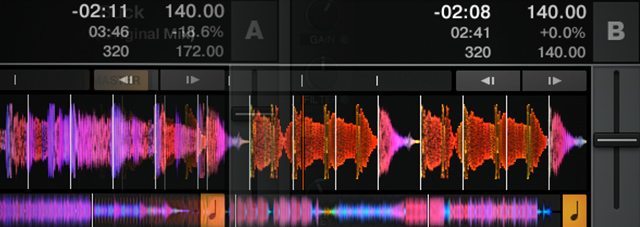
BPM counter: You can check BPMs immediately when you think you’ve matched tracks as well as possible. The best way is to add a BPM counter to the deck header (Preferences > Track Decks > Deck Header.)
This gives you a direct indication of how far off a match you actually were; if you’re only a couple of hundredths of a BPM out from the track that you’re mixing into, you’re doing pretty well.
Importantly, you can see that you’re improving even if you haven’t quite got the hang of it. To reuse the bike analogy, the learning curve is pretty steep. First, you fall off a lot, then you start riding albeit a little wobbly. I found beatmatching pretty similar: for quite a while, I couldn’t manage it, then all of a sudden I could (though quite badly). You then become steadier and grow in confidence with practice.
(One gotcha with beat gridding is that if Traktor may well have detected a BPM half or double what it should be, e.g. tracks at 140 BPM might be detected as 70 – this doesn’t mean your beatmatch is incorrect)
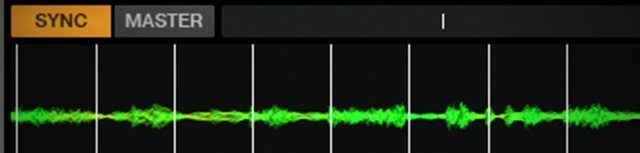
Sync: One exercise often mentioned in beginner beatmatching tutorials is to mix two identical tracks. When starting out, I found this sounds cluttered and slightly confusing. Unsurprisingly, it’s sometimes really hard to distinguish the two tracks as they sound the same.
Using different tracks might be easier. However, the tracks you’re using might not be the same speed which leads to the chicken-and-egg problem: how can you beatmatch before you’ve learnt to beatmatch?
If you’re not sure what a “perfect” mix of the current two tracks should sound like, the sync button will give you that too. You can then nudge one track slightly out of phase with the other using tempo bend to easily hear the difference (for example, what it sounds like when a monitored track is ahead versus the live track).
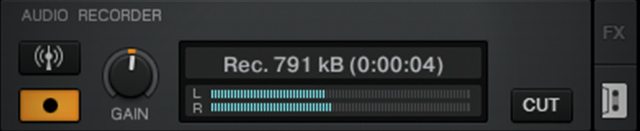
Recording: It’s not always easy to judge how well your beatmatching is while you’re actually doing it. Recording your practice and listening back to see how it actually sounds to a listener is pretty simple with one click. Are the beats matched together perfectly or not? Did you let the beats drift at all through a blend?
A TIP FOR LIMITED MIDI CONTROLLERS
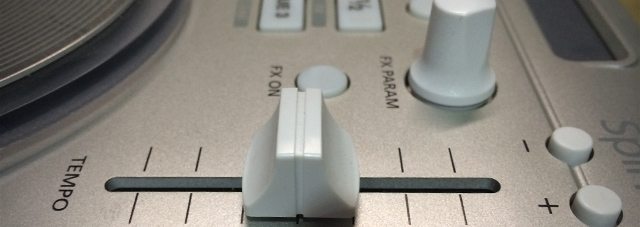
Many MIDI controllers have pitch faders that tend to be on the small side. This makes it difficult to accurately beatmatch, since precise adjustments (hundredths of a BPM) are tricky. A great workaround is to MIDI map a knob as a fine pitch control with a much smaller range. This lets you lock in to the rough BPM using the pitch fader, then use the knob to make very small corrections.
As long as software doesn’t perfectly get beatmatching correctly with zero preparation, there’s still a need for beatmatching. Not only that, software can actually help you practice and improve too: I self-taught myself beatmatching with Traktor and a MIDI controller. Let me know if you’ve done the same.
Steven Maude’s article originally appeared on his blog – follow him on Twitter here.