DJ TechTools
  • Blog
    • DJ Gear
      • DIY Projects
      • Gear Reviews
      • New Products
      • Controllerism
    • Techniques + Tips
      • Beginner DJ
      • Advanced DJ
      • Producer
      • Finger Drummer
    • News + Culture
      • Editorials + Opinions
      • Artist Interviews
      • Performances + Routines
      • How I Play
    • DJ Software Tutorials
      • Serato Tips
        • Traktor Tips
      • CDJ Tips
      • Ableton Live Tips
  • Store
    • Run by real DJs, not a corporation
    • DJ Controllers
      • Midi Fighter Twister
      • Midi Fighter Spectra
      • Midi Fighter 64
      • View All
    • Accessories
      • Chroma USB Drive for DJs
      • Chroma Caps
      • Chroma Cables Audio
      • Chroma Cables USB-A
      • Chroma Cables: USB-C
      • DJTT Gift Card
      • Midi Fighter T-Shirt
      • Keyboard Covers
      • Earplugs by V-Moda
    • Production Gear
    • Soundcards & Mixers
  • Community
    • Popular Forums
      • General Discussion
      • Buy & Sell
      • Reviews
      • Mixes
      • Music Production
      • Show Your Setup
      • Off Topic
    • Handy Links
      • New Posts
      • Private Messages
      • Register
      • Search
    • Midi Maps
      • Traktor
      • Ableton
      • Serato DJ
      • Midi Fighter 3D
      • Midi Fighter Twister
      • Midi Fighter Spectra
  • Midi Fighter
  • Chroma
No Result
View All Result
DJ TechTools
  • Blog
    • DJ Gear
      • DIY Projects
      • Gear Reviews
      • New Products
      • Controllerism
    • Techniques + Tips
      • Beginner DJ
      • Advanced DJ
      • Producer
      • Finger Drummer
    • News + Culture
      • Editorials + Opinions
      • Artist Interviews
      • Performances + Routines
      • How I Play
    • DJ Software Tutorials
      • Serato Tips
        • Traktor Tips
      • CDJ Tips
      • Ableton Live Tips
  • Store
    • Run by real DJs, not a corporation
    • DJ Controllers
      • Midi Fighter Twister
      • Midi Fighter Spectra
      • Midi Fighter 64
      • View All
    • Accessories
      • Chroma USB Drive for DJs
      • Chroma Caps
      • Chroma Cables Audio
      • Chroma Cables USB-A
      • Chroma Cables: USB-C
      • DJTT Gift Card
      • Midi Fighter T-Shirt
      • Keyboard Covers
      • Earplugs by V-Moda
    • Production Gear
    • Soundcards & Mixers
  • Community
    • Popular Forums
      • General Discussion
      • Buy & Sell
      • Reviews
      • Mixes
      • Music Production
      • Show Your Setup
      • Off Topic
    • Handy Links
      • New Posts
      • Private Messages
      • Register
      • Search
    • Midi Maps
      • Traktor
      • Ableton
      • Serato DJ
      • Midi Fighter 3D
      • Midi Fighter Twister
      • Midi Fighter Spectra
  • Midi Fighter
  • Chroma
No Result
View All Result
DJ TechTools

Five Tips and Tricks for Using the Midi Fighter Twister With Ableton Live

Lenny Kiser by Lenny Kiser
June 12, 2014
in Ableton, Ableton Videos, Basic DJ Tips, Breaking News, Controllerism, DJ Techniques / Tips, DJTT Gear, How-To Video Tutorials, Live 9, Midi Fighter Twister, News, Video Posts, Videos
Reading Time: 3 mins read
0
Five Tips and Tricks for Using the Midi Fighter Twister With Ableton Live
559
VIEWS
Post on FacebookTweet thisUpvote on Reddit

When preparing your set for a live performance, there are a lot of exciting options that both Ableton and your MIDI controller provide you—and sometimes it can be difficult to know where to start. Today we show you five great tips and tricks for using the Midi Fighter Twister and Ableton to perform live.

1. Push-and-Turn Looping Effects
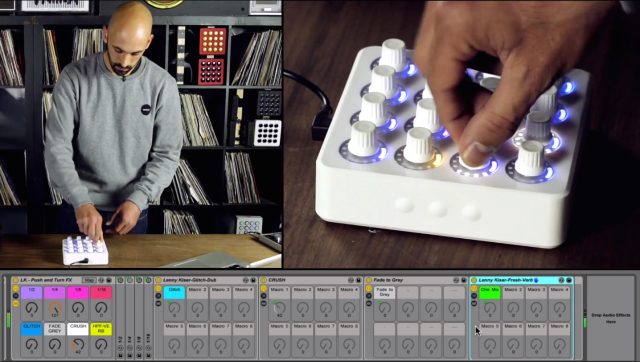
These effects utilize a beat-repeat device that is turned on via the push switch on the Twister to catch short loops at 1/2, 1/4, 1/8, and 1/16 notes. Then the encoder turn is used to apply several other effects post-loop. This allows for creative on-the-fly loop-catching and then further processing.

2. Using the Twister Super Knob Functionality
Superknob-02

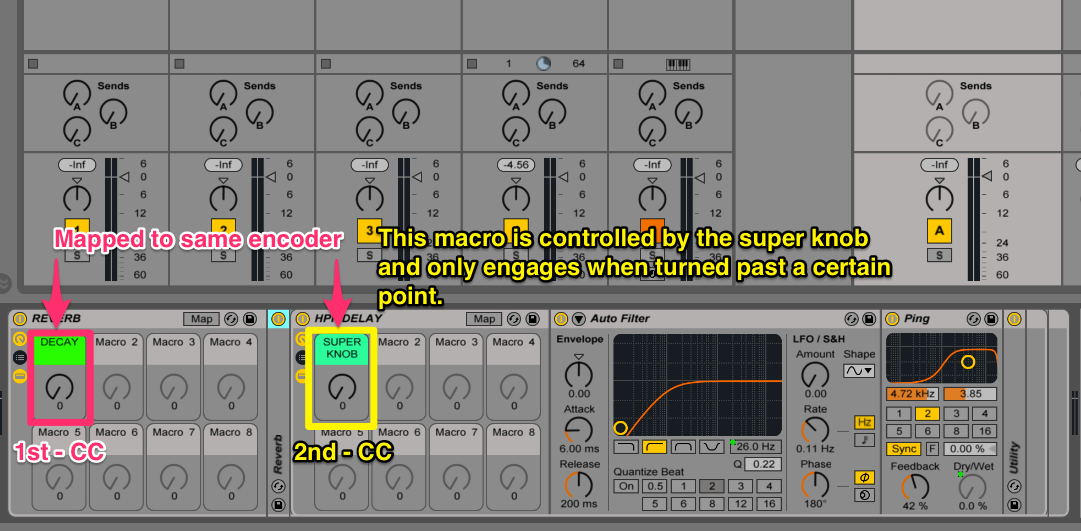
The super-knob is a feature built into the Twister firmware and it allows you to be able to send two control changes from one encoder. Imagine an encoder that sends a control change message when you start to turn it and then when you turn past a certain point on the encoder it sends a second CC to control a different parameter.

I’ve set this up so that the turn of the encoder increases the decay time on the reverb on a return track. Then the same encoder with super-knob functionality controls a high-pass filter and delay but only engages after the knob has been turned past 3 o’clock.

3. Using the Center Detent on the Twister
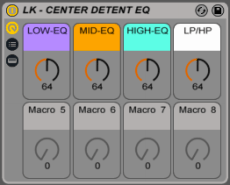
When using EQ and Filters in a digital environment, I prefer that theEQ’s default position is in the center or has a MIDI value of 64. This is to replicate how analog DJ mixers function.

If the center detent is enabled in the Twister Utility Software, the encoder will behave like a potentiometer with a center detent. This means the LED is in the middle and indicates that you are at a default position with a MIDI value of 64. To utilize the center detent position, you will need to download this special EQ and Filter rack, which is set up so the default device values are in the center position also.

4. Navigation and Scene Launching
The Twister’s side buttons can do many things. I’ve been using them for navigating and launching scenes. Hit Command+M in Ableton to go into MIDI-map mode and then select the “relative session mappings” section and map the side buttons accordingly to be able to launch and navigate scenes.

The Twister also has four banks or levels for the encoders, which are accessed via the middle side buttons. Essentially the Twister has 16 physical encoders but with these bank buttons it has 64, or four banks of 16.

5. The Built-In Twister Sequencer
One of the most exciting things about the Twister is that it has its own built-in sequencer. To enter the sequencer mode, hit both of the middle side buttons at the same time. The top two rows of encoders are dedicated to the separate voices or sounds. As you turn each knob it engages a pattern for that sound which increases in complexity the farther you turn it. If you hit one of the push switches for a voice, you will jump to a separate page where you can program patterns manually into the sequencer.

Now you’ve five techniques for setting up the Twister to start using it in Ableton. The included racks can be downloaded here, and remember: These techniques can be applied to many other controllers and performance setups.

Midi Fighter Twisters are now $199 in the DJTT webstore here.

Find me here for more Ableton tips and tricks, and let us know what else you’d like to see in the comments below.
Tags: Abletonableton livecenter detentencoderslenny kiserMidi Fightermidi fighter twisterscene launchingsequencerTutorial
Share4Tweet3Share
Previous Post

What’s the Deal With Bass Augmentation Devices—and Why Should You Care?

Next Post

What to Do If You Spill Beer or Booze on Your Mixer, Laptop, or Controller

Related Posts

Ableton launches Live 12 Suite rent-to-own plan – and it’s not a subscription
Ableton

Ableton launches Live 12 Suite rent-to-own plan – and it’s not a subscription

October 1, 2025
Use your Midi Fighter Twister as an Audio-Reactive Visualizer
Ableton Live Tips

Use your Midi Fighter Twister as an Audio-Reactive Visualizer

June 23, 2025
Control an entire studio with Midi Fighter Spectra (like Mad Zach)
Finger Drumming

Control an entire studio with Midi Fighter Spectra (like Mad Zach)

May 9, 2025
Load More
Next Post
What to Do If You Spill Beer or Booze on Your Mixer, Laptop, or Controller

What to Do If You Spill Beer or Booze on Your Mixer, Laptop, or Controller

Want to reach DJTT's audience here?

Shoot an email to advertising@djtechtools.com

DJTT ads
DJTT newsletter
Midi Fighter
Chat with us
  • ABOUT DJTT
  • CONTACT
  • PRIVACY
  • MIDI FIGHTER HELP
  • ABOUT DJTT
  • JOBS
  • CONTACT US
  • ADVERTISE
  • PRIVACY POLICY
  • ACCESSIBILITY STATEMENT

© 2024 DJ Techtools all rights reserved by DJ TechTools on all content unless otherwise noted.

No Result
View All Result
  • Blog
    • DJ Gear
      • DIY Projects
      • Gear Reviews
      • New Products
      • Controllerism
    • Techniques + Tips
      • Beginner DJ
      • Advanced DJ
      • Producer
      • Finger Drummer
    • News + Culture
      • Editorials + Opinions
      • Artist Interviews
      • Performances + Routines
      • How I Play
    • DJ Software Tutorials
      • Serato Tips
      • CDJ Tips
      • Ableton Live Tips
  • Store
    • Run by real DJs, not a corporation
    • DJ Controllers
      • Midi Fighter Twister
      • Midi Fighter Spectra
      • Midi Fighter 64
      • View All
    • Accessories
      • Chroma USB Drive for DJs
      • Chroma Caps
      • Chroma Cables Audio
      • Chroma Cables USB-A
      • Chroma Cables: USB-C
      • DJTT Gift Card
      • Midi Fighter T-Shirt
      • Keyboard Covers
      • Earplugs by V-Moda
    • Production Gear
    • Soundcards & Mixers
  • Community
    • Popular Forums
      • General Discussion
      • Buy & Sell
      • Reviews
      • Mixes
      • Music Production
      • Show Your Setup
      • Off Topic
    • Handy Links
      • New Posts
      • Private Messages
      • Register
      • Search
    • Midi Maps
      • Traktor
      • Ableton
      • Serato DJ
      • Midi Fighter 3D
      • Midi Fighter Twister
      • Midi Fighter Spectra
  • Midi Fighter
  • Chroma

© 2024 DJ Techtools all rights reserved by DJ TechTools on all content unless otherwise noted.

This website uses cookies. By continuing to use this website you are giving consent to cookies being used. Visit our Privacy and Cookie Policy.