DJ TechTools
  • Blog
    • DJ Gear
      • DIY Projects
      • Gear Reviews
      • New Products
      • Controllerism
    • Techniques + Tips
      • Beginner DJ
      • Advanced DJ
      • Producer
      • Finger Drummer
    • News + Culture
      • Editorials + Opinions
      • Artist Interviews
      • Performances + Routines
      • How I Play
    • DJ Software Tutorials
      • Serato Tips
        • Traktor Tips
      • CDJ Tips
      • Ableton Live Tips
  • Store
    • Run by real DJs, not a corporation
    • DJ Controllers
      • Midi Fighter Twister
      • Midi Fighter Spectra
      • Midi Fighter 64
      • View All
    • Accessories
      • Chroma USB Drive for DJs
      • Chroma Caps
      • Chroma Cables Audio
      • Chroma Cables USB-A
      • Chroma Cables: USB-C
      • DJTT Gift Card
      • Midi Fighter T-Shirt
      • Keyboard Covers
      • Earplugs by V-Moda
    • Production Gear
    • Soundcards & Mixers
  • Community
    • Popular Forums
      • General Discussion
      • Buy & Sell
      • Reviews
      • Mixes
      • Music Production
      • Show Your Setup
      • Off Topic
    • Handy Links
      • New Posts
      • Private Messages
      • Register
      • Search
    • Midi Maps
      • Traktor
      • Ableton
      • Serato DJ
      • Midi Fighter 3D
      • Midi Fighter Twister
      • Midi Fighter Spectra
  • Midi Fighter
  • Chroma
No Result
View All Result
DJ TechTools
  • Blog
    • DJ Gear
      • DIY Projects
      • Gear Reviews
      • New Products
      • Controllerism
    • Techniques + Tips
      • Beginner DJ
      • Advanced DJ
      • Producer
      • Finger Drummer
    • News + Culture
      • Editorials + Opinions
      • Artist Interviews
      • Performances + Routines
      • How I Play
    • DJ Software Tutorials
      • Serato Tips
        • Traktor Tips
      • CDJ Tips
      • Ableton Live Tips
  • Store
    • Run by real DJs, not a corporation
    • DJ Controllers
      • Midi Fighter Twister
      • Midi Fighter Spectra
      • Midi Fighter 64
      • View All
    • Accessories
      • Chroma USB Drive for DJs
      • Chroma Caps
      • Chroma Cables Audio
      • Chroma Cables USB-A
      • Chroma Cables: USB-C
      • DJTT Gift Card
      • Midi Fighter T-Shirt
      • Keyboard Covers
      • Earplugs by V-Moda
    • Production Gear
    • Soundcards & Mixers
  • Community
    • Popular Forums
      • General Discussion
      • Buy & Sell
      • Reviews
      • Mixes
      • Music Production
      • Show Your Setup
      • Off Topic
    • Handy Links
      • New Posts
      • Private Messages
      • Register
      • Search
    • Midi Maps
      • Traktor
      • Ableton
      • Serato DJ
      • Midi Fighter 3D
      • Midi Fighter Twister
      • Midi Fighter Spectra
  • Midi Fighter
  • Chroma
No Result
View All Result
DJ TechTools

Sync External Hardware to Traktor

Nisus by Nisus
November 27, 2009
in Advanced DJ Tips, Traktor Tips
Reading Time: 4 mins read
0
Sync External Hardware to Traktor
384
VIEWS
Post on FacebookTweet thisUpvote on Reddit

By Nisus

One of the greatest things about digital DJing is the opportunity to incorporate a multitude of performance tools into your sets. Not being limited to the turntables as an interface has opened the door to a wonderful world of controllers full of knobs and faders. While controllers have given us the power to mangle and mix sound, they have also put us back in touch with the instrumentality of live music performance.

DJing is a musical gateway drug. It makes sense that once you get used to using a controller as an instrument, you might want to start using the plethora of sound-producing instruments in a similar way. In this article, I look at integrating actual hardware synths into Traktor. Watch out though; before you know it, you’ll be wanting to play Phrygian dominant scales in your sets like Moldover.

DECKS, EFX AND A 909
TraktorHardware1

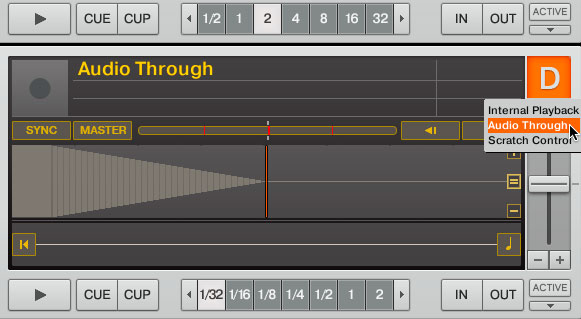
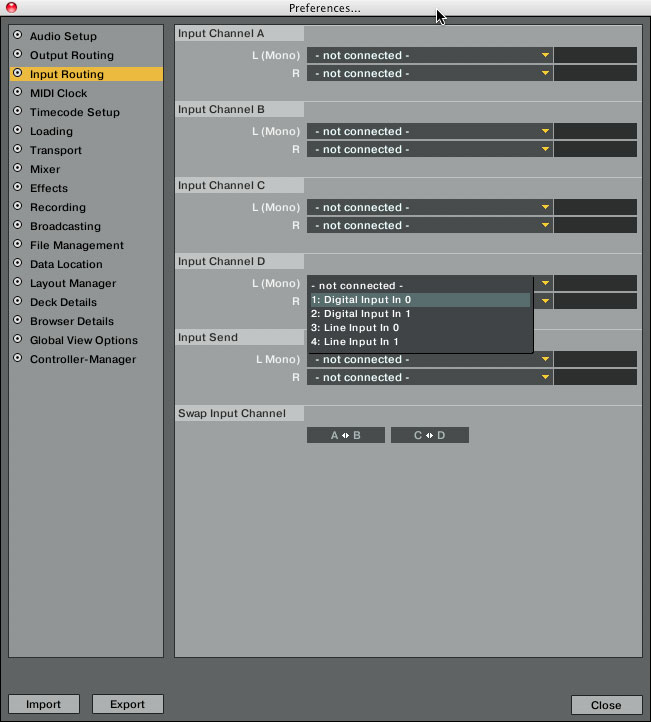
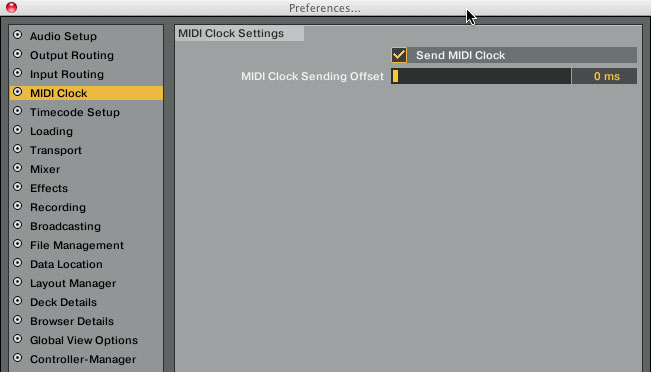
Using Trakor in a four-deck layout is a perfect complement to many four-channel club mixers such as the Pioneer DJM-800 or the Allen & Heath Xone:92. Traktor has the ability to run audio through any of its decks and also send MIDI. Right below the big deck letter is a little drop-down triangle that you can click and select “Audio Through”. In my sets I do this on Deck D. Running audio through a deck gives you access to Traktor’s awesome internal effects, which you’ve hopefully mapped to your controller. Once you have audio through, you need to go into preferences and click on “Input Routing” Input Channel D and select your inputs. In my case I’m using the Audio 8 interface, so I selected Input 7 and 8 for Input Channel D. While you are in preferences, click on “MIDI Clock” and check the box “Send MIDI Clock”. There’s a MIDI Clock Sending Offset field below that, which we’ll go back to in a minute.
TraktorHardware2

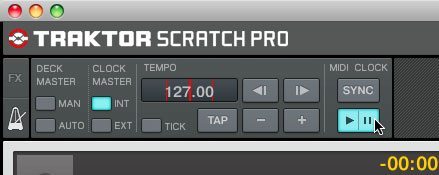
Back in your main layout in the top left corner where your effects section is, there’s a little metronome icon. Clicking on that will show you the Master Clock settings. You will see four buttons: Man, Auto, Int and Ext. Click “Int” and set your tempo. Click the big “Play Pause” button under the MIDI Clock “Sync” button. It should glow a glorious blue. If you haven’t yet, now is the time to plug in your MIDI cable from the MIDI Out on your Audio 8 (or other audio/MIDI interface) into the MIDI In on your piece of hardware. I am also connecting the audio out from my synth to the audio inputs 7 and 8 on my Audio 8 interface, which are assigned to Channel D in Traktor. Somewhere in your hardware synth will be a MIDI Clock setting that allows you to send and receive MIDI Clock data. Find that and set it to external or slave mode.
TraktorHardware4

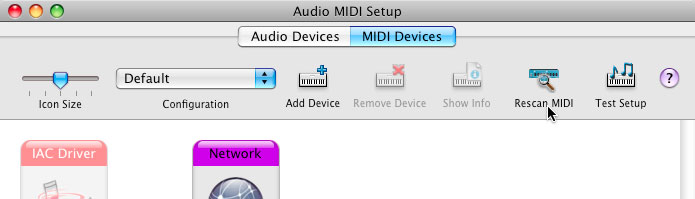
If you are using a Mac, you need to go Applications>Utilities>Audio MIDI Setup. Drag that app to your dock, because it’s nice to have quick access to it. Open the app and click Rescan MIDI. Your device should light up.
TraktorHardware5

On with the fun! Load a track, start it playing and click the MIDI “Sync” button. Your hardware should jump into action and be sending sound through Deck D. Wonderful, right? Your hardware audio input could be a drum machine, a synth or anything with a MIDI port and audio outputs. There are some really great mod kits to add MIDI to your circuit-bent toys, so don’t sleep on the many possible devices you can sync to Traktor.
TraktorHardware3

Now back to the MIDI Clock Sending Offset in the MIDI Clock preferences. Here’s what you do: Click the “Tick” button in the MIDI master clock window. It sends out through channels 7 and 8 by default, so those need to be plugged in or set to your headphones. Open preferences and click “MIDI Clock.” Now comes the part that relies on your O.G. beat-matching DJ skills. You need to align the tick with your synth or drum sounds. I recommend you pick a quick, mid-range sound on your hardware. Slide the MIDI Clock Sending Offset bar until you hear the two tones align in time. Press the Sync button and move the slider; repeat until correct. The end.

This should help you get on your way to incorporating instruments within your DJ sets. You can play along live or you can sequence patterns within your hardware. And this is only the beginning. – Nisus
Tags: midiSyncsynthesizerTipsTraktor Tips
Share3Tweet2Share
Previous Post

New VCI-100SE 3.0 Mapping

Next Post

N2IT’s Lawsuit against M-Audio Dismissed

Related Posts

traktor-pro plus 3.8 pattern player controls
Dj and Production Tutorials

Review: Traktor Pro Plus 3.8 – After 8 months, is the subscription worth it?

April 20, 2023
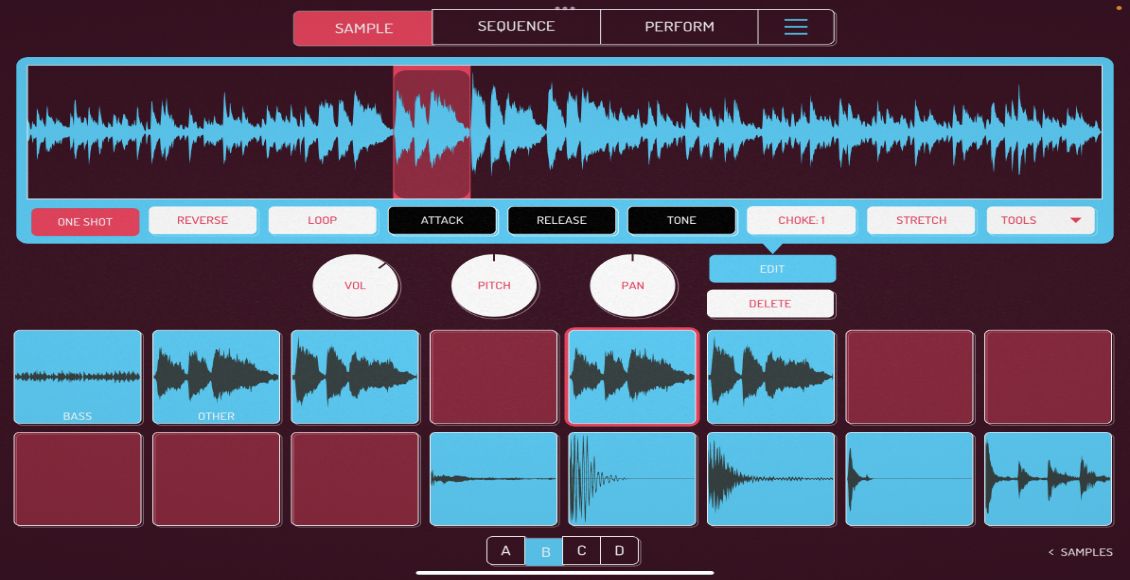
Meet the Koala sampler app: a mobile production powerhouse, now with stems
DJ Gear

Meet the Koala sampler app: a mobile production powerhouse, now with stems

February 7, 2023
Tips for DJing in Extreme Cold: DJTT readers share their advice
DJ Techniques / Tips

Tips for DJing in Extreme Cold: DJTT readers share their advice

January 30, 2023
Load More
Next Post
N2IT’s Lawsuit against M-Audio Dismissed

N2IT's Lawsuit against M-Audio Dismissed

Want to reach DJTT's audience here?

Shoot an email to advertising@djtechtools.com

DJTT ads
DJTT newsletter
Midi Fighter
Chat with us
  • ABOUT DJTT
  • CONTACT
  • PRIVACY
  • MIDI FIGHTER HELP
  • ABOUT DJTT
  • JOBS
  • CONTACT US
  • ADVERTISE
  • PRIVACY POLICY
  • ACCESSIBILITY STATEMENT

© 2024 DJ Techtools all rights reserved by DJ TechTools on all content unless otherwise noted.

No Result
View All Result
  • Blog
    • DJ Gear
      • DIY Projects
      • Gear Reviews
      • New Products
      • Controllerism
    • Techniques + Tips
      • Beginner DJ
      • Advanced DJ
      • Producer
      • Finger Drummer
    • News + Culture
      • Editorials + Opinions
      • Artist Interviews
      • Performances + Routines
      • How I Play
    • DJ Software Tutorials
      • Serato Tips
      • CDJ Tips
      • Ableton Live Tips
  • Store
    • Run by real DJs, not a corporation
    • DJ Controllers
      • Midi Fighter Twister
      • Midi Fighter Spectra
      • Midi Fighter 64
      • View All
    • Accessories
      • Chroma USB Drive for DJs
      • Chroma Caps
      • Chroma Cables Audio
      • Chroma Cables USB-A
      • Chroma Cables: USB-C
      • DJTT Gift Card
      • Midi Fighter T-Shirt
      • Keyboard Covers
      • Earplugs by V-Moda
    • Production Gear
    • Soundcards & Mixers
  • Community
    • Popular Forums
      • General Discussion
      • Buy & Sell
      • Reviews
      • Mixes
      • Music Production
      • Show Your Setup
      • Off Topic
    • Handy Links
      • New Posts
      • Private Messages
      • Register
      • Search
    • Midi Maps
      • Traktor
      • Ableton
      • Serato DJ
      • Midi Fighter 3D
      • Midi Fighter Twister
      • Midi Fighter Spectra
  • Midi Fighter
  • Chroma

© 2024 DJ Techtools all rights reserved by DJ TechTools on all content unless otherwise noted.

This website uses cookies. By continuing to use this website you are giving consent to cookies being used. Visit our Privacy and Cookie Policy.