DJ TechTools
  • Blog
    • DJ Gear
      • DIY Projects
      • Gear Reviews
      • New Products
      • Controllerism
    • Techniques + Tips
      • Beginner DJ
      • Advanced DJ
      • Producer
      • Finger Drummer
    • News + Culture
      • Editorials + Opinions
      • Artist Interviews
      • Performances + Routines
      • How I Play
    • DJ Software Tutorials
      • Serato Tips
        • Traktor Tips
      • CDJ Tips
      • Ableton Live Tips
  • Store
    • Run by real DJs, not a corporation
    • DJ Controllers
      • Midi Fighter Twister
      • Midi Fighter Spectra
      • Midi Fighter 64
      • View All
    • Accessories
      • Chroma USB Drive for DJs
      • Chroma Caps
      • Chroma Cables Audio
      • Chroma Cables USB-A
      • Chroma Cables: USB-C
      • DJTT Gift Card
      • Midi Fighter T-Shirt
      • Keyboard Covers
      • Earplugs by V-Moda
    • Production Gear
    • Soundcards & Mixers
  • Community
    • Popular Forums
      • General Discussion
      • Buy & Sell
      • Reviews
      • Mixes
      • Music Production
      • Show Your Setup
      • Off Topic
    • Handy Links
      • New Posts
      • Private Messages
      • Register
      • Search
    • Midi Maps
      • Traktor
      • Ableton
      • Serato DJ
      • Midi Fighter 3D
      • Midi Fighter Twister
      • Midi Fighter Spectra
  • Midi Fighter
  • Chroma
No Result
View All Result
DJ TechTools
  • Blog
    • DJ Gear
      • DIY Projects
      • Gear Reviews
      • New Products
      • Controllerism
    • Techniques + Tips
      • Beginner DJ
      • Advanced DJ
      • Producer
      • Finger Drummer
    • News + Culture
      • Editorials + Opinions
      • Artist Interviews
      • Performances + Routines
      • How I Play
    • DJ Software Tutorials
      • Serato Tips
        • Traktor Tips
      • CDJ Tips
      • Ableton Live Tips
  • Store
    • Run by real DJs, not a corporation
    • DJ Controllers
      • Midi Fighter Twister
      • Midi Fighter Spectra
      • Midi Fighter 64
      • View All
    • Accessories
      • Chroma USB Drive for DJs
      • Chroma Caps
      • Chroma Cables Audio
      • Chroma Cables USB-A
      • Chroma Cables: USB-C
      • DJTT Gift Card
      • Midi Fighter T-Shirt
      • Keyboard Covers
      • Earplugs by V-Moda
    • Production Gear
    • Soundcards & Mixers
  • Community
    • Popular Forums
      • General Discussion
      • Buy & Sell
      • Reviews
      • Mixes
      • Music Production
      • Show Your Setup
      • Off Topic
    • Handy Links
      • New Posts
      • Private Messages
      • Register
      • Search
    • Midi Maps
      • Traktor
      • Ableton
      • Serato DJ
      • Midi Fighter 3D
      • Midi Fighter Twister
      • Midi Fighter Spectra
  • Midi Fighter
  • Chroma
No Result
View All Result
DJ TechTools

Looking into SYNC – Power Functions in Traktor Pro 2

Ean Golden by Ean Golden
October 23, 2011
in Advanced DJ Tips, Basic DJ Tips, Controllerism, DJ Software Tips, DJ Techniques / Tips, Traktor Tips
Reading Time: 5 mins read
0
Looking into SYNC – Power Functions in Traktor Pro 2
395
VIEWS
Post on FacebookTweet thisUpvote on Reddit

SYNC is a highly debated but often miss-understood function. Many people get the general concept but fail to understand exactly what sync actually does and how to customize it for their own needs. In this article, we delve into every nuance of the SYNC command including a complete description of the three different possible sync behaviors that can be unlocked in Trakor. We’ll also explain the elusive SNAP and QUANT functions.

Technically, basic syncing is “matching the tempo and phase of two songs to each other or a master source” 

Helpful Definitions: 

  • MASTER SOURCE = The deck, or master clock that everything else follows.
  • TEMPO = The BPM of the song
  • PHASE = The relative position of one songs drum hits in relation to another.

If the drum hits are in time they are “in phase”, and if things are off they are “out of phase” . 

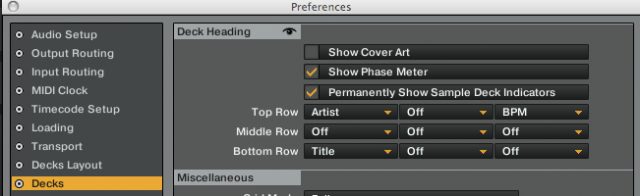
Traktor offers a handy phase meter to show you the phase of the song.

This can be hidden or shown in the preferences, under the “Decks” section.
THINGS TO KNOW: 

With the latest version of Traktor you can sync two songs and still pitch bend a song to adjust the phase without turning off sync. This will adjust the phase while keeping the song “in sync”, so further tempo adjustments will be followed and beat jumps will stay in time. Pressing sync again will lose this phase adjustment. To make that phase adjustment permanent and fine tune your beat grids:

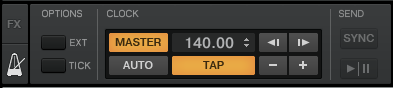
  • Press SYNC to match up a song to the master clock (use the metronome!)
  • Adjust the pitch bend until the phase matches correctly (the phase meter should now be off)

  • Now adjust the beatgrid position until the phase meter goes back to zero

If all songs have their grid position adjusted in this manner they should all sync up with each other much better!


5 FLAVORS OF SYNC
SYNC is not a one size fits all tool, and appropriately so, the modern Traktor offers several different flavors of SYNC that each behave differently.

BEAT SYNC (DEFAULT BEHAVIOR)

This is what you get when pressing the SYNC button in the GUI. It is also available as a MIDI command called BEAT SYNC.

  • Results: The tempo and phase both lock to the master source.
  • Pro: One click and everything is locked up.
  • Con: This SYNC has a toggle function so after you press it that deck is now locked in sync. Moving the tempo of the master deck will cause this deck’s tempo to follow that deck.

Inside Tip: Standard SYNC locks the phase of the playing deck to the master so with this engaged, all timeline actions like beat jumps and cue point juggles will stay locked in time with the beat marker of the master track.

Good to know: locked SYNC will NOT work without a beat grid. We recommend turning on the auto grid function on import.

PHASE SYNC:

This option is available as a MIDI command so you can re-map your controllers to behave differently.

  • Results: The phase of the song shifts into line with the master source but it is not locked- this is a one time command.
  • Pro: A single press, this puts the songs in line without changing anything else.
  • Con: Pressing this button will not lock beat juggles and cue point jumps to the master clock.

TEMPO SYNC:

This option is also available in the MIDI options and not in the GUI.

  • Results: The tempo of the selected deck will immediately match the tempo of the master source without effecting phase.
  • Pro: For a quick tempo match without any locking sync this is a great option for those that want to manually phase match but dont want to waste time tempo matching with the faders.
  • Con: With this command alone you will still need to phase match by ear (recommended)

INSIDE TIP: I like combining phase sync and tempo SYNC into one single custom SYNC command that behaves like the old school Traktor SYNC. You press it once and it matches tempo and phase without locking the deck in SYNC with the master. I then adjust the phase to suit my tastes and the mix of that combination.

QUANTIZE

There is another function in Traktor that behaves like SYNC but is very different. Quantize is a helpful tool, but must be fully understood to get consistent results.

  • QUANT: This master function locks the phase of all decks.
  • HOW TO USE: Click the Q button in the center master section.

TIP: Both quantize and SYNC have essentially quantized the songs to each other making all beat jumps stay perfectly in time. This is very beneficial if you have a live mix playing on the speakers and need to jump to a new part of the song. With quantize on all timeline jumps will stay perfectly in time and the crowd will never miss a beat.

When to use: If you use tempo or phase sync but still want further beat jumps and cue juggles to stay locked in then turn quantize on.

SNAP

To the left of quantize is another misunderstood function. This button tells Traktor to snap cue points, and loops to the beat, this means the songs beats (if a beat grid is not present) or the beat grid if you have created one. With snap on, the cue point drops will always fall on the down beat. This can be helpful if your grid is perfect and everything should be on the one but it is very annoying when trying to set a beat grid for the first time.

FINAL THOUGHTS

These are five helpful tools which can be used to make your DJ sets cleaner and easier to execute. Each one has a specific circumstance where it is useful and can be applied with great precision. These tools should never be used however,  as shortcuts that keep you from training your ears to really understand the difference between a perfect mix and a sloppy one. We debated the pros and cons of SYNC itself in this article, so let’s please try to avoid doing it again in the comments.
Tags: ExplainedSyncTraktor TipsTutorial
Share3Tweet2Share
Previous Post

Traktor Tricks: Double up effects with a loop for a cleaner build.

Next Post

The iOS DJ Has Arrived

Related Posts

traktor-pro plus 3.8 pattern player controls
Dj and Production Tutorials

Review: Traktor Pro Plus 3.8 – After 8 months, is the subscription worth it?

April 20, 2023
Traktor Pro 3.6 releases, as well as a feature roadmap…
Breaking News

Traktor Pro 3.6 releases, as well as a feature roadmap…

August 19, 2022
Traktor Pro 3.6 beta and iZotope's Ozone Maximizer side by side
NAMM 2022

Traktor’s new beta cycle has begun: 3.6 to include iZotope products, maybe NKS support?

May 30, 2022
Load More
Next Post
The iOS DJ Has Arrived

The iOS DJ Has Arrived

Want to reach DJTT's audience here?

Shoot an email to advertising@djtechtools.com

DJTT ads
DJTT newsletter
Midi Fighter
Chat with us
  • ABOUT DJTT
  • CONTACT
  • PRIVACY
  • MIDI FIGHTER HELP
  • ABOUT DJTT
  • JOBS
  • CONTACT US
  • ADVERTISE
  • PRIVACY POLICY
  • ACCESSIBILITY STATEMENT

© 2024 DJ Techtools all rights reserved by DJ TechTools on all content unless otherwise noted.

No Result
View All Result
  • Blog
    • DJ Gear
      • DIY Projects
      • Gear Reviews
      • New Products
      • Controllerism
    • Techniques + Tips
      • Beginner DJ
      • Advanced DJ
      • Producer
      • Finger Drummer
    • News + Culture
      • Editorials + Opinions
      • Artist Interviews
      • Performances + Routines
      • How I Play
    • DJ Software Tutorials
      • Serato Tips
      • CDJ Tips
      • Ableton Live Tips
  • Store
    • Run by real DJs, not a corporation
    • DJ Controllers
      • Midi Fighter Twister
      • Midi Fighter Spectra
      • Midi Fighter 64
      • View All
    • Accessories
      • Chroma USB Drive for DJs
      • Chroma Caps
      • Chroma Cables Audio
      • Chroma Cables USB-A
      • Chroma Cables: USB-C
      • DJTT Gift Card
      • Midi Fighter T-Shirt
      • Keyboard Covers
      • Earplugs by V-Moda
    • Production Gear
    • Soundcards & Mixers
  • Community
    • Popular Forums
      • General Discussion
      • Buy & Sell
      • Reviews
      • Mixes
      • Music Production
      • Show Your Setup
      • Off Topic
    • Handy Links
      • New Posts
      • Private Messages
      • Register
      • Search
    • Midi Maps
      • Traktor
      • Ableton
      • Serato DJ
      • Midi Fighter 3D
      • Midi Fighter Twister
      • Midi Fighter Spectra
  • Midi Fighter
  • Chroma

© 2024 DJ Techtools all rights reserved by DJ TechTools on all content unless otherwise noted.

This website uses cookies. By continuing to use this website you are giving consent to cookies being used. Visit our Privacy and Cookie Policy.