DJ TechTools
  • Blog
    • DJ Gear
      • DIY Projects
      • Gear Reviews
      • New Products
      • Controllerism
    • Techniques + Tips
      • Beginner DJ
      • Advanced DJ
      • Producer
      • Finger Drummer
    • News + Culture
      • Editorials + Opinions
      • Artist Interviews
      • Performances + Routines
      • How I Play
    • DJ Software Tutorials
      • Serato Tips
        • Traktor Tips
      • CDJ Tips
      • Ableton Live Tips
  • Store
    • Run by real DJs, not a corporation
    • DJ Controllers
      • Midi Fighter Twister
      • Midi Fighter Spectra
      • Midi Fighter 64
      • View All
    • Accessories
      • Chroma USB Drive for DJs
      • Chroma Caps
      • Chroma Cables Audio
      • Chroma Cables USB-A
      • Chroma Cables: USB-C
      • DJTT Gift Card
      • Midi Fighter T-Shirt
      • Keyboard Covers
      • Earplugs by V-Moda
    • Production Gear
    • Soundcards & Mixers
  • Community
    • Popular Forums
      • General Discussion
      • Buy & Sell
      • Reviews
      • Mixes
      • Music Production
      • Show Your Setup
      • Off Topic
    • Handy Links
      • New Posts
      • Private Messages
      • Register
      • Search
    • Midi Maps
      • Traktor
      • Ableton
      • Serato DJ
      • Midi Fighter 3D
      • Midi Fighter Twister
      • Midi Fighter Spectra
  • Midi Fighter
  • Chroma
No Result
View All Result
DJ TechTools
  • Blog
    • DJ Gear
      • DIY Projects
      • Gear Reviews
      • New Products
      • Controllerism
    • Techniques + Tips
      • Beginner DJ
      • Advanced DJ
      • Producer
      • Finger Drummer
    • News + Culture
      • Editorials + Opinions
      • Artist Interviews
      • Performances + Routines
      • How I Play
    • DJ Software Tutorials
      • Serato Tips
        • Traktor Tips
      • CDJ Tips
      • Ableton Live Tips
  • Store
    • Run by real DJs, not a corporation
    • DJ Controllers
      • Midi Fighter Twister
      • Midi Fighter Spectra
      • Midi Fighter 64
      • View All
    • Accessories
      • Chroma USB Drive for DJs
      • Chroma Caps
      • Chroma Cables Audio
      • Chroma Cables USB-A
      • Chroma Cables: USB-C
      • DJTT Gift Card
      • Midi Fighter T-Shirt
      • Keyboard Covers
      • Earplugs by V-Moda
    • Production Gear
    • Soundcards & Mixers
  • Community
    • Popular Forums
      • General Discussion
      • Buy & Sell
      • Reviews
      • Mixes
      • Music Production
      • Show Your Setup
      • Off Topic
    • Handy Links
      • New Posts
      • Private Messages
      • Register
      • Search
    • Midi Maps
      • Traktor
      • Ableton
      • Serato DJ
      • Midi Fighter 3D
      • Midi Fighter Twister
      • Midi Fighter Spectra
  • Midi Fighter
  • Chroma
No Result
View All Result
DJ TechTools

Getting Creative With Serato Scratch Live

Chris Cartledge by Chris Cartledge
November 22, 2011
in Advanced DJ Tips, Basic DJ Tips, DJ Software Tips, DJ Techniques / Tips, Serato Tips
Reading Time: 5 mins read
0
Getting Creative With Serato Scratch Live
66
VIEWS
Post on FacebookTweet thisUpvote on Reddit

We tend to focus a lot on Traktor in our controllerism articles because of its simpler and more flexible controller mapping capabilities, but there are a fair few hidden – or at least, subtly introduced – features that make controllerism in Scratch Live a lot of fun too. While many “Serato” djs may stick to the basic 1 +1 deck paradigm, there are now a lot of additional tools that allow for tinkering if you are so inclined. 

Serato appears to have made a conscious decision to make mapping MIDI controllers simple, and it is somewhat at the expense of power. For instance, mapping a MIDI control to more than one Scratch Live function isn’t possible… but to mitigate that, Serato have integrated the Super Knob and Ultra Knob concept. They’ve also made it impossible to map buttons to dials and vice versa, but their way of working provides a loose workaround for the effects you might want to achieve by performing such a thing.

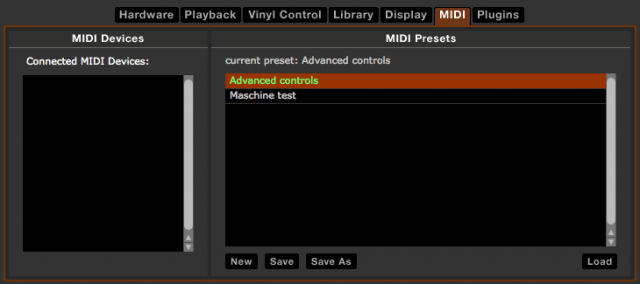
Important! Before you start, go into the MIDI page of the setup window and create a new MIDI preset. After you’ve made changes, save. If you don’t do this, all your hard work will be lost when you quit. Not fun.
BUILT-IN SMARTS

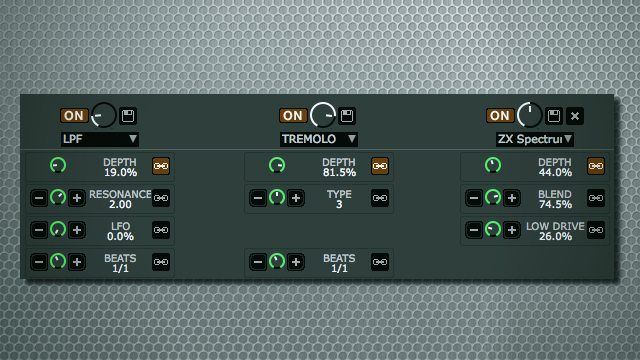
Scratch Live’s effects sit somewhere between Traktor’s group and advanced modes, with two assignable banks of three effects that can each be expanded to show their advanced controls. So, whilst Scratch Live only has two banks maximum, each bank has three effects that are always highly configurable – here are some advanced tips for creating effects behaviours.

The super knob concept allows you to create relative relationships between an effect’s main dial and its advanced parameters. The ultra knob goes a step further and allows you to create the same relationships between the three main effect knobs and an ‘omni knob’ for each bank. Here’s how:
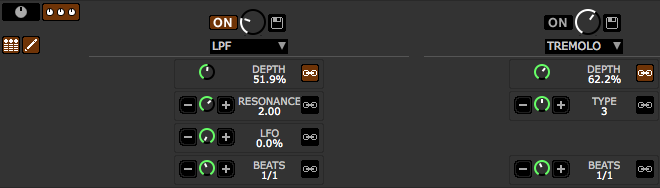
  1. Click the expand button (pictured) to show an effect’s advanced controls.
  2. Now, press the newly visible pencil button, which will open up the relationship controls.
  3. Move the dial to where you want it to be when the main dial is fully anticlockwise (‘off’) and press the ‘-‘ button.
  4. Now move the dial to where you want it to be when the main dial is fully clockwise (‘on’) and press the ‘+’ button.
  5. Make sure the link button is engaged.

Now when you turn the main dial, the advanced dials will turn the amount you’ve set up. If you set the controls to the opposite of the main dial – so that the advanced dial turns clockwise when the main dial turns anticlockwise – then the ring around the dial will be red instead of green.

PUSHING THE ENVELOPE

The super knobs and ultra knobs are obviously very powerful, but using Scratch Live’s native capability we’re limited to just one super knob per effect or one ultra knob per bank. If we use our MIDI intermediary software we can create as many as we like.

In testing, I learned two things about how Scratch Live treats MIDI input. Firstly, it’s got no issue with commands coming in simultaneously and so we don’t have to worry about creating delays between our message splitting. Secondly, it won’t learn the second in a string of MIDI commands even if you do put a delay in, so it’s necessary to build the MidiPipe template up with these steps:
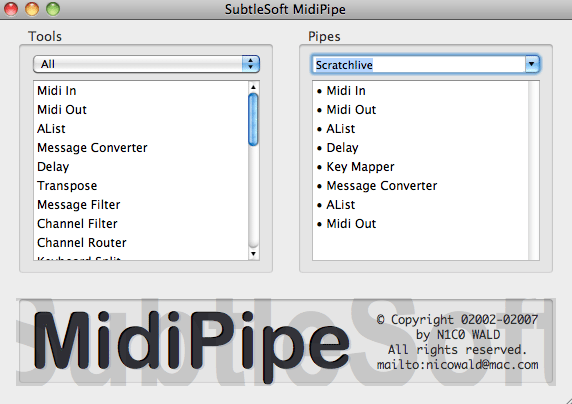
  1. Set up a MIDI in in your MIDI software.
  2. Set up a MIDI out to go to ‘Scratch Live MIDI in’ in the software, and ensure that ‘pass through’ is enabled.
  3. ‘Learn’ the first command in Scratch Live.
  4. Add a message converter, change the CC of your control to something else (it’s a good idea to plan out what you’re doing to avoid a mess down the road) and put it after the first MIDI in in your MIDI software.
  5. Now that the control has been switched, go back to Scratch Live and learn the next command.
  6. Return to the MIDI software and move the message converter to the end of the pipe, adding another MIDI out after it.
  7. For extra controls, repeat from Step 4.

THE NON-EFFECT EFFECTS

Scratch Live doesn’t count censor or loop roll as effects – this means that they can be used without taking up a slot in your DJ-FX rack. Whilst that’s all good, it also means they can’t be hooked up to super or ultra knobs, and so if we want to use them to their full potential we need to get a little creative with MidiPipe or the equivalent.

Here’s a trick that, whilst not super new, may have passed you by: instead of mapping a single loop roll button, you can map as many as you like to individual loop roll lengths by pressing ctrl+alt+click on the loop button in MIDI mode.
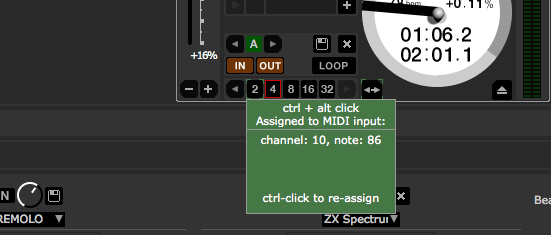
In a similar shortcut to the loop roll trick mentioned above, you can also ctrl+click on the effects activation buttons to turn them into momentary triggers. Try assigning loop roll activation and effects activation to the same button by creating a basic key mapper MIDI pipe and using these hidden momentary press controls for some very cool effects!

As a final note, because censor’s a button and Scratch Live doesn’t allow buttons to be triggered by specific values of CCs, we have to do some jiggery pokery in our MIDI software and turn our CC message into a note message. I use MidiPipe often because it’s very quick and easy to use, but when it gets to the more complicated actions, Bome’s Midi Translator Pro is the way to go. What we need to do is tell Midi Translator to turn only the final value on a single CC message (127, or 7F in hex) into a note on message, and also that the next one below (126, or 7E in hex) into a note off message. This will allow us to create a knob that can be assigned as we wish, but at the very end of its throw also sends things into reverse!

We know that sometimes it can seem a bit Traktor-centric around these parts, so I hope the Scratch Live users amongst you got a chance to pick up some tips and ideas for how to make things a little cooler. Do you have any other tips to share? Let us know!

Tags: effectsGuidemidi pipemidi translatorScratch LiveseratoTips
ShareTweetShare
Previous Post

How To DJ In Traktor With Only Loops and Sample Decks

Next Post

DJ TechTools’ Annual Gear Sale Happening Now

Related Posts

The DJM-V5 from AlphaTheta: 3 channels, 4-band EQ, V10 sound – no Beat FX or crossfader.
Breaking News

The DJM-V5 from AlphaTheta: 3 channels, 4-band EQ, V10 sound – no Beat FX or crossfader.

January 20, 2026
66% of Serato just got bought: but not by AlphaTheta
Breaking News

66% of Serato just got bought: but not by AlphaTheta

April 1, 2025
PLX-CRSS12: Pioneer DJ finally made a hybrid turntable + motorized DVS controller
Breaking News

PLX-CRSS12: Pioneer DJ finally made a hybrid turntable + motorized DVS controller

August 1, 2023
Load More
Next Post
DJ TechTools’ Annual Gear Sale Happening Now

DJ TechTools' Annual Gear Sale Happening Now

Want to reach DJTT's audience here?

Shoot an email to advertising@djtechtools.com

DJTT ads
DJTT newsletter
Midi Fighter
Chat with us
  • ABOUT DJTT
  • CONTACT
  • PRIVACY
  • MIDI FIGHTER HELP
  • ABOUT DJTT
  • JOBS
  • CONTACT US
  • ADVERTISE
  • PRIVACY POLICY
  • ACCESSIBILITY STATEMENT

© 2024 DJ Techtools all rights reserved by DJ TechTools on all content unless otherwise noted.

No Result
View All Result
  • Blog
    • DJ Gear
      • DIY Projects
      • Gear Reviews
      • New Products
      • Controllerism
    • Techniques + Tips
      • Beginner DJ
      • Advanced DJ
      • Producer
      • Finger Drummer
    • News + Culture
      • Editorials + Opinions
      • Artist Interviews
      • Performances + Routines
      • How I Play
    • DJ Software Tutorials
      • Serato Tips
      • CDJ Tips
      • Ableton Live Tips
  • Store
    • Run by real DJs, not a corporation
    • DJ Controllers
      • Midi Fighter Twister
      • Midi Fighter Spectra
      • Midi Fighter 64
      • View All
    • Accessories
      • Chroma USB Drive for DJs
      • Chroma Caps
      • Chroma Cables Audio
      • Chroma Cables USB-A
      • Chroma Cables: USB-C
      • DJTT Gift Card
      • Midi Fighter T-Shirt
      • Keyboard Covers
      • Earplugs by V-Moda
    • Production Gear
    • Soundcards & Mixers
  • Community
    • Popular Forums
      • General Discussion
      • Buy & Sell
      • Reviews
      • Mixes
      • Music Production
      • Show Your Setup
      • Off Topic
    • Handy Links
      • New Posts
      • Private Messages
      • Register
      • Search
    • Midi Maps
      • Traktor
      • Ableton
      • Serato DJ
      • Midi Fighter 3D
      • Midi Fighter Twister
      • Midi Fighter Spectra
  • Midi Fighter
  • Chroma

© 2024 DJ Techtools all rights reserved by DJ TechTools on all content unless otherwise noted.

This website uses cookies. By continuing to use this website you are giving consent to cookies being used. Visit our Privacy and Cookie Policy.