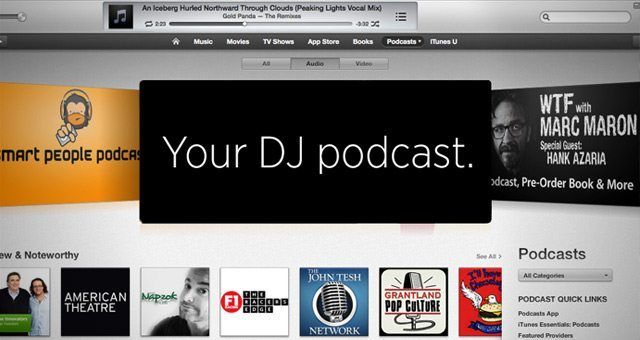
Many DJs think they need to be a celebrity, have a label, or major backing to get their music onto iTunes. Not so! Even though some people find out how to get their music, mixes, songs, videos, into an iTunes listing, many of them have no idea how to maintain it. In this first tutorial on the basics of podcasting for DJs, we’ll show you how to create a podcast feed and be able to update it anytime you want, for free and with no coding necessary! It’s all after the jump.
Tons of programs have been created and sold that help people edit and upload their podcast feeds / files, but iTunes changes its format from time to time so the programs become useless. Also experienced web programmers code, can create, edit, and maintain their podcast – but what about the DJs or producers who are trying to get a foothold in their favorite genre by putting together a top-notch podcast, who don’t have time to find the right?
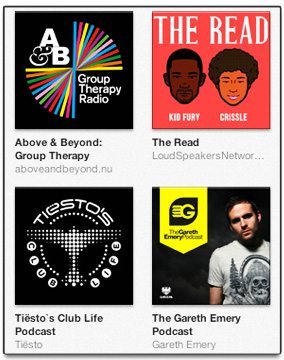 WHY IS HAVING A PODCAST IN ITUNES GOOD FOR DJS?
1. DJs should always present themselves to the highest level possible, and appearance is everything. Sending a promoter, booking agent, or even a radio station owner (cough cough – your’s truly), a link to a true iTunes podcast listing is top notch. Sending them a link to sites like PodOmatic, is not. I mean REALLY not. They / we want to click as little as possible and get RIGHT to the information we are looking for.
2. People are lazy (sometimes DJs too!) so this removes some of the hard work on both ends (DJs and downloaders). Using the steps below, the DJ only needs to upload their MP3, update a simple blog article, and all of the information on iTunes is automatically updated. For the downloader, podcasting is a way to solve incessant mix spamming. Who wants to be directly spammed by DJs pushing themselves “Hey, come download my mix, bla bla bla” – it gets old, and you tend to lose followers faster that way.
Now what if all the downloader had to do was open iTunes?
How do podcasts work? If you’re not already an adamant podcast listener, here’s how the process works: when a listener clicks subscribe in iTunes, the podcast is downloaded automatically by the user’s iTunes program folder. iTunes regularly checks the podcast feed for new posts, and when there’s a new episode it automatically downloads it to the program. Many listeners have their phones set up to automatically sync their downloaded podcasts straight onto it! Living in the future is pretty awesome.
Read More: The Best Podcasts and Livestreams for DJs
ITUNES: UNCONTACTABLE AND A MOVING TARGET
iTunes won’t bother listing your podcasts if you don’t code your feed file correctly, and they won’t tell you what’s wrong with it either. They are not responsible for that – and they will definitely not be looking at your emails – if you think shouting at them about something is going to help, don’t bother. They aren’t listening. The best thing to do is set it up right the first time.
Additionally, Apple changes the format that iTunes reads RSS files from time to time. If you designed your RSS feed (or podcast feed) by hand or with a program, and iTunes changes something, you’ll you need to alter not only the main feed file, but every single podcast episode you have uploaded to it. What if you changed the name of your podcast? What if you moved your MP3s to another location online? You’d have to create a whole new podcast and find a way to get all the subscribers to know about it.
If you already have your MP3s online, you can have your podcast available in just a few mnutes, AND have them listed on iTunes in the next 24 hours. Let’s get to it:
HOW TO ACTUALLY CREATE THE PODCAST FEED:
- Create the feed (this is where iTunes watches for updates)
- Create the podcast episodes (these are your recordings)
- Create an account at Feedburner.com (this does a lot of things – including giving you great stats!)
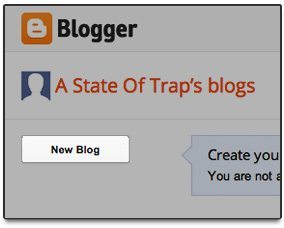 We’re going to use Blogger for the feed – you might have an account over there (you can log in with Gmail credentials).
- Go to your Blog Dashboard + click on New Blog (see image at right)
- Give it a title
- Make the URL as short as you can but memorable (http://djliqidtouch.blogspot.com )
(We’re skipping styling + templating here – you don’t need this blog to be your public-facing web presence!)
In the blog you just created, and we need to create for iTunes to list. Click the blog title you just created so you can get to your “Blog Overview”
Now let’s create an episode – for DJs, this will be something that contains your mp3 link, mix info, and tracklist)
- Click on “New Post”
- Give it a title. Here’s mine: “The Hardfloor 020 Part 2: The Pre-Superbowl Party”
- Put an image at the top of your article
- Make a hyperlink to your uploaded mp3 in the post (the actual file uploaded to a server or site – a Soundcloud link won’t do. Make sure it ends in .mp3 or .M4A)
- Type up your tracklist or some info about the mix. People do actually read!
- Now click publish (back at the top!)
Now we have something for iTunes to list, but now they need to be able to find it. Let’s now create the RSS / XML feed they they’ll watch regularly. iTunes checks on your feed every 24 hours, and re-lists it with any corrections, or changes that have been made by you, so keep that in mind.
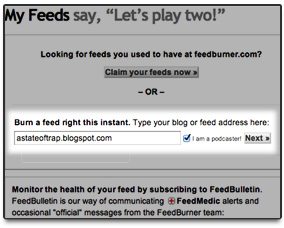 Go to your Feedburner.com account (again you can use Gmail info)
- Once set up, you should see “Burn a feed right this instant” (at right). Put your blogger.com URL in there , click “I am a podcaster” and click next.
- On the next screen, we’re using an RSS feed link – select that one!
- Check the info on the next screen and click “Next”
- You’ll see a Congrats screen – click “Next” again so we can set it up for iTunes
- In the first dropdown, select “Audio Files” + include iTunes podcast elements = YES
- Setup your categories
- IMPORTANT!: You need to have a podcast image and it has to follow specs from iTunes. Recently they changed it: “iTunes has been completely redesigned and there are new requirements for podcast cover art. To be eligible for featuring on iTunes Store, a podcast must have 1400 x 1400 pixel cover art in JPG or PNG format using RGB color space. The image URL must end in “.jpg”, “.jpeg” or “.png” and the server hosting the image must allow HTTP HEAD requests.”
- ALSO VERY IMPORTANT: Under podcast search words, make it JUST ONE WORD, and make it memorable and specific to JUST YOU. This has to be unique if you want people to find you every single time. I actually created one some time ago using the word “BEXX”, and mine was the only thing that would show if you searched iTunes with that word. Make this count!
- For now, skip this final screen (“Get More Gusto”) and explore it later.
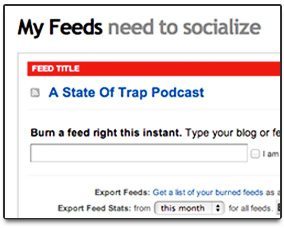 Since you are still logged into your Feedburner account, go to the top of the page and click My Feeds on the right side. If everything is set up correctly, you should now see the title of your blog in the list (see example at right). There is a little icon (RSS icon) to the left of your blog title. You need that link to submit to iTunes Podcast.
- Open iTunes and go to the iTunes Store
- Click on Podcasts on the top of their screen
- Now look on the right side list – you should see “Submit a Podcast”
This is where you are supposed to give them your RSS link from Feedburner link – paste it into the box and click Continue. They’ll show you a sample of your artwork – if you don’t like it, cancel now to work on it, then go and finish things up. Remember to have a icon that conveys what your podcast is about and makes people want to click on it. People looking for new podcasts on iTunes very much judge a podcast by its cover – make it catchy but not cheesy.
Addendum: Image Requirements! Your feed image according to iTunes requirements should be:
- 1400 by 1400 pixels
- a .JPG extension (not .JPEG) to follow iTunes specs
That’s it! It usually takes iTunes about 24 hours to get back to you. When you make a new episode, just create a new post in Blogger the same way! It also takes about 24 hours for iTunes to visually show a new episode on your podcast page – but if you want to check it right away you can right click on the podcast in iTunes and click “Show All Available Episodes” to force the app to show everything it sees in your RSS feed!
Here’s mine, so you can see what a finished clean link looks like: www.antifmradio.com/thehardfloorpodcast
Author’s Note: Guys and gals, if you have any problem doing this, you can always message me directly on the DJTT forum – or make a comment on this article – I’ll be more than happy to make sure you get things running right!