Mixing in key is one of the best ways to create a smooth mix that resonates from track to track, increasing or decreasing energy in a way that makes sense to the ears of your audience. But did you know that you’re able to manually adjust the key of a track in some DJ software to match it to the playing track? Read on to learn when this is possible and how to make it work with key detected tracks.
A QUICK INTRODUCTION TO KEYLOCK
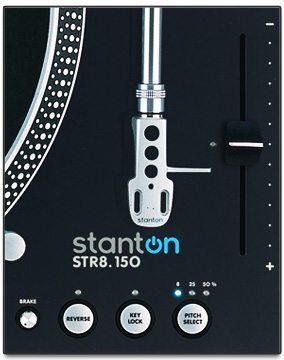 Keylocking in modern DJ software (and on some turntables, like the Stanton STR8.150 at right) allows DJs to alter the tempo of a song without effecting the pitch – preventing tracks from becoming higher or lower pitched just because you want to mix them with another record. This makes more drastic beatmatching possible between songs that aren’t close in tempo, without turning your track into a slowed-down monster or high-speed chipmunk track.
Keylocking works by resampling the playing track at a different speed and readjusting the pitch to an equivalent offset to bring it back to “normal”. The issue becomes that at more drastic adjustments in tempo, the keylocking algorithm is really put to the test, and the track begins to degrade in playback quality. Try it now – throw on a track with a solid melody, make sure keylocking is engaged, and listen to what it sounds like at +/-50%. Sounds like those garbled old pirated tracks from Napster that were horribly resampled, right?
But in this article, we’re going to talk about the other thing that many audio engines are capable of, keylocking’s often-ignored cousin:
A QUICK INTRODUCTION TO PITCH SHIFTING
Pitch-shifting isn’t just for rappers and Skrillex vocals, it’s actually a useful tool that allows DJs to alter the key of a song. While this process in traditional vinyl format was un-connectable from the speed at which a track played, some DJ softwares use their audio engine to allow DJs to incrementally adjust the key without altering the tempo.
Because tempo-locked pitch shifting works in the same way that keylock does (resampling the audio), you can’t get away with altering it too dramatically from the original key value – but it’s generally reasonable to move up or down a key, giving you a number of new options to use while mixing in key.
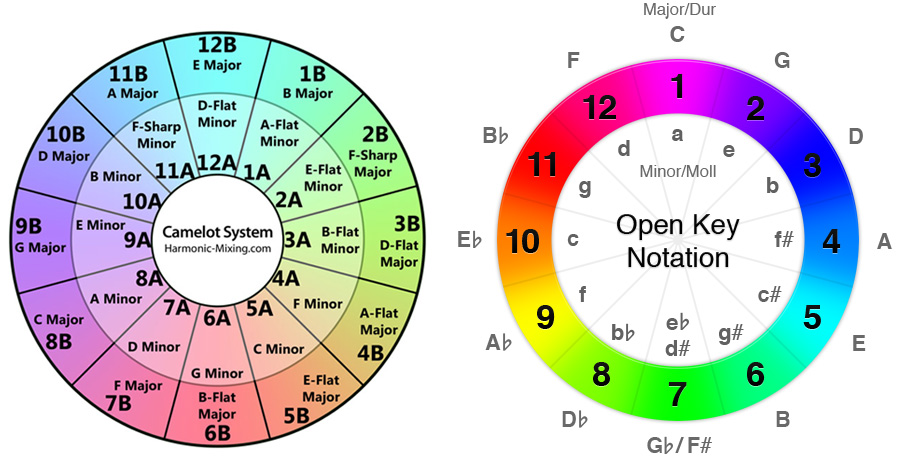
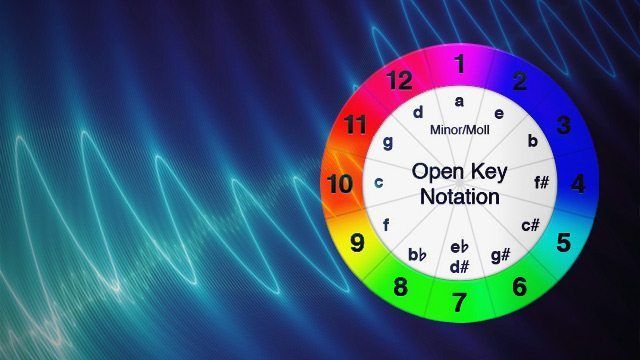
If you’re not already familiar with the basic rules of mixing on the Camelot Wheel / Openkey Wheel / circle of fifths (pictured above), the idea is that songs mix best when they have “compatible” keys – which are generally regarded to be up or down one hour position on the same circle, or to the alternate circle on the same hour position. You can also boost the energy of a mix by increasing +2 hour positions on the wheel (more information on the theory here at Harmonic-Mixing.com – but be sure to read our caveat at the end of this article about using your ears!).
So if the track you want to mix won’t fit into the normal mixing-in-key rules, you can try altering the pitch of the track using your software’s pitch shifting abilities. Read the three sections below to learn how:
CHANGING TRACK KEY IN TRAKTOR
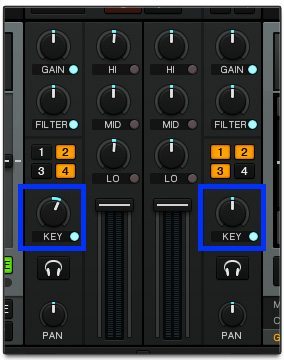 Traktor has a pretty visible key knob sitting right in the middle of the internal mixer (at right). Right click the knob and you’ll be given a dropdown that allows for finer or more corse control of the parameter – but at a default setting a single press of the +/- buttons adjust the knob 1 semitone. On both the Camelot and Openkey wheels, this is equivalent to an increase or decrease of 7 on the wheel.
Traktor Knob Adjustment Tips: When you’re adjusting knobs in Traktor using the mouse, it’s easy to get frustrated, especially with a laptop trackpad.
- If you want more precision when using the mouse, hold down shift while adjusting any any knob and it will slow down the rate the knob moves, allowing you to make more precisie adjustments.
- Double click any knob to rapidly return back to the zero value.
- Hold control, click and hold on a knob, and release control to enter a knob takeover mode – allowing you to jump between the current setting and any other when you click the mouse.
CHANGING TRACK KEY IN VIRTUAL DJ
 Virtual DJ, despite often getting unfairly looked down upon by DJs who use other softwares, is actually one of the best softwares for key mixing for a number of reasons:
- Built-in key detection
- Dynamic key tag displays that change when key adjustment is made
- Recognizes and changes between Camelot key + musical key
- Key adjustment is locked
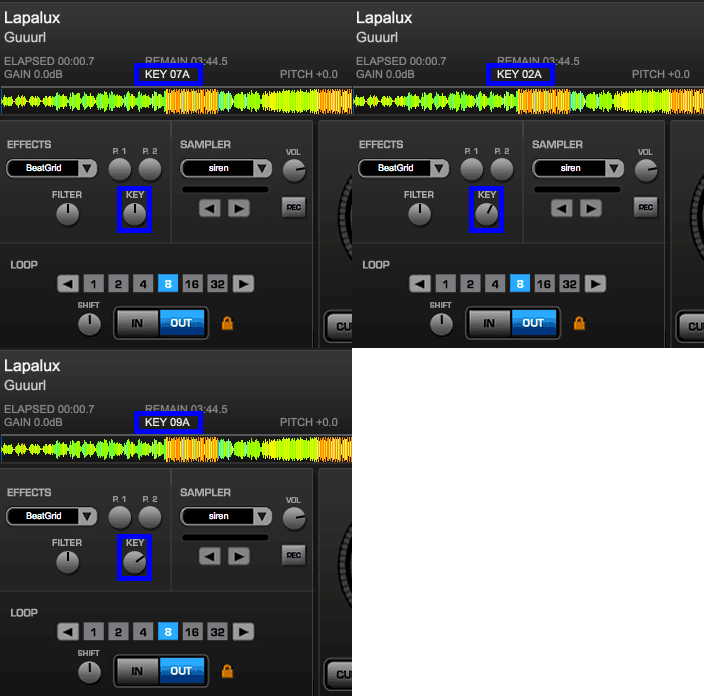
Because of the above feature set, changing the key of a track in Virtual DJ is remarkably easy – just rotate the key knob in the Effects section, and it will actually alter the key tag info displayed (as shown in the GIF on the right). Just like in Traktor, each notch on the knob is 1 semitone, or 7 positions on the circle of fifths.
CHANGING TRACK KEY IN SERATO / SERATO DJ
Surprisingly, Serato’s products do not have the ability to change the pitch of a track independently of the tempo. Serato continues to show its devotion to DVS roots even in the controller-centric Serato DJ! At the time of writing (things could change!), enabling key lock in any Serato program locks the key at 0%.
You can disable key lock and change the pitch of the song by adjusting the pitch fader, but you’ll then be unable to change the tempo.
USE YOUR EARS!
As with nearly every article we ever write on mixing in key, it’s critical that we put this warning: your ears are often the best tools for the job! Don’t ever limit yourself by just mixing in key if something else sounds good and certainly don’t mix in a track that sounds awful but has a matching Camelot Key tag. If you think it sounds bad, so will someone in your audience.
You should always use pitch shifting / key adjustment carefully – using it on well-known songs will have your audience asking “What’s wrong with this track?”, and dramatically changing the key more than two semitones starts to degrade the audio signal. Check your mix in your headphones when you’re experimenting with altering a track’s key before you bring it into the mix, every time!
Do you find yourself altering the pitch of a track your trying to mix in regularly? Let us know your tactics in the comments.