DJ TechTools
  • Blog
    • DJ Gear
      • DIY Projects
      • Gear Reviews
      • New Products
      • Controllerism
    • Techniques + Tips
      • Beginner DJ
      • Advanced DJ
      • Producer
      • Finger Drummer
    • News + Culture
      • Editorials + Opinions
      • Artist Interviews
      • Performances + Routines
      • How I Play
    • DJ Software Tutorials
      • Serato Tips
        • Traktor Tips
      • CDJ Tips
      • Ableton Live Tips
  • Store
    • Run by real DJs, not a corporation
    • DJ Controllers
      • Midi Fighter Twister
      • Midi Fighter Spectra
      • Midi Fighter 64
      • View All
    • Accessories
      • Chroma USB Drive for DJs
      • Chroma Caps
      • Chroma Cables Audio
      • Chroma Cables USB-A
      • Chroma Cables: USB-C
      • DJTT Gift Card
      • Midi Fighter T-Shirt
      • Keyboard Covers
      • Earplugs by V-Moda
    • Production Gear
    • Soundcards & Mixers
  • Community
    • Popular Forums
      • General Discussion
      • Buy & Sell
      • Reviews
      • Mixes
      • Music Production
      • Show Your Setup
      • Off Topic
    • Handy Links
      • New Posts
      • Private Messages
      • Register
      • Search
    • Midi Maps
      • Traktor
      • Ableton
      • Serato DJ
      • Midi Fighter 3D
      • Midi Fighter Twister
      • Midi Fighter Spectra
  • Midi Fighter
  • Chroma
No Result
View All Result
DJ TechTools
  • Blog
    • DJ Gear
      • DIY Projects
      • Gear Reviews
      • New Products
      • Controllerism
    • Techniques + Tips
      • Beginner DJ
      • Advanced DJ
      • Producer
      • Finger Drummer
    • News + Culture
      • Editorials + Opinions
      • Artist Interviews
      • Performances + Routines
      • How I Play
    • DJ Software Tutorials
      • Serato Tips
        • Traktor Tips
      • CDJ Tips
      • Ableton Live Tips
  • Store
    • Run by real DJs, not a corporation
    • DJ Controllers
      • Midi Fighter Twister
      • Midi Fighter Spectra
      • Midi Fighter 64
      • View All
    • Accessories
      • Chroma USB Drive for DJs
      • Chroma Caps
      • Chroma Cables Audio
      • Chroma Cables USB-A
      • Chroma Cables: USB-C
      • DJTT Gift Card
      • Midi Fighter T-Shirt
      • Keyboard Covers
      • Earplugs by V-Moda
    • Production Gear
    • Soundcards & Mixers
  • Community
    • Popular Forums
      • General Discussion
      • Buy & Sell
      • Reviews
      • Mixes
      • Music Production
      • Show Your Setup
      • Off Topic
    • Handy Links
      • New Posts
      • Private Messages
      • Register
      • Search
    • Midi Maps
      • Traktor
      • Ableton
      • Serato DJ
      • Midi Fighter 3D
      • Midi Fighter Twister
      • Midi Fighter Spectra
  • Midi Fighter
  • Chroma
No Result
View All Result
DJ TechTools

Creating One-Button FX Builds In Traktor

Ryan Dejaegher by Ryan Dejaegher
February 10, 2014
in Controllerism, DJ Software Tips, DJ Techniques / Tips, Traktor Tips
Reading Time: 3 mins read
0
Creating One-Button FX Builds In Traktor
1k
VIEWS
Post on FacebookTweet thisUpvote on Reddit

Today’s article takes inspiration from the classic Instant Gratification Midi Fighter mapping. We’re going to show you how you can create your own one button FX build-ups. To get started, all you need is a MIDI controller and an available button to map the FX to.


ONE BUTTON BUILDS

With a single button, create complex FX build ups – as the button is held, the FX knobs build. Once released, the FX turns off and there’s a nice tail (when using Reverb or Delay).

At the same time, the buttons also snap the knobs to predefined parameters when the button is hit, then they will build/breakdown from there. This can be as simple as having a reverb build, or complex builds with multiple FX and knobs moving together.

HOW DOES IT WORK?

By assigning knob mappings to buttons, we can use the auto repeat function in Traktor’s controller manager. “Auto Repeat” simulates multiple button presses when you hold a button down. With “Auto Repeat” an assigned knob increases or decreases as the button is held down. The beauty of this is that it will work with any midi controller.

HOW IS IT MAPPED?
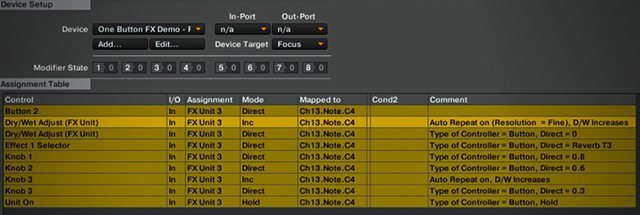
Not that many mapping commands to get one button FX!

We’ve included a sample mapping for a Reverb build up. It’s actually pretty simple – here’s the list of commands:

Dry/Wet Adjust (FX Unit): There are two assignment here. One is set to increase with auto repeat checked. The other is set to Direct – Direct assignments snap the knob to a preset position.

Effect 1 Selector: Set to Direct, this loads a preset effect (Reverb) when the button is pressed. You can choose any effect you want.

Knob 1, 2, 3: There are 3 assignments here – all are set to direct. This snaps to the knob to a preset position. There is another assignment set to knob 3 which is set to increase and auto repeat is on. This causes the knob to increase/build up as the button is held. The resolution is also set to “Fine” for a gradual increase. It’s important to experiment with the right knob values to start. If they’re too high then the effect can build too quickly or be too intense (especially with a reverb).

Unit On: This mapping turns the FX on and only stays on as long as the button is held down.

Download the free sample mapping here to build on! 

EXPERIMENTATION IS KEY

effects-chain-experimentation

These builds can be as simple or as complex as you want them to be. You can have one effect build or a chain of multiple FX building up or breaking down. It’s important to try out combinations and see what works for you.

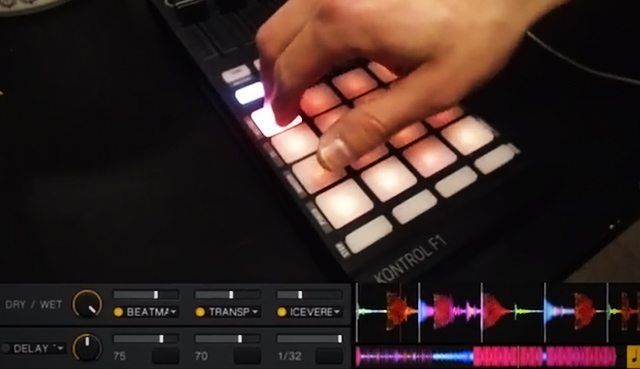
One awesome chain I’ve found is using Beatmasher, Transpose Stretch, and Iceverb assigned to a button. As the button is held, the Beatmasher and Transpose Stretch increase to create a pitched build up (make it a breakdown by setting the Transpose Stretch knob to decrease). Trying to control this with three knobs and three buttons wouldn’t be as easy.

Let me know in the comments if you have any awesome effects combos you find using this technique – or if you have any issues making the mapping.

Read more FX techniques articles: 
  • Four Effects Techniques For Digital DJs
  • Advanced Traktor FX Combos
  • Creating Buildups With Beat Roll
  • Creating Buildups With Echo
  • 3 Flux Mode Techniques For Playing Traktor Like An Instrument 
Tags: Kontrol F1mappingmidi mappingone button buildTraktor Tips
Share8Tweet5Share
Previous Post

Roland’s Legendary 909, 808, 303 are getting a facelift?

Next Post

Android’s Cross DJ 1.2: External Mixing

Related Posts

Midi Fighter Twister controlling Traktor Pro 4 Stem decks
DJ Techniques / Tips

Ean’s powerful Midi Fighter Twister mapping for Traktor Pro 4’s Stems + Pattern Player

July 17, 2024
traktor-pro plus 3.8 pattern player controls
Dj and Production Tutorials

Review: Traktor Pro Plus 3.8 – After 8 months, is the subscription worth it?

April 20, 2023
Traktor Pro 3.6 releases, as well as a feature roadmap…
Breaking News

Traktor Pro 3.6 releases, as well as a feature roadmap…

August 19, 2022
Load More
Next Post
Android’s Cross DJ 1.2: External Mixing

Android's Cross DJ 1.2: External Mixing

Want to reach DJTT's audience here?

Shoot an email to advertising@djtechtools.com

DJTT ads
DJTT newsletter
Midi Fighter
Chat with us
  • ABOUT DJTT
  • CONTACT
  • PRIVACY
  • MIDI FIGHTER HELP
  • ABOUT DJTT
  • JOBS
  • CONTACT US
  • ADVERTISE
  • PRIVACY POLICY
  • ACCESSIBILITY STATEMENT

© 2024 DJ Techtools all rights reserved by DJ TechTools on all content unless otherwise noted.

No Result
View All Result
  • Blog
    • DJ Gear
      • DIY Projects
      • Gear Reviews
      • New Products
      • Controllerism
    • Techniques + Tips
      • Beginner DJ
      • Advanced DJ
      • Producer
      • Finger Drummer
    • News + Culture
      • Editorials + Opinions
      • Artist Interviews
      • Performances + Routines
      • How I Play
    • DJ Software Tutorials
      • Serato Tips
      • CDJ Tips
      • Ableton Live Tips
  • Store
    • Run by real DJs, not a corporation
    • DJ Controllers
      • Midi Fighter Twister
      • Midi Fighter Spectra
      • Midi Fighter 64
      • View All
    • Accessories
      • Chroma USB Drive for DJs
      • Chroma Caps
      • Chroma Cables Audio
      • Chroma Cables USB-A
      • Chroma Cables: USB-C
      • DJTT Gift Card
      • Midi Fighter T-Shirt
      • Keyboard Covers
      • Earplugs by V-Moda
    • Production Gear
    • Soundcards & Mixers
  • Community
    • Popular Forums
      • General Discussion
      • Buy & Sell
      • Reviews
      • Mixes
      • Music Production
      • Show Your Setup
      • Off Topic
    • Handy Links
      • New Posts
      • Private Messages
      • Register
      • Search
    • Midi Maps
      • Traktor
      • Ableton
      • Serato DJ
      • Midi Fighter 3D
      • Midi Fighter Twister
      • Midi Fighter Spectra
  • Midi Fighter
  • Chroma

© 2024 DJ Techtools all rights reserved by DJ TechTools on all content unless otherwise noted.

This website uses cookies. By continuing to use this website you are giving consent to cookies being used. Visit our Privacy and Cookie Policy.