DJ TechTools
  • Blog
    • DJ Gear
      • DIY Projects
      • Gear Reviews
      • New Products
      • Controllerism
    • Techniques + Tips
      • Beginner DJ
      • Advanced DJ
      • Producer
      • Finger Drummer
    • News + Culture
      • Editorials + Opinions
      • Artist Interviews
      • Performances + Routines
      • How I Play
    • DJ Software Tutorials
      • Serato Tips
        • Traktor Tips
      • CDJ Tips
      • Ableton Live Tips
  • Store
    • Run by real DJs, not a corporation
    • DJ Controllers
      • Midi Fighter Twister
      • Midi Fighter Spectra
      • Midi Fighter 64
      • View All
    • Accessories
      • Chroma USB Drive for DJs
      • Chroma Caps
      • Chroma Cables Audio
      • Chroma Cables USB-A
      • Chroma Cables: USB-C
      • DJTT Gift Card
      • Midi Fighter T-Shirt
      • Keyboard Covers
      • Earplugs by V-Moda
    • Production Gear
    • Soundcards & Mixers
  • Community
    • Popular Forums
      • General Discussion
      • Buy & Sell
      • Reviews
      • Mixes
      • Music Production
      • Show Your Setup
      • Off Topic
    • Handy Links
      • New Posts
      • Private Messages
      • Register
      • Search
    • Midi Maps
      • Traktor
      • Ableton
      • Serato DJ
      • Midi Fighter 3D
      • Midi Fighter Twister
      • Midi Fighter Spectra
  • Midi Fighter
  • Chroma
No Result
View All Result
DJ TechTools
  • Blog
    • DJ Gear
      • DIY Projects
      • Gear Reviews
      • New Products
      • Controllerism
    • Techniques + Tips
      • Beginner DJ
      • Advanced DJ
      • Producer
      • Finger Drummer
    • News + Culture
      • Editorials + Opinions
      • Artist Interviews
      • Performances + Routines
      • How I Play
    • DJ Software Tutorials
      • Serato Tips
        • Traktor Tips
      • CDJ Tips
      • Ableton Live Tips
  • Store
    • Run by real DJs, not a corporation
    • DJ Controllers
      • Midi Fighter Twister
      • Midi Fighter Spectra
      • Midi Fighter 64
      • View All
    • Accessories
      • Chroma USB Drive for DJs
      • Chroma Caps
      • Chroma Cables Audio
      • Chroma Cables USB-A
      • Chroma Cables: USB-C
      • DJTT Gift Card
      • Midi Fighter T-Shirt
      • Keyboard Covers
      • Earplugs by V-Moda
    • Production Gear
    • Soundcards & Mixers
  • Community
    • Popular Forums
      • General Discussion
      • Buy & Sell
      • Reviews
      • Mixes
      • Music Production
      • Show Your Setup
      • Off Topic
    • Handy Links
      • New Posts
      • Private Messages
      • Register
      • Search
    • Midi Maps
      • Traktor
      • Ableton
      • Serato DJ
      • Midi Fighter 3D
      • Midi Fighter Twister
      • Midi Fighter Spectra
  • Midi Fighter
  • Chroma
No Result
View All Result
DJ TechTools

Sync and Perform With Maschine + Traktor

Ean Golden by Ean Golden
February 28, 2014
in Advanced DJ Tips, DJ Techniques / Tips
Reading Time: 4 mins read
0
Sync and Perform With Maschine + Traktor
606
VIEWS
Post on FacebookTweet thisUpvote on Reddit

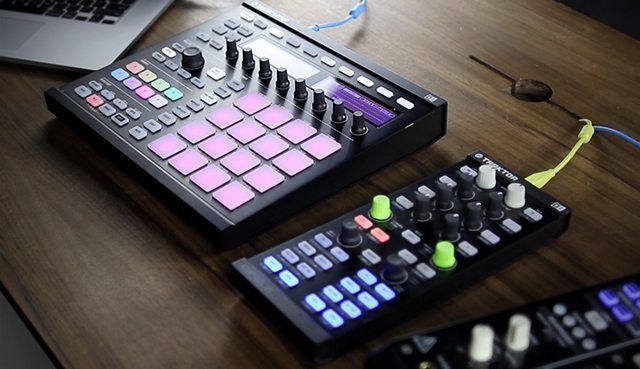
There comes a time in every DJ’s career where mixing two decks is no longer creatively challenging. Three or more decks, cue point juggling and effects mastery are all ways to up the excitement, but they lack the creative expression of music making. It’s at this point that drum machines, synths, and truly musical hardware can unlock new territory in DJing. In today’s article, we will show you how to exactly that by connecting Native Instruments’ Maschine with Traktor.

WHY SHOULD YOU CARE?

Previously, running synths and drum machines in your DJ set was complicated and involved a lot of hardware or two laptops at the least. That barrier to entry made it impractical for the average DJ, and most that did ended up with the “live” label instead.

Today, it’s very possible to run a standalone version of the Maschine software and Traktor on the same laptop, with both programs perfectly in sync. By sending audio out over the same sound card, all you need is an extra controller to unlock endless creative possibility without a lot of effort.

HOW TO SYNC + PLAY MASCHINE WITH TRAKTOR

In this tutorial I have opted for the most stable, straight-forward, and repeatable model, using Traktor and the stand alone Maschine software. It is possible to run Maschine as a VST inside of DAWs like Ableton Live, but it often adds more complexity and variables.

SEND MIDI OUT OF TRAKTOR

MIDI-SETUP

This creates a MIDI output from Traktor to a “Traktor Virtual Output” port, which other programs in the computer can connect to.

ENABLE TRAKTOR MIDI INPUT (IN MASCHINE) 

Midi_Settings

Make sure that the Traktor Virtual Output is enabled under MIDI inputs in Maschine and all other MIDI input is disabled. Be careful when connecting things like a Pioneer DJM-900, which can also send out MIDI clock and take over your syncing!

ENABLE MIDI SLAVE SYNC (IN MASCHINE)
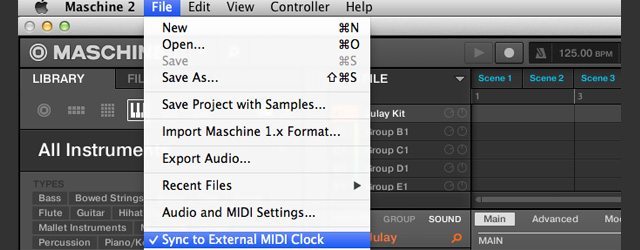
MIDI-SYNC

This disables Maschine’s internal playback engine and waits for another program to “Press Play” and start the clock.

SEND CLOCK FROM TRAKTOR
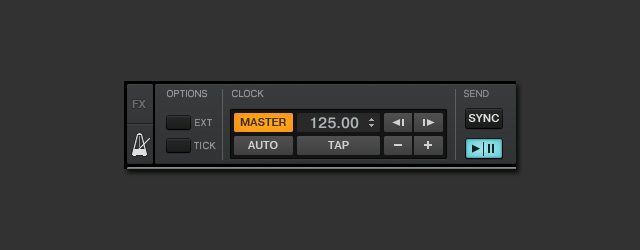
SEND-CLOCK

The Play/Pause button will start sending out the BPM and begin playback in Maschine. To reset the cycle of the phrase, press the SYNC button.

START UP BOTH METRONOMES

METRONOMES

Turn on both metronomes to check sync (they should be perfectly in phase). In Traktor the metronome plays back through the cue channel by default, so make sure to turn on your headphones or change the cue output.

SYNC THE CLOCKS
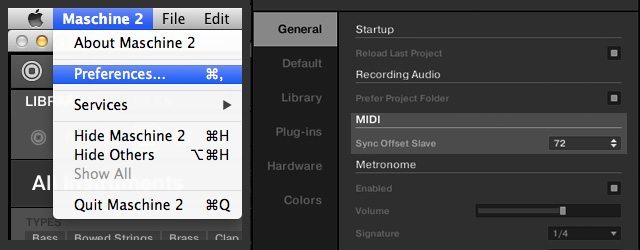
MIDI-OFFSET

Chances are very high that the metronomes are not perfectly in sync. Use the MIDI sync offset slave command in Maschine’s preferences to sync them up before every set.

OUTPUT THE AUDIO

Both programs can run the same audio card, so I run Maschine out of the same output for deck C/D. This doubles up that channel, but greatly simplifies the overall setup. You could use a routing program like Soundflower to route Maschine’s audio into Traktor as well for further effects and sampling, which is also a lot of fun but beyond the scope of today’s article!

IN CONCLUSION: CONDITIONS, TERMS, AND QUESTIONS.

Chances are high you might have some perspectives or experience that should be added to this article, so please let us know in the comments. This process was designed and tested on a Mac, but things are slightly different for Windows users:

  • There’s no Traktor Virtual Output on Windows
  • Instead you need a MIDI interface (sound cards like the Audio 8 or even the S4 and Maschine could work)
  • Run a MIDI cable from MIDI Out back into the MIDI in
  • In Controller Manager, set the output and input to the MIDI interface

As usual. thank you for your support, and commitment to making digital DJing a creative, fun experience for everyone!

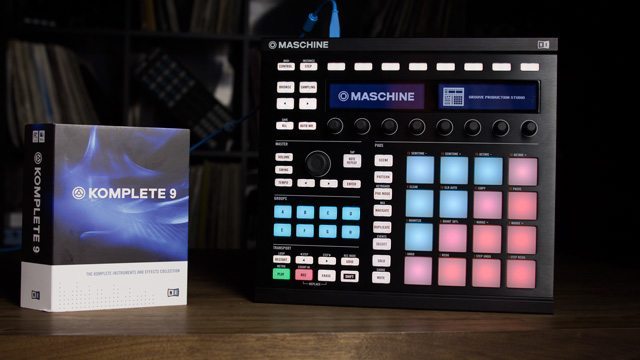
LIMITED TIME OFFER: MASCHINE MK2 + KOMPLETE 9
komplete-maschinemk2

We’re offering a bundle exclusively for DJTT readers – Native Instruments’ Maschine MK2 and Komplete 9 for $699, which together pack an incredible production punch. Don’t miss out on this sale, normally these two go for about $1100. The price goes up to $799 on Monday, March 3rd – so don’t miss this special pricing!
Tags: linkinglive performancemaschinemaschine mk2routing audiosyncing MIDI clocksTraktor TipsTutorial
Share5Tweet3Share
Previous Post

Mashup 2.0: Garageband For Mashups

Next Post

Escape The Feudal Lords of Social Fiefdom

Related Posts

A Prime 4+ and a Kontrol S3 intercut against eachother over a black background
Breaking News

InMusic just bought Native Instruments. So what now for Traktor?

May 8, 2026
traktor-pro plus 3.8 pattern player controls
Dj and Production Tutorials

Review: Traktor Pro Plus 3.8 – After 8 months, is the subscription worth it?

April 20, 2023
Breaking the Four by Four: a primer on playing in odd time signatures with drum machines
Production Tips

Breaking the Four by Four: a primer on playing in odd time signatures with drum machines

August 31, 2022
Load More
Next Post
Escape The Feudal Lords of Social Fiefdom

Escape The Feudal Lords of Social Fiefdom

Want to reach DJTT's audience here?

Shoot an email to advertising@djtechtools.com

DJTT ads
DJTT newsletter
Midi Fighter
Chat with us
  • ABOUT DJTT
  • CONTACT
  • PRIVACY
  • MIDI FIGHTER HELP
  • ABOUT DJTT
  • JOBS
  • CONTACT US
  • ADVERTISE
  • PRIVACY POLICY
  • ACCESSIBILITY STATEMENT

© 2024 DJ Techtools all rights reserved by DJ TechTools on all content unless otherwise noted.

No Result
View All Result
  • Blog
    • DJ Gear
      • DIY Projects
      • Gear Reviews
      • New Products
      • Controllerism
    • Techniques + Tips
      • Beginner DJ
      • Advanced DJ
      • Producer
      • Finger Drummer
    • News + Culture
      • Editorials + Opinions
      • Artist Interviews
      • Performances + Routines
      • How I Play
    • DJ Software Tutorials
      • Serato Tips
      • CDJ Tips
      • Ableton Live Tips
  • Store
    • Run by real DJs, not a corporation
    • DJ Controllers
      • Midi Fighter Twister
      • Midi Fighter Spectra
      • Midi Fighter 64
      • View All
    • Accessories
      • Chroma USB Drive for DJs
      • Chroma Caps
      • Chroma Cables Audio
      • Chroma Cables USB-A
      • Chroma Cables: USB-C
      • DJTT Gift Card
      • Midi Fighter T-Shirt
      • Keyboard Covers
      • Earplugs by V-Moda
    • Production Gear
    • Soundcards & Mixers
  • Community
    • Popular Forums
      • General Discussion
      • Buy & Sell
      • Reviews
      • Mixes
      • Music Production
      • Show Your Setup
      • Off Topic
    • Handy Links
      • New Posts
      • Private Messages
      • Register
      • Search
    • Midi Maps
      • Traktor
      • Ableton
      • Serato DJ
      • Midi Fighter 3D
      • Midi Fighter Twister
      • Midi Fighter Spectra
  • Midi Fighter
  • Chroma

© 2024 DJ Techtools all rights reserved by DJ TechTools on all content unless otherwise noted.

This website uses cookies. By continuing to use this website you are giving consent to cookies being used. Visit our Privacy and Cookie Policy.