DJ TechTools
  • Blog
    • DJ Gear
      • DIY Projects
      • Gear Reviews
      • New Products
      • Controllerism
    • Techniques + Tips
      • Beginner DJ
      • Advanced DJ
      • Producer
      • Finger Drummer
    • News + Culture
      • Editorials + Opinions
      • Artist Interviews
      • Performances + Routines
      • How I Play
    • DJ Software Tutorials
      • Serato Tips
        • Traktor Tips
      • CDJ Tips
      • Ableton Live Tips
  • Store
    • Run by real DJs, not a corporation
    • DJ Controllers
      • Midi Fighter Twister
      • Midi Fighter Spectra
      • Midi Fighter 64
      • View All
    • Accessories
      • Chroma USB Drive for DJs
      • Chroma Caps
      • Chroma Cables Audio
      • Chroma Cables USB-A
      • Chroma Cables: USB-C
      • DJTT Gift Card
      • Midi Fighter T-Shirt
      • Keyboard Covers
      • Earplugs by V-Moda
    • Production Gear
    • Soundcards & Mixers
  • Community
    • Popular Forums
      • General Discussion
      • Buy & Sell
      • Reviews
      • Mixes
      • Music Production
      • Show Your Setup
      • Off Topic
    • Handy Links
      • New Posts
      • Private Messages
      • Register
      • Search
    • Midi Maps
      • Traktor
      • Ableton
      • Serato DJ
      • Midi Fighter 3D
      • Midi Fighter Twister
      • Midi Fighter Spectra
  • Midi Fighter
  • Chroma
No Result
View All Result
DJ TechTools
  • Blog
    • DJ Gear
      • DIY Projects
      • Gear Reviews
      • New Products
      • Controllerism
    • Techniques + Tips
      • Beginner DJ
      • Advanced DJ
      • Producer
      • Finger Drummer
    • News + Culture
      • Editorials + Opinions
      • Artist Interviews
      • Performances + Routines
      • How I Play
    • DJ Software Tutorials
      • Serato Tips
        • Traktor Tips
      • CDJ Tips
      • Ableton Live Tips
  • Store
    • Run by real DJs, not a corporation
    • DJ Controllers
      • Midi Fighter Twister
      • Midi Fighter Spectra
      • Midi Fighter 64
      • View All
    • Accessories
      • Chroma USB Drive for DJs
      • Chroma Caps
      • Chroma Cables Audio
      • Chroma Cables USB-A
      • Chroma Cables: USB-C
      • DJTT Gift Card
      • Midi Fighter T-Shirt
      • Keyboard Covers
      • Earplugs by V-Moda
    • Production Gear
    • Soundcards & Mixers
  • Community
    • Popular Forums
      • General Discussion
      • Buy & Sell
      • Reviews
      • Mixes
      • Music Production
      • Show Your Setup
      • Off Topic
    • Handy Links
      • New Posts
      • Private Messages
      • Register
      • Search
    • Midi Maps
      • Traktor
      • Ableton
      • Serato DJ
      • Midi Fighter 3D
      • Midi Fighter Twister
      • Midi Fighter Spectra
  • Midi Fighter
  • Chroma
No Result
View All Result
DJ TechTools

Make Your Own Edits With Serato Flip

Mike Morales by Mike Morales
February 24, 2015
in How-To Video Tutorials, Serato, Serato DJ, Videos
Reading Time: 4 mins read
0
Make Your Own Edits With Serato Flip
471
VIEWS
Post on FacebookTweet thisUpvote on Reddit

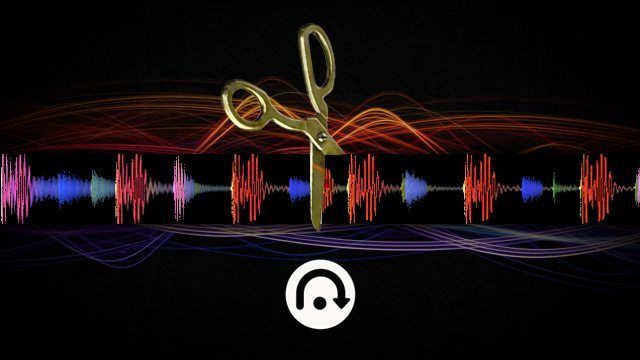
For club DJs, making edits are the key to having a unique performance and track collection. Lots of DJs find themselves making edits in their DAW before a gig. When Serato finally released Serato DJ with Quantize and the Flip feature, this allowed DJs to make edits even faster, and improved the time and number of edits DJs could create. Today DJ Kue is going to show how you can create your own edits using Flip in Serato DJ.


Quantize and Cue Points

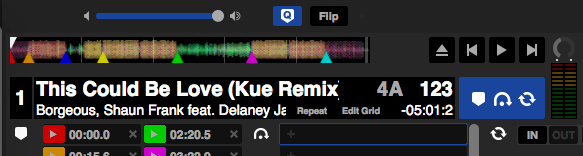
Before getting into Flip there are 2 important features to cover that will make working with flip easier: quantize and cue points. When beatgrids are set correctly in Serato and with quantize turned on (learn how to set beatgrids in Serato DJ), DJs can drop cue points and they will snap perfectly to beatgrid on the Serato waveform, even if playhead isn’t on the beatgrid. This allows DJs to trigger the cue points based on the Quantize value in the settings. The default is 1 Beat but there are a number of values that it can be changed to (as low as 1/16 for rapid quantized triggering).

To turn on Quantize, click the “Q” button on the top left hand portion of your Serato screen. It will turn blue when activated.
Serato DJ Quantize

Cue Point Edit

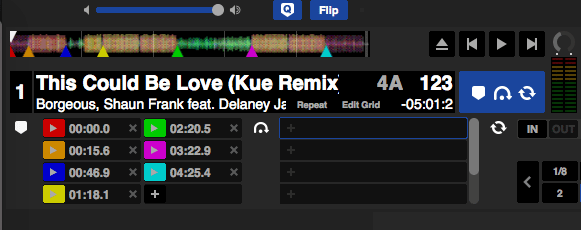
When mixing live, I can do a cue point edit by hitting the Cue Points to jump to various parts of the track to make a new arrangement. To create a Cue Point Edit in Serato, set cue points on the relative breaks and drops in the track. On my remix of “This Could Be Love” I set cue points at different points of the track that I’d like to jump to such as the beginning of a breakdown/buildup or the start of a new phrase. Having quantize turned on can also help make the cue point jumps seamless and in time.

Serato Flip
Serato Flip

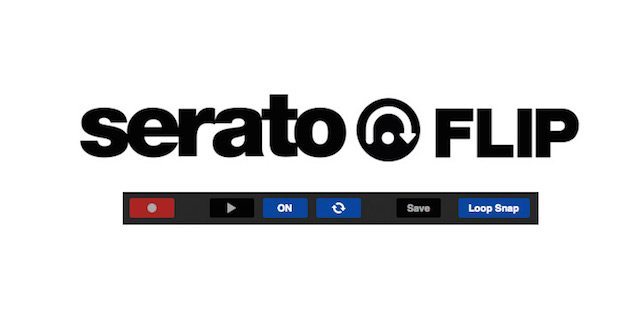
Building on the concept above, Serato Flip allows you to record these same cue point actions so that they are done automatically for you. DJs can have up to six different “flips” or edits per track. The best part about Flip is that it’s non destructive and saves DJs from having separate tracks for edits. Serato Flip isn’t included by default in Serato DJ, it needs to be purchased through Serato’s in app purchasing if you’d like to use it.

To ensure that the edit is accurate, make sure Quantize is turned on. This ensures all the cue points are triggered in time. For more complex flips or finger drumming routines it’s best to have quantize turned off. To turn on Flip, click the “Flip” button on the top left hand portion of your Serato screen. It will turn blue when activated.

Further Reading: Review Akai AMX and AFX Serato DJ Controllers (the AFX includes a free Serato Flip license!)

Recording Your Flip

Using Flip, you will record your Cue Point actions. Click the cue point you’d like to start your Flip action. For this edit, I will be starting at the blue Cue Point.
Serato Flip

Arm your flip by clicking the “Record” button. Flip will only start recording after a cue point has been triggered.

Make sure looping is turned off as well, this will ensure the flip only plays through once and keeps it from looping through the flip.

Serato Flip

Click and play your first cue point to start recording the Flip actions. In offline mode, I do this by holding down the cue point I am recording and pressing the spacebar on my keyboard. Allow the track to play for a couple of seconds, then stop it by pressing the spacebar again. You’ve now recorded your first Flip action.

Scrub to where you’d like the edit to occur. For this track, I want the yellow cue point to jump to the pink Cue Point for my edit. I then scrub to where the yellow Cue Point begins. I then record my final Flip action by clicking on the pink Cue Point and pressing the spacebar on my keyboard, allowing the track to play for a couple of seconds. Press the spacebar again to stop the track from playing. Click the record button to disarm Flip recording.

Now we want to review our Flip. Press the “Play” button next to the Record button. Your Flip will play which will allow you to review if everything came out as you wanted. When you’re satisfied with your Flip, click the save button. Typically, I will try and label edits based on the length of the edit. For example, “Medium” for edits that may be four to five minutes long, and “Short” edits for those that are two to three minutes long.

For DJs that don’t have a DAW and are interested in creating their own edits, Flip is a super easy way to get started. It’s a really good bargain when compared to the price of a DAW like Ableton and can help you get ideas out quickly right within Serato DJ.


DJ Kue is a DJ/Producer/Remixer and hosts a weekly show, Club 94.9 on Wild 94.9 San Francisco. Check out his amazing remixes at djkue.net.

Have you been using Flip? What kind of edits do you make?

Let us know in the comments below!
 

Tags: cue point editDJ Kuehow to make a re-edithow to use fliplive editquantizeseratoserato DJserato flip
Share4Tweet2Share
Previous Post

Ableton Live 9.2 Public Beta: 64 Drum Pads for Push + Improved Warping

Next Post

Artist Gear Setup: WHYT NOYZ DJ Gear

Related Posts

The DJM-V5 from AlphaTheta: 3 channels, 4-band EQ, V10 sound – no Beat FX or crossfader.
Breaking News

The DJM-V5 from AlphaTheta: 3 channels, 4-band EQ, V10 sound – no Beat FX or crossfader.

January 20, 2026
66% of Serato just got bought: but not by AlphaTheta
Breaking News

66% of Serato just got bought: but not by AlphaTheta

April 1, 2025
“No Deal”: New Zealand’s ComCom denies clearance for AlphaTheta’s Serato acquisition
Breaking News

“No Deal”: New Zealand’s ComCom denies clearance for AlphaTheta’s Serato acquisition

July 17, 2024
Load More
Next Post
Whyt Noyz

Artist Gear Setup: WHYT NOYZ DJ Gear

Want to reach DJTT's audience here?

Shoot an email to advertising@djtechtools.com

DJTT ads
DJTT newsletter
Midi Fighter
Chat with us
  • ABOUT DJTT
  • CONTACT
  • PRIVACY
  • MIDI FIGHTER HELP
  • ABOUT DJTT
  • JOBS
  • CONTACT US
  • ADVERTISE
  • PRIVACY POLICY
  • ACCESSIBILITY STATEMENT

© 2024 DJ Techtools all rights reserved by DJ TechTools on all content unless otherwise noted.

No Result
View All Result
  • Blog
    • DJ Gear
      • DIY Projects
      • Gear Reviews
      • New Products
      • Controllerism
    • Techniques + Tips
      • Beginner DJ
      • Advanced DJ
      • Producer
      • Finger Drummer
    • News + Culture
      • Editorials + Opinions
      • Artist Interviews
      • Performances + Routines
      • How I Play
    • DJ Software Tutorials
      • Serato Tips
      • CDJ Tips
      • Ableton Live Tips
  • Store
    • Run by real DJs, not a corporation
    • DJ Controllers
      • Midi Fighter Twister
      • Midi Fighter Spectra
      • Midi Fighter 64
      • View All
    • Accessories
      • Chroma USB Drive for DJs
      • Chroma Caps
      • Chroma Cables Audio
      • Chroma Cables USB-A
      • Chroma Cables: USB-C
      • DJTT Gift Card
      • Midi Fighter T-Shirt
      • Keyboard Covers
      • Earplugs by V-Moda
    • Production Gear
    • Soundcards & Mixers
  • Community
    • Popular Forums
      • General Discussion
      • Buy & Sell
      • Reviews
      • Mixes
      • Music Production
      • Show Your Setup
      • Off Topic
    • Handy Links
      • New Posts
      • Private Messages
      • Register
      • Search
    • Midi Maps
      • Traktor
      • Ableton
      • Serato DJ
      • Midi Fighter 3D
      • Midi Fighter Twister
      • Midi Fighter Spectra
  • Midi Fighter
  • Chroma

© 2024 DJ Techtools all rights reserved by DJ TechTools on all content unless otherwise noted.

This website uses cookies. By continuing to use this website you are giving consent to cookies being used. Visit our Privacy and Cookie Policy.