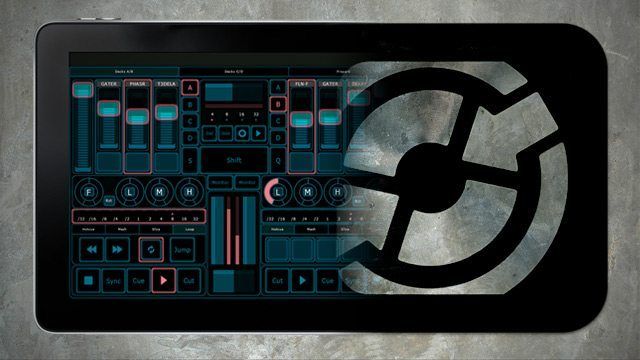
Electronic music and controllerism are constantly pushing boundaries of what’s possible with the latest hardware and software. While Traktor seems to be prepping an app of their own, there already exists a reliable way to control DJ software on your iOS device: Liine’s Lemur application. In today’s article, guest writer Winston Ray explains how to get Lemur set up for Traktor, extols it as a viable option for live performance, and offers some great templates for you to start right now. We’re also giving away a copy of Lemur, more info inside!
Just here for the Lemur app giveaway? Enter here.
WHY THE IPAD / WHAT’S A LEMUR?
Of all the existing methods to control Native Instruments’ Traktor, the iPad has the potential, is the most innovative and effective when setup correctly. In the past, issues such as high latency, unstable software and complicated MIDI/OSC routing have made the iPad somewhat problematic to effectively integrate into DJ routines. However, loaded with the right software and settings, the iPad is no longer a simple technical novelty, but rather truly a force to be reckoned with.

But before we dive in, a little history lesson about the Lemur: The original hardware Lemur was developed by the French company Jazzmutant and released in early 2005. Due to limited availability, relatively high cost ($2,495 at launch) and initially unstable software, the Lemur was limited to a small niche market of forward thinking, tech-savvy musicians looking for innovative methods to control and revolutionize their live performances (used notably by acts such as Nine Inch Nails, Deadmau5, The Glitch Mob and Daft Punk).
Soon after the Apple iPad’s arrival to the market in 2010, Jazzmutant discontinued their dedicated hardware device and instead focused on developing software. Their effort paid off, and the Lemur app is widely regarded (even in the DJTT forums!) as the most comprehensive MIDI/OSC application currently available for iPad.
LEMUR GONE DIGTIAL
The Lemur App costs $50 – a little steep to many users when compared to the popular alternative TouchOSC, which sells for a mere $5.00. However, considering Lemur includes much more advanced MIDI functionality, an integrated physics engine, completely user customizable templates and an overall more polished feel than TouchOSC, the additional cost becomes a little more justifiable. Because Lemur can also be seamlessly integrated with Ableton Live, Logic, and many other DAWs, it can also be a useful tool for music production, making it worthwhile for users who spend their time in the studio.
Other Options: Our tutorial on using TouchOSC with Traktor.
Included with Lemur are two companion applications that run on the host computer:
- The Lemur Daemon is the computer peripheral application for the Lemur app; MIDI data can be communicated via local WiFi network or via USB (through an iPad Camera connection kit [Tip: don’t buy it from Apple, it’s only $18 on Amazon] into MIDI interface, further reducing latency.)
- The Lemur Editor allows users to create custom Lemur templates and MIDI mappings, and then transfer them to the iPad’s internal template bank.
GETTING STARTED DJING WITH LEMUR
I’ll walk you through setting up Lemur with Traktor step by step with what I’ve found to be the best template currently available, Mashy for Lemur by Andrew Norris. (Editor’s note: It’s not just Traktor, there’s plenty of awesome templates for Ableton, Reason, Serato, and other programs on Liine’s site). Here’s what Mashy looks like:

The Mashy template has three pages of controls, Decks A/B, Decks C/D, and Track Preparation. While navigating from page to page is a little odd at first, it becomes instinctive with a bit of practice.
Decks A/B are laid out intuitively, with cross fader and individual volume controls. The filter and EQ are found above the basic stop, start, sync, and cue controls, leaving lots of room for the effects. Decks C/D are sample decks with individual trigger, play, loop, and mute buttons for each sample. The preparation page has track and crate navigation capabilities, as well as tempo control and a seek position slider.
I’ve broken down the Lemur/ Traktor integration process into six simple steps:
Things you’ll need:
- Traktor Pro 2.6 (or latest version)
- Apple iPad
- Lemur App for iOS
- Lemur Daemon
- Lemur Editor
- Mashy for Lemur v1.2 Traktor template for Lemur
Step #1 Purchase (or enter our contest below to win a copy!) and install the Lemur app on your iPad by downloading it from the Apple App Store.
Step #2 Make an account on Liine.com, then download and Install Lemur Daemon and Lemur Editor from this link. These are both vital tools for using the Lemur.
Step #3 Download the “Mashy for Lemur” template – you’ll need your Liine login to download from this page.
Step #4 Connect the iPad to your computer via local WiFi network, as outlined in this video.
Step #5 Import the “Mashy for Lemur” template into Lemur Editor and load it onto the iPad, as demonstrated here.
Step #6 In Traktor, open Preferences, and click on the big “Import” button at the bottom. Select the file Mashy_Lemur.tsi’ and ensure all boxes are ticked. Then, select Controller Manager in Preferences. In the “Devices” menu, there should be two options that say “Mashy for Lemur – Perform – Generic Midi”. Make sure both are set: In-Port to Daemon Input 0, and Out-Port set to Daemon Output 0.
Take a deep breath; the boring technical part is over. Fire up Lemur, open the template and now you should be good to go!
MORE LEMUR TOOLS
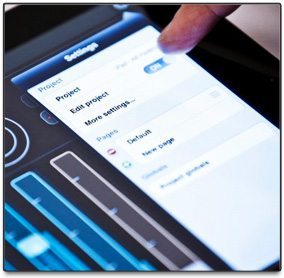
The library on Liine’s site has an impressive collection of user submitted Lemur modules and templates for use with many different music programs in addition to Traktor, many of which are available in both iPad and iPhone format. If an existing template doesn’t quite accommodate your needs, change it! Editing templates can be done in the Lemur Editor program, or in the Lemur app itself. Open the template you want to edit, tap the settings button in the top right-hand corner, and then move the “Edit project” slider to the on position.
You can freely edit every aspect of the template, from the aesthetics and control placement, to the active scripts and MIDI mapping. Lemur’s customizability is undoubtedly one of its best features, especially once you delve into the more advanced capabilities and mapping options.
If you’re looking for a fresh start, building a new custom template from the ground up is relatively simple. First, select “New project” at the top of the template menu, name your new template, and tap the plus button in the top left corner of the screen. A drop down menu will provide an abundance of virtual control methods, including options like breakpoints, faders, knobs and buttons, etc. If you need more room for controls, additional pages can be added via the settings menu.

Before your template is functional, you’ll need to map the MIDI values according to the parameters in the program you want to control. If you are using Traktor, you can create and import a MIDI mapping as a .tsi file that corresponds to the MIDI values used in your template. Getting your template running smoothly may take a little tweaking, so be prepared to invest a bit of time if you want to perfect it.
The iPad has great potential as a controller for Traktor, and this article only scratches the surface regarding what can be done. Hardware controllers like the NI S4, Midi Fighter and VCI-400 still hold a distinct advantage in some respects, due to super low latency and the tactile feedback of physical knobs and decks, which is why I believe a hybrid setup between the two provides the best of both worlds. However, in the future as the technology behind touchscreen peripherals evolves, many users may find physical controllers to be a thing of the past.
WHY PAY FOR IT WHEN YOU COULD WIN IT?
DJTT is particularly excited to be giving away a copy of the Lemur app (as noted above, it’s a $50 app!) to one of our readers. All you’ve got to do is enter by clicking the link below – it’s a standard “like us on Facebook” contest, so no hard work there! We’ll announce the winner Friday afternoon on Twitter, in this article, and we’ll send an email to the winner.
Contest Finished: Congrats to Lorène Bettker from Toulose, France!
Winston Ray is an upcoming electronic music producer and DJ out of Dallas, Texas. Check him out on Twitter: @Winstonraymusic
If you have any additional questions regarding setting up Lemur, the Liine website has a great collection of comprehensive tutorial videos – or feel free to start a discussion in the comments below!
The vectorized Traktor logo used in the header image is credit to Kinetic on our forums.