DJ TechTools
  • Blog
    • DJ Gear
      • DIY Projects
      • Gear Reviews
      • New Products
      • Controllerism
    • Techniques + Tips
      • Beginner DJ
      • Advanced DJ
      • Producer
      • Finger Drummer
    • News + Culture
      • Editorials + Opinions
      • Artist Interviews
      • Performances + Routines
      • How I Play
    • DJ Software Tutorials
      • Serato Tips
        • Traktor Tips
      • CDJ Tips
      • Ableton Live Tips
  • Store
    • Run by real DJs, not a corporation
    • DJ Controllers
      • Midi Fighter Twister
      • Midi Fighter Spectra
      • Midi Fighter 64
      • View All
    • Accessories
      • Chroma USB Drive for DJs
      • Chroma Caps
      • Chroma Cables Audio
      • Chroma Cables USB-A
      • Chroma Cables: USB-C
      • DJTT Gift Card
      • Midi Fighter T-Shirt
      • Keyboard Covers
      • Earplugs by V-Moda
    • Production Gear
    • Soundcards & Mixers
  • Community
    • Popular Forums
      • General Discussion
      • Buy & Sell
      • Reviews
      • Mixes
      • Music Production
      • Show Your Setup
      • Off Topic
    • Handy Links
      • New Posts
      • Private Messages
      • Register
      • Search
    • Midi Maps
      • Traktor
      • Ableton
      • Serato DJ
      • Midi Fighter 3D
      • Midi Fighter Twister
      • Midi Fighter Spectra
  • Midi Fighter
  • Chroma
No Result
View All Result
DJ TechTools
  • Blog
    • DJ Gear
      • DIY Projects
      • Gear Reviews
      • New Products
      • Controllerism
    • Techniques + Tips
      • Beginner DJ
      • Advanced DJ
      • Producer
      • Finger Drummer
    • News + Culture
      • Editorials + Opinions
      • Artist Interviews
      • Performances + Routines
      • How I Play
    • DJ Software Tutorials
      • Serato Tips
        • Traktor Tips
      • CDJ Tips
      • Ableton Live Tips
  • Store
    • Run by real DJs, not a corporation
    • DJ Controllers
      • Midi Fighter Twister
      • Midi Fighter Spectra
      • Midi Fighter 64
      • View All
    • Accessories
      • Chroma USB Drive for DJs
      • Chroma Caps
      • Chroma Cables Audio
      • Chroma Cables USB-A
      • Chroma Cables: USB-C
      • DJTT Gift Card
      • Midi Fighter T-Shirt
      • Keyboard Covers
      • Earplugs by V-Moda
    • Production Gear
    • Soundcards & Mixers
  • Community
    • Popular Forums
      • General Discussion
      • Buy & Sell
      • Reviews
      • Mixes
      • Music Production
      • Show Your Setup
      • Off Topic
    • Handy Links
      • New Posts
      • Private Messages
      • Register
      • Search
    • Midi Maps
      • Traktor
      • Ableton
      • Serato DJ
      • Midi Fighter 3D
      • Midi Fighter Twister
      • Midi Fighter Spectra
  • Midi Fighter
  • Chroma
No Result
View All Result
DJ TechTools

iTunes Power Tips For DJs: Part 2

mikecharles by mikecharles
December 19, 2008
in Advanced DJ Tips
Reading Time: 4 mins read
0
iTunes Power Tips For DJs: Part 2
163
VIEWS
Post on FacebookTweet thisUpvote on Reddit

Here is a continuation of tips from last week’s popular post:

By: Mike Charles

The prerequisite for today’s tip is the original write up, which you should read before continuing. Today we are going to talk about 3 complications I’ve encountered and how to solve each of them.

1.  The smart playlist is not smart enough!

There is a playlist inside of my “House” folder called “All House” which obviously needs to contain all the tracks considered “house” . My personal definition is anything that’s about 125 – 130 bpm but the smart playlist is also picking up tracks with genres of [Progressive House – about 135 bpm] and [Hard House – 140+ bpm].

There are two ways we can solve this. The first way is by adding exclusion criteria. See screenshot below for how to set this up.

The second is by using the “starts with” rule. Remember that the genre of all my house tracks is House – XXX.  So by using the following I can get the same result.

2. I followed tip #1, now I have to do the same to all my priority lists?

No you don’t, but you do need updating. Check this out:

Yeah how cool is that? You can build a smart playlist off of another smart playlist! So what we did here was change it to pull only tracks that are in the “All House” playlist, and of course, with the correct star rating.

3. This track is both groovy and mello!

I have a smart playlist that pulls all tracks with the genre of “House – Groove” and another that pulls “House – Mello”. The problem is that there is often a track that fits both categories.  iTunes has a field in the tag called “grouping” which is rarely used for any important info. To solve this problem we are going to re-purpose that field as a second genre field. See an example below.

So now that we have 2 genres for track, its a simple matter updating the selection criteria of our smart playlists:

Note that I had to change “match” in the upper left from “all” to “any”. Now even though our track has “House – Mello” in the genre field, it will make it into my groove playlist b/c of the grouping.

There you have it, three solutions for common problems you may have run into. Hopefully these tips may help you manage you own collection. Give it a try and see what works for you- you’ll be an iTunes Ninja no time.

Still Having problems?

in the comments of the last discussion, there was a good question from a reader about a common problem with using Itunes:

Has anyone else has any trouble with iTune 8 (on Mac OSX 10.5) not writing changed information to the track? I’ll edit the genre, name, ect,,, of a track but the next time I click on it to play it, all the information I’ve entered reverts back to it’s original state. =oS Almost as if the track were locked.

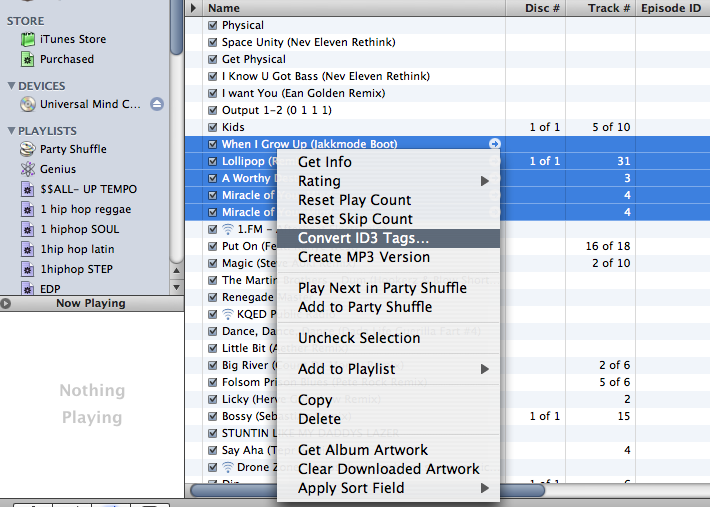
This is a problem that has plagued many different versions of Itunes. I recently delt with it in depth when trying to udate all of my album art work. It was amazing how little info was out there but eventually the issue was solved! The issue is simple, your getting songs from all over the place and many have been written with older ID3 tags that are not compatible by Itunes, so when you make changes to the song they dont “stick”. The only way I found to fix this problem was to batch change all of your tags to an older version 1.1 and then upgrade them to the current ID3 Version ID3 2.4. This can all be done very easilly directly in Itunes by right clicking a selected track or tracks.

-Ean Golden


iTunes Power Tips Continued 

The iTunes Power Tips series continues, check out the other articles in the series here!

iTunes Power Tips Part 1 | iTunes Power Tips Part 2 | iTunes Power Tips Part 3 | iTunes Power Tips Part 4
Tags: itunes tutorialssmart playliststaggingTipsTIPS FROM THE PROS
Share1Tweet1Share
Previous Post

Top Dj Companies Create Universal Standard

Next Post

Get more Controls- Modifier basics

Related Posts

Meet the Koala sampler app: a mobile production powerhouse, now with stems
DJ Gear

Meet the Koala sampler app: a mobile production powerhouse, now with stems

February 7, 2023
Tips for DJing in Extreme Cold: DJTT readers share their advice
DJ Techniques / Tips

Tips for DJing in Extreme Cold: DJTT readers share their advice

January 30, 2023
Controlling the dancefloor: a guide on organizing playlists by energy
DJ Music Library Tips

Controlling the dancefloor: a guide on organizing playlists by energy

November 25, 2022
Load More
Next Post
Get more Controls- Modifier basics

Get more Controls- Modifier basics

Want to reach DJTT's audience here?

Shoot an email to advertising@djtechtools.com

DJTT ads
DJTT newsletter
Midi Fighter
Chat with us
  • ABOUT DJTT
  • CONTACT
  • PRIVACY
  • MIDI FIGHTER HELP
  • ABOUT DJTT
  • JOBS
  • CONTACT US
  • ADVERTISE
  • PRIVACY POLICY
  • ACCESSIBILITY STATEMENT

© 2024 DJ Techtools all rights reserved by DJ TechTools on all content unless otherwise noted.

No Result
View All Result
  • Blog
    • DJ Gear
      • DIY Projects
      • Gear Reviews
      • New Products
      • Controllerism
    • Techniques + Tips
      • Beginner DJ
      • Advanced DJ
      • Producer
      • Finger Drummer
    • News + Culture
      • Editorials + Opinions
      • Artist Interviews
      • Performances + Routines
      • How I Play
    • DJ Software Tutorials
      • Serato Tips
      • CDJ Tips
      • Ableton Live Tips
  • Store
    • Run by real DJs, not a corporation
    • DJ Controllers
      • Midi Fighter Twister
      • Midi Fighter Spectra
      • Midi Fighter 64
      • View All
    • Accessories
      • Chroma USB Drive for DJs
      • Chroma Caps
      • Chroma Cables Audio
      • Chroma Cables USB-A
      • Chroma Cables: USB-C
      • DJTT Gift Card
      • Midi Fighter T-Shirt
      • Keyboard Covers
      • Earplugs by V-Moda
    • Production Gear
    • Soundcards & Mixers
  • Community
    • Popular Forums
      • General Discussion
      • Buy & Sell
      • Reviews
      • Mixes
      • Music Production
      • Show Your Setup
      • Off Topic
    • Handy Links
      • New Posts
      • Private Messages
      • Register
      • Search
    • Midi Maps
      • Traktor
      • Ableton
      • Serato DJ
      • Midi Fighter 3D
      • Midi Fighter Twister
      • Midi Fighter Spectra
  • Midi Fighter
  • Chroma

© 2024 DJ Techtools all rights reserved by DJ TechTools on all content unless otherwise noted.

This website uses cookies. By continuing to use this website you are giving consent to cookies being used. Visit our Privacy and Cookie Policy.