DJ TechTools
  • Blog
    • DJ Gear
      • DIY Projects
      • Gear Reviews
      • New Products
      • Controllerism
    • Techniques + Tips
      • Beginner DJ
      • Advanced DJ
      • Producer
      • Finger Drummer
    • News + Culture
      • Editorials + Opinions
      • Artist Interviews
      • Performances + Routines
      • How I Play
    • DJ Software Tutorials
      • Serato Tips
        • Traktor Tips
      • CDJ Tips
      • Ableton Live Tips
  • Store
    • Run by real DJs, not a corporation
    • DJ Controllers
      • Midi Fighter Twister
      • Midi Fighter Spectra
      • Midi Fighter 64
      • View All
    • Accessories
      • Chroma USB Drive for DJs
      • Chroma Caps
      • Chroma Cables Audio
      • Chroma Cables USB-A
      • Chroma Cables: USB-C
      • DJTT Gift Card
      • Midi Fighter T-Shirt
      • Keyboard Covers
      • Earplugs by V-Moda
    • Production Gear
    • Soundcards & Mixers
  • Community
    • Popular Forums
      • General Discussion
      • Buy & Sell
      • Reviews
      • Mixes
      • Music Production
      • Show Your Setup
      • Off Topic
    • Handy Links
      • New Posts
      • Private Messages
      • Register
      • Search
    • Midi Maps
      • Traktor
      • Ableton
      • Serato DJ
      • Midi Fighter 3D
      • Midi Fighter Twister
      • Midi Fighter Spectra
  • Midi Fighter
  • Chroma
No Result
View All Result
DJ TechTools
  • Blog
    • DJ Gear
      • DIY Projects
      • Gear Reviews
      • New Products
      • Controllerism
    • Techniques + Tips
      • Beginner DJ
      • Advanced DJ
      • Producer
      • Finger Drummer
    • News + Culture
      • Editorials + Opinions
      • Artist Interviews
      • Performances + Routines
      • How I Play
    • DJ Software Tutorials
      • Serato Tips
        • Traktor Tips
      • CDJ Tips
      • Ableton Live Tips
  • Store
    • Run by real DJs, not a corporation
    • DJ Controllers
      • Midi Fighter Twister
      • Midi Fighter Spectra
      • Midi Fighter 64
      • View All
    • Accessories
      • Chroma USB Drive for DJs
      • Chroma Caps
      • Chroma Cables Audio
      • Chroma Cables USB-A
      • Chroma Cables: USB-C
      • DJTT Gift Card
      • Midi Fighter T-Shirt
      • Keyboard Covers
      • Earplugs by V-Moda
    • Production Gear
    • Soundcards & Mixers
  • Community
    • Popular Forums
      • General Discussion
      • Buy & Sell
      • Reviews
      • Mixes
      • Music Production
      • Show Your Setup
      • Off Topic
    • Handy Links
      • New Posts
      • Private Messages
      • Register
      • Search
    • Midi Maps
      • Traktor
      • Ableton
      • Serato DJ
      • Midi Fighter 3D
      • Midi Fighter Twister
      • Midi Fighter Spectra
  • Midi Fighter
  • Chroma
No Result
View All Result
DJ TechTools

After The Show: Sharing Sets In Traktor + Serato DJ

Dan White by Dan White
February 24, 2014
in DJ Music Library Tips, DJ Techniques / Tips, Serato Tips, Traktor Tips
Reading Time: 4 mins read
0
After The Show: Sharing Sets In Traktor + Serato DJ
216
VIEWS
Post on FacebookTweet thisUpvote on Reddit

At the end of a long night behind the decks, it’s tough to remember all the tracks you’ve played over the course of a few hours. Thankfully, both Serato and Traktor have a few very useful built-in features for sharing your sets. Read on to learn  some of the lesser-known playlist secrets in both softwares.

TRAKTOR PRO HISTORY + PLAYLISTS
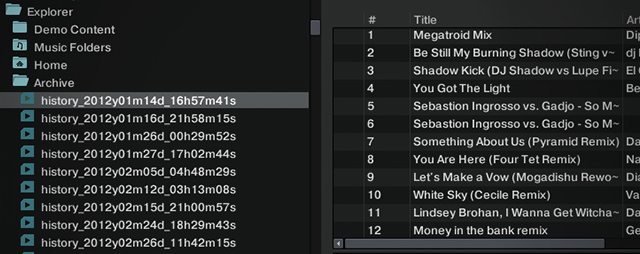
Archived sets "hidden" in the Explorer
Archived sets “hidden” in the Explorer

The Archive

Our first tip is that Traktor hides historical set lists in an non-obvious place. You might have hundreds of old sets from weeks, months, or even years ago with a complete track listing and not even know about it. To find them, go to the library navigation section, and open Explorer>Archive to view every single set list you’ve played in Traktor. This list only gets reset if you do a completely fresh reinstall of Traktor.

Archived sets contain a bit of extra metadata info beyond the normal ID3 tags:

  • Start Time: The clock time when the track was started
  • Duration: How long the track was played for
  • Deck: Which deck (A/B/C/D) the track was played in
  • Played Public: If the track actually was mixed in or if it was just pre-cued. (This won’t work if mixing externally)

History: What You’ve Played Today
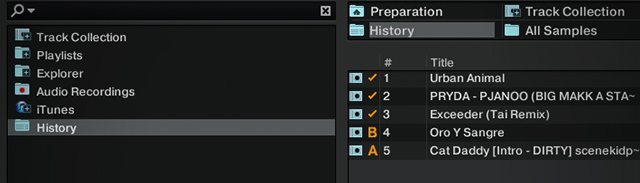
Traktor's "History" is only good for during-set reference.
Traktor’s “History” is only good for during-set reference.

The History playlist in Traktor’s library nav bar is a bit deceptive – it’s just a temporary record of the tracks you’ve played during the current session. It resets every single time you restart Traktor, and it’s not very useful aside from being a good reference for what songs you mixed earlier in the gig.

Exporting Your Playlists 
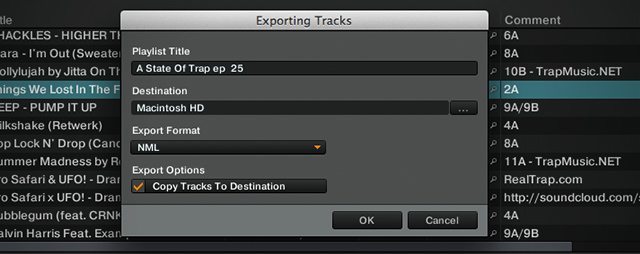
Exporting a recent ASOT playlist

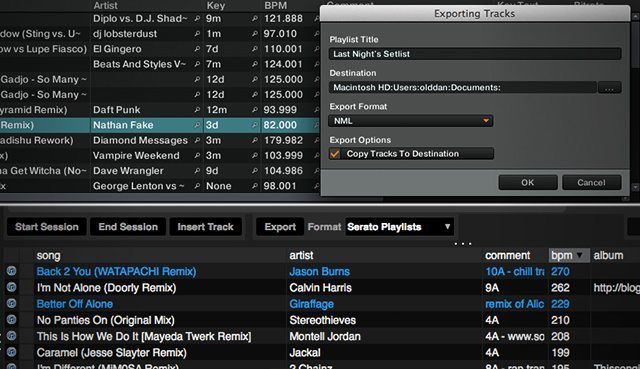
Traktor’s “Export Playlist” option (accessible by right-clicking any playlist) is a great way to take a playlist or set that you’ve played and send it to a friend or import it into a different software.

  • export as M3U: Allows for playlist importing into any media player software
  • export as NML: Allows for playlist importing into Traktor. Can also be used to add a tracklist to a Mixcloud upload

M3U and NML files both include associated file paths to the tracks in the playlist. If you open either of them in a different software, the playlist will continue to reference that same location. If you share the playlist to a different computer, use “Copy Tracks To Destination” to move all the referenced tracks into the same folder as the playlist file. This only works when the files have been imported into Traktor’s Collection. If you pull them on the fly from iTunes or your desktop, no files will be copied.

Save Playlists As Webpages
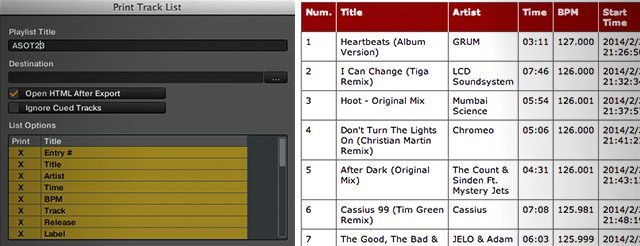
Your set, now in HTML format.

Traktor can also export an HTML file of any playlist. Just right-click and select “Save As Webpage”, and select from the list options what metadata tags you want displayed in the resulting chart. This makes for good post-gig social media posting material as well, especially if you didn’t record the mix but still want to share the set list.

This is probably the best way to print out a playlist (mobile DJs, take note), just open the file in your browser and use your usual print command.

Here’s an example of a Traktor HTML setlist from a gig on Friday night. We’re hoping Traktor improves this in the future – maybe taking a page out of Serato’s book (see below) and building a good online interface for sharing set lists.

SERATO DJ: PLAYLISTS
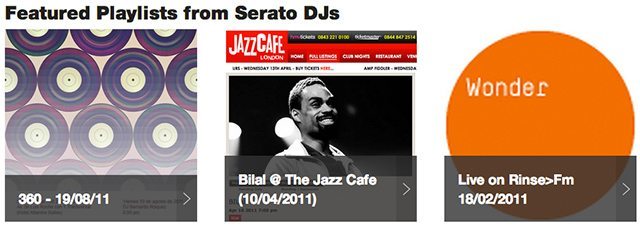
serato-playlists-featured

Serato (DJ and SSL) has a much more streamlined way of dealing with post-set playlists. In addition to keeping a complete history log of all the tracks played, organizing them by session and offering .txt, .m3u, and .CSV export support, there’s an option in the export window that allows users to upload to “Serato Playlists”.

Uploading a playlist in Serato DJ

As long as you’re connected to the internet, the selected set list will automatically send the complete metadata to Serato’s own Serato.com/Playlists, which allows any registered Serato user to share their set lists and mix times. Other users can digitally trainspot your set and leave comments, and it’s not a bad way to promote yourself either.

Serato Playlists has a number of smart features, including setting sessions to public or private visibility, suggesting potential genres based on the played tracks’ ID3 tags, adding in additional tracks (if you mixed in a CD or vinyl record), or even hiding tracks that you want to keep secret.
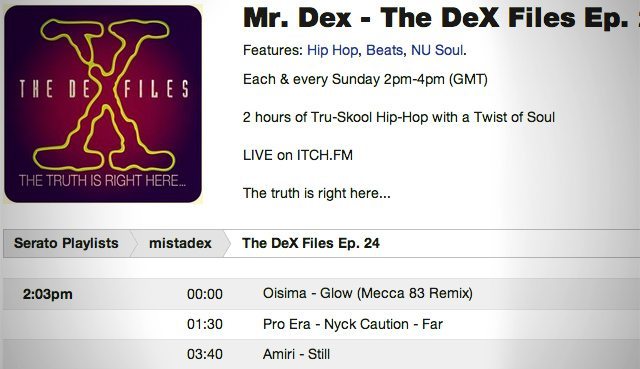
An example set list from Serato Playlists

Finally, Serato Playlists also has integration with Mixcloud. Once you’ve got a set on Serato Playlists and you’re uploading an audio file of the set to Mixcloud, there’s an option for using a Serato.com playlist to fill out the entire track listing. Drop in your URL and the complete playlist shows up. Mixcloud even uses time information from the Serato Playlist to automatically time stamp the tracks in the mix, eliminating a particularly arduous process for longer mixes.

Have your own post-set routines and ways to share your tracklists? Let us know in the comments. 
Tags: exporting setlistlibrary managementmixcloudplaylistsserato DJserato playliststrack listingTraktor Pro
Share2Tweet1Share
Previous Post

Visual Turntablism: DJ Woody Interview

Next Post

iZotope BreakTweaker Review: Rapidly Create Twisted Beats

Related Posts

“No Deal”: New Zealand’s ComCom denies clearance for AlphaTheta’s Serato acquisition
Breaking News

“No Deal”: New Zealand’s ComCom denies clearance for AlphaTheta’s Serato acquisition

July 17, 2024
Midi Fighter Twister controlling Traktor Pro 4 Stem decks
DJ Techniques / Tips

Ean’s powerful Midi Fighter Twister mapping for Traktor Pro 4’s Stems + Pattern Player

July 17, 2024
TIDAL blocked DJs from using Stems – but the next generation of DJ gear will likely make that irrelevant
DJ Gear

TIDAL blocked DJs from using Stems – but the next generation of DJ gear will likely make that irrelevant

January 18, 2024
Load More
Next Post
iZotope BreakTweaker Review: Rapidly Create Twisted Beats

iZotope BreakTweaker Review: Rapidly Create Twisted Beats

Want to reach DJTT's audience here?

Shoot an email to advertising@djtechtools.com

DJTT ads
DJTT newsletter
Midi Fighter
Chat with us
  • ABOUT DJTT
  • CONTACT
  • PRIVACY
  • MIDI FIGHTER HELP
  • ABOUT DJTT
  • JOBS
  • CONTACT US
  • ADVERTISE
  • PRIVACY POLICY
  • ACCESSIBILITY STATEMENT

© 2024 DJ Techtools all rights reserved by DJ TechTools on all content unless otherwise noted.

No Result
View All Result
  • Blog
    • DJ Gear
      • DIY Projects
      • Gear Reviews
      • New Products
      • Controllerism
    • Techniques + Tips
      • Beginner DJ
      • Advanced DJ
      • Producer
      • Finger Drummer
    • News + Culture
      • Editorials + Opinions
      • Artist Interviews
      • Performances + Routines
      • How I Play
    • DJ Software Tutorials
      • Serato Tips
      • CDJ Tips
      • Ableton Live Tips
  • Store
    • Run by real DJs, not a corporation
    • DJ Controllers
      • Midi Fighter Twister
      • Midi Fighter Spectra
      • Midi Fighter 64
      • View All
    • Accessories
      • Chroma USB Drive for DJs
      • Chroma Caps
      • Chroma Cables Audio
      • Chroma Cables USB-A
      • Chroma Cables: USB-C
      • DJTT Gift Card
      • Midi Fighter T-Shirt
      • Keyboard Covers
      • Earplugs by V-Moda
    • Production Gear
    • Soundcards & Mixers
  • Community
    • Popular Forums
      • General Discussion
      • Buy & Sell
      • Reviews
      • Mixes
      • Music Production
      • Show Your Setup
      • Off Topic
    • Handy Links
      • New Posts
      • Private Messages
      • Register
      • Search
    • Midi Maps
      • Traktor
      • Ableton
      • Serato DJ
      • Midi Fighter 3D
      • Midi Fighter Twister
      • Midi Fighter Spectra
  • Midi Fighter
  • Chroma

© 2024 DJ Techtools all rights reserved by DJ TechTools on all content unless otherwise noted.

This website uses cookies. By continuing to use this website you are giving consent to cookies being used. Visit our Privacy and Cookie Policy.