DJ TechTools
  • Blog
    • DJ Gear
      • DIY Projects
      • Gear Reviews
      • New Products
      • Controllerism
    • Techniques + Tips
      • Beginner DJ
      • Advanced DJ
      • Producer
      • Finger Drummer
    • News + Culture
      • Editorials + Opinions
      • Artist Interviews
      • Performances + Routines
      • How I Play
    • DJ Software Tutorials
      • Serato Tips
        • Traktor Tips
      • CDJ Tips
      • Ableton Live Tips
  • Store
    • Run by real DJs, not a corporation
    • DJ Controllers
      • Midi Fighter Twister
      • Midi Fighter Spectra
      • Midi Fighter 64
      • View All
    • Accessories
      • Chroma USB Drive for DJs
      • Chroma Caps
      • Chroma Cables Audio
      • Chroma Cables USB-A
      • Chroma Cables: USB-C
      • DJTT Gift Card
      • Midi Fighter T-Shirt
      • Keyboard Covers
      • Earplugs by V-Moda
    • Production Gear
    • Soundcards & Mixers
  • Community
    • Popular Forums
      • General Discussion
      • Buy & Sell
      • Reviews
      • Mixes
      • Music Production
      • Show Your Setup
      • Off Topic
    • Handy Links
      • New Posts
      • Private Messages
      • Register
      • Search
    • Midi Maps
      • Traktor
      • Ableton
      • Serato DJ
      • Midi Fighter 3D
      • Midi Fighter Twister
      • Midi Fighter Spectra
  • Midi Fighter
  • Chroma
No Result
View All Result
DJ TechTools
  • Blog
    • DJ Gear
      • DIY Projects
      • Gear Reviews
      • New Products
      • Controllerism
    • Techniques + Tips
      • Beginner DJ
      • Advanced DJ
      • Producer
      • Finger Drummer
    • News + Culture
      • Editorials + Opinions
      • Artist Interviews
      • Performances + Routines
      • How I Play
    • DJ Software Tutorials
      • Serato Tips
        • Traktor Tips
      • CDJ Tips
      • Ableton Live Tips
  • Store
    • Run by real DJs, not a corporation
    • DJ Controllers
      • Midi Fighter Twister
      • Midi Fighter Spectra
      • Midi Fighter 64
      • View All
    • Accessories
      • Chroma USB Drive for DJs
      • Chroma Caps
      • Chroma Cables Audio
      • Chroma Cables USB-A
      • Chroma Cables: USB-C
      • DJTT Gift Card
      • Midi Fighter T-Shirt
      • Keyboard Covers
      • Earplugs by V-Moda
    • Production Gear
    • Soundcards & Mixers
  • Community
    • Popular Forums
      • General Discussion
      • Buy & Sell
      • Reviews
      • Mixes
      • Music Production
      • Show Your Setup
      • Off Topic
    • Handy Links
      • New Posts
      • Private Messages
      • Register
      • Search
    • Midi Maps
      • Traktor
      • Ableton
      • Serato DJ
      • Midi Fighter 3D
      • Midi Fighter Twister
      • Midi Fighter Spectra
  • Midi Fighter
  • Chroma
No Result
View All Result
DJ TechTools

Steal Mad Zach’s Quick Sound Pack Switch Technique

Ryan Dejaegher by Ryan Dejaegher
June 7, 2015
in Ableton Live Tips, Advanced DJ Tips, Controllerism, Production Tips
Reading Time: 4 mins read
0
Steal Mad Zach’s Quick Sound Pack Switch Technique
43
VIEWS
Post on FacebookTweet thisUpvote on Reddit

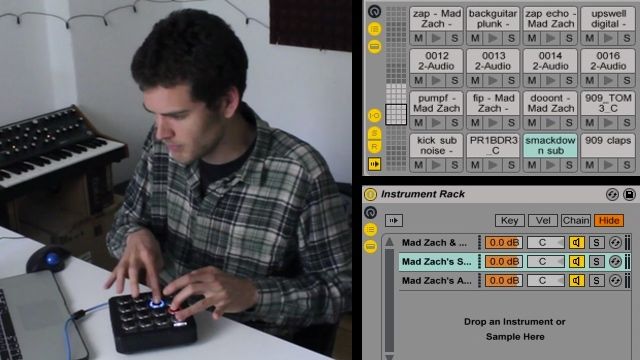
If you’ve ever seen artists like ill.Gates, Shawn Wasabi, or Mad Zach perform live, you know that sound packs are one of the best ways to really give a unique performance. The challenge is seamlessly switching between different soundpacks on the fly. Today Mad Zach shares an awesome trick for quickly switching to a new sound pack, without interrupting the music, during a live performance.

This technique relies on instrument racks, chain selector, and dummy clips to select the new sound pack. With this technique you’ll be able to quickly hit a keyboard shortcut to start controlling a new sound pack with your midi controller.

Setting Up The Instrument Rack

Drag an empty instrument rack onto an audio track. Then click the “chain list” icon. Here is where you will drag the soundpacks. You can load up to 127 sound packs into this list. For this tutorial we’ll start with 3 soundpacks. Even if you don’t own any Mad Zach sound packs you can try this technique out using the stock drum kits in Ableton. A similar technique can be used to load multiple drum samples onto a single pad
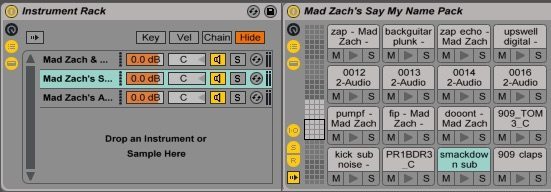
Instrument_Rack

Now if you press a button/pad on your controller to trigger a sound it’s going to sound horrible because it’s triggering a sound from each drum rack in the chain list. We need a way to individually select and control individual drum racks in the chain list. This will be accomplished with the “chain selector” and “dummy clips“.
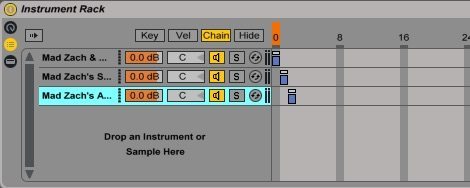
Chain_Select

We need to move these blue bars (Zone) so that they don’t overlap. Once we’ve done that we need to create 3 dummy clips. These are empty midi clips that don’t contain any notes, but they contain automation which moves the chain selector.

Dummy Clips – Your Sound Pack Presets
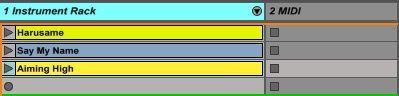
Dummy clips

Create 3 midi clips and then to stay organized, rename them to match the sound packs that you have loaded into the instrument chain. Now you’ll need to go into each clip and change a few settings.

  • Notes: Disable “Loop”. This will ensure the clip is only triggered once.
  • Launch: Set “Quantization” to none (this will make the clip launch instantly, instead of waiting for the next bar)
  • Envelopes: Select “Instrument Rack”—> “Chain Selector” —> Click on the automation line to set a breakpoint.
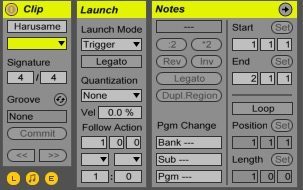
Note_Launch

Then for the next clip, move the automation line up by one, set another breakpoint (this is what will trigger the chain selector to change the soundpack).
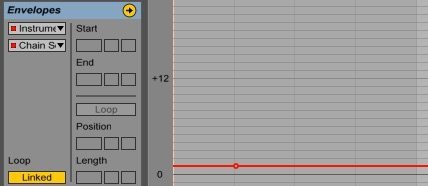
Envelope Automation

Mapping Dummy Clips To Your Computer Keyboard

The last step is to map the dummy clips to a keyboard shortcut so you can quickly hit a key to switch to a new soundpack on the fly. Click “Key” in the top right corner, now select each clip and press any key on your keyboard. Make sure that the “keyboard” icon is disabled too. Now you can quickly hit the keyboard shortcuts and jump between sound packs on the fly.

Keyboard_mapping

Grab Mad Zach’s Ableton Project

If you want to try out the project yourself Mad Zach has included the project for download. It doesn’t include the soundpacks but the project is already setup with the dummy clips and instrument rack ready for sound packs to be dropped in. Highlight each “pack” in the chain list then drag your sound packs to the right as pictured below.

Mad_Zach_Project

Sign up / activate your DJTT newsletter subscription this week to get a great throwback pack from Mad Zach, the Mad Method pack.

Want to support Mad Zach and future soundpack volumes?
Check out the Mad Zach Sound Packs Volume 1-4 in the DJTT Store
Tags: ableton liveableton live 9ill gateslive performancemad zachshawn wasabisound packsoundpacksswitching soundpacks
ShareTweetShare
Previous Post

OWOW Midi Controllers: Small + Simple Design, Advanced Controls

Next Post

Email Marketing 101: Subject Lines, Consistency, and Sample Script

Related Posts

Ableton launches Live 12 Suite rent-to-own plan – and it’s not a subscription
Ableton

Ableton launches Live 12 Suite rent-to-own plan – and it’s not a subscription

October 1, 2025
Use your Midi Fighter Twister as an Audio-Reactive Visualizer
Ableton Live Tips

Use your Midi Fighter Twister as an Audio-Reactive Visualizer

June 23, 2025
Control an entire studio with Midi Fighter Spectra (like Mad Zach)
Finger Drumming

Control an entire studio with Midi Fighter Spectra (like Mad Zach)

May 9, 2025
Load More
Next Post
Email Marketing 101: Subject Lines, Consistency, and Sample Script

Email Marketing 101: Subject Lines, Consistency, and Sample Script

Want to reach DJTT's audience here?

Shoot an email to advertising@djtechtools.com

DJTT ads
DJTT newsletter
Midi Fighter
Chat with us
  • ABOUT DJTT
  • CONTACT
  • PRIVACY
  • MIDI FIGHTER HELP
  • ABOUT DJTT
  • JOBS
  • CONTACT US
  • ADVERTISE
  • PRIVACY POLICY
  • ACCESSIBILITY STATEMENT

© 2024 DJ Techtools all rights reserved by DJ TechTools on all content unless otherwise noted.

No Result
View All Result
  • Blog
    • DJ Gear
      • DIY Projects
      • Gear Reviews
      • New Products
      • Controllerism
    • Techniques + Tips
      • Beginner DJ
      • Advanced DJ
      • Producer
      • Finger Drummer
    • News + Culture
      • Editorials + Opinions
      • Artist Interviews
      • Performances + Routines
      • How I Play
    • DJ Software Tutorials
      • Serato Tips
      • CDJ Tips
      • Ableton Live Tips
  • Store
    • Run by real DJs, not a corporation
    • DJ Controllers
      • Midi Fighter Twister
      • Midi Fighter Spectra
      • Midi Fighter 64
      • View All
    • Accessories
      • Chroma USB Drive for DJs
      • Chroma Caps
      • Chroma Cables Audio
      • Chroma Cables USB-A
      • Chroma Cables: USB-C
      • DJTT Gift Card
      • Midi Fighter T-Shirt
      • Keyboard Covers
      • Earplugs by V-Moda
    • Production Gear
    • Soundcards & Mixers
  • Community
    • Popular Forums
      • General Discussion
      • Buy & Sell
      • Reviews
      • Mixes
      • Music Production
      • Show Your Setup
      • Off Topic
    • Handy Links
      • New Posts
      • Private Messages
      • Register
      • Search
    • Midi Maps
      • Traktor
      • Ableton
      • Serato DJ
      • Midi Fighter 3D
      • Midi Fighter Twister
      • Midi Fighter Spectra
  • Midi Fighter
  • Chroma

© 2024 DJ Techtools all rights reserved by DJ TechTools on all content unless otherwise noted.

This website uses cookies. By continuing to use this website you are giving consent to cookies being used. Visit our Privacy and Cookie Policy.