DJ TechTools
  • Blog
    • DJ Gear
      • DIY Projects
      • Gear Reviews
      • New Products
      • Controllerism
    • Techniques + Tips
      • Beginner DJ
      • Advanced DJ
      • Producer
      • Finger Drummer
    • News + Culture
      • Editorials + Opinions
      • Artist Interviews
      • Performances + Routines
      • How I Play
    • DJ Software Tutorials
      • Serato Tips
        • Traktor Tips
      • CDJ Tips
      • Ableton Live Tips
  • Store
    • Run by real DJs, not a corporation
    • DJ Controllers
      • Midi Fighter Twister
      • Midi Fighter Spectra
      • Midi Fighter 64
      • View All
    • Accessories
      • Chroma USB Drive for DJs
      • Chroma Caps
      • Chroma Cables Audio
      • Chroma Cables USB-A
      • Chroma Cables: USB-C
      • DJTT Gift Card
      • Midi Fighter T-Shirt
      • Keyboard Covers
      • Earplugs by V-Moda
    • Production Gear
    • Soundcards & Mixers
  • Community
    • Popular Forums
      • General Discussion
      • Buy & Sell
      • Reviews
      • Mixes
      • Music Production
      • Show Your Setup
      • Off Topic
    • Handy Links
      • New Posts
      • Private Messages
      • Register
      • Search
    • Midi Maps
      • Traktor
      • Ableton
      • Serato DJ
      • Midi Fighter 3D
      • Midi Fighter Twister
      • Midi Fighter Spectra
  • Midi Fighter
  • Chroma
No Result
View All Result
DJ TechTools
  • Blog
    • DJ Gear
      • DIY Projects
      • Gear Reviews
      • New Products
      • Controllerism
    • Techniques + Tips
      • Beginner DJ
      • Advanced DJ
      • Producer
      • Finger Drummer
    • News + Culture
      • Editorials + Opinions
      • Artist Interviews
      • Performances + Routines
      • How I Play
    • DJ Software Tutorials
      • Serato Tips
        • Traktor Tips
      • CDJ Tips
      • Ableton Live Tips
  • Store
    • Run by real DJs, not a corporation
    • DJ Controllers
      • Midi Fighter Twister
      • Midi Fighter Spectra
      • Midi Fighter 64
      • View All
    • Accessories
      • Chroma USB Drive for DJs
      • Chroma Caps
      • Chroma Cables Audio
      • Chroma Cables USB-A
      • Chroma Cables: USB-C
      • DJTT Gift Card
      • Midi Fighter T-Shirt
      • Keyboard Covers
      • Earplugs by V-Moda
    • Production Gear
    • Soundcards & Mixers
  • Community
    • Popular Forums
      • General Discussion
      • Buy & Sell
      • Reviews
      • Mixes
      • Music Production
      • Show Your Setup
      • Off Topic
    • Handy Links
      • New Posts
      • Private Messages
      • Register
      • Search
    • Midi Maps
      • Traktor
      • Ableton
      • Serato DJ
      • Midi Fighter 3D
      • Midi Fighter Twister
      • Midi Fighter Spectra
  • Midi Fighter
  • Chroma
No Result
View All Result
DJ TechTools

Rack Patching: Layer Patches Across An Ableton Drum Rack

Dan White by Dan White
October 18, 2015
in Ableton Live Tips, Production Tips
Reading Time: 3 mins read
0
Rack Patching: Layer Patches Across An Ableton Drum Rack
232
VIEWS
Post on FacebookTweet thisUpvote on Reddit

Ever wanted to use a cool patch across multiple cells in a soundpack? While Ableton’s Drum Rack will let you apply a Device Chain to all cells, or a single cell, it won’t let you assign it to multiple cells. In today’s article, learn how DJTT soundpack designer Apoth has found a creative solution to do exactly that: Rack Patching.

Drum Rack Patching In Ableton Live

Here’s how you set up Rack Patching in a soundpack or any type of Drum Rack:

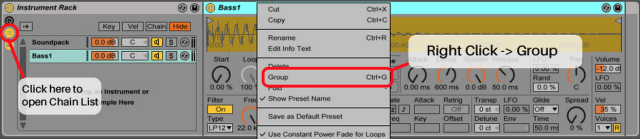
1. Group the Drum Rack that you’re building your soundpack with into an Instrument Rack (right-click then group, or CTRL/CMD + G).
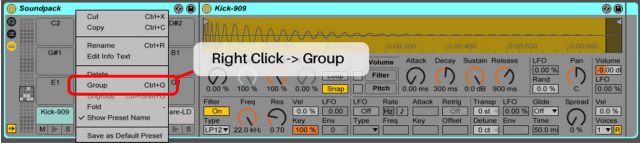
Screen Shot 2015-10-18 at 10.29.17 PM

2. Drop sample/patch/instrument-rack below Drum Rack in chain-list of the newly made Instrument Rack. Use CTRL/CMD + G again to group this into an Instrument Rack if it isn’t already one. Rename this to ‘Container’. This patch can be for nearly anything: bass, pads, melody, or even an 808-style kick. Get creative here!
Screen Shot 2015-10-18 at 10.33.36 PM

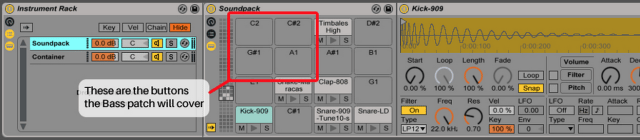
3. Determine what notes you want to trigger your sample with by checking the slots on the Drum Rack. In this case, I’m wanting to trigger 4 different tones of a bass patch I’ve sampled from the Korg Volca Bass and Keys, and these will be on G#1, A1, C2, and C#2. Keep in mind these are not necessarily the notes that you will hear when you press the buttons, these are only the buttons you want the patch to cover.
Screen Shot 2015-10-18 at 10.38.07 PM

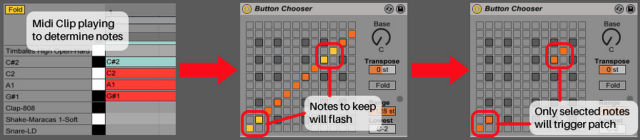
4. We can use Ableton’s Scale MIDI plugin to act as a ‘Button Chooser’. Drop a Scale in front of your Instrument Rack Patch. Right click it and Rename it ‘Button Chooser’. Unselect any notes that you do NOT want triggering your patch. I’m going to leave G#, A, C, and C# checked.
Tip:
Tip: Make a temporary MIDI clip with a ‘chord’ of the notes that you want to use and hit play; they will flash in the ‘Button Choose’ and it will be easier to see what to unselect.

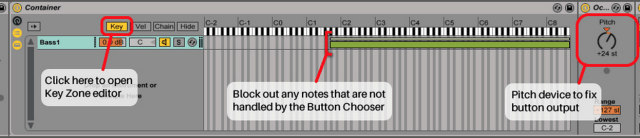
5. Drop a Pitch device inside the Instrument Rack but in front of your patch. I’ve bumped the pitch that the patch will play up by +24 semitones so that the notes will trigger within the C3 octave just like the cells in a drum rack do. Label this one ‘Octave Fixer’.

6. Let’s open up the Key Zone editor of our Container and use it to ‘block’ any extra incoming MIDI notes outside of the desired octave (such as C2/C#2 in this example).
Screen Shot 2015-10-18 at 10.40.51 PM

7. Finally, put another Scale directly after your Octave Fixer and rename it to ‘Transposer’. This scale plugin will let you determine which notes each button will actually play. Copy the same buttons from your Button Chooser, then move them up or down in the columns accordingly to make them play the notes you want to hear.
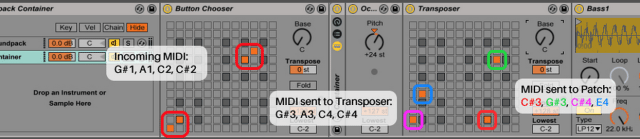
Screen Shot 2015-10-18 at 10.41.37 PM
Tip: Use the other features of scale to adjust the range of what notes will be sent. The MIDI clip from earlier will help you line up the notes as the columns may change with the Root note. Also try the Transpose and Fold functions!

Test Your Ableton Rack Patch!

Now when I play the buttons on the soundpack, the patch that is layered below the drum-rack is also triggered, but only on the appropriate buttons. You actually can still layer other things IN the drum rack cells if you like, and turn those on and off via a knob, or with CC mappings and vice-versa.

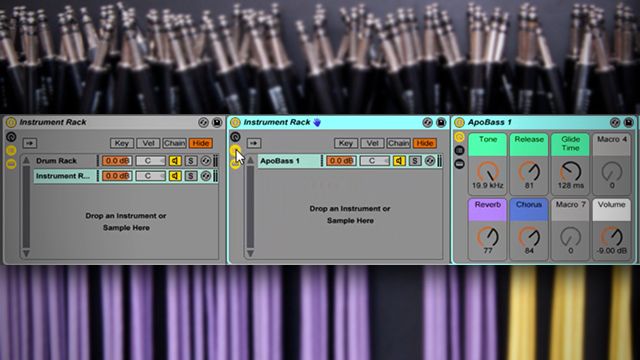
You can also set any other macro mappings you would like to adjust on the fly for more control during your performance. In this example I’ve mapped the Decay/Release of the bass patch, as well as the Glide time.

Read another Ableton tutorial from Apoth – how to layer drum samples.
Tags: AbletonapothDrum Rackmidi mappingrack patchingsoundpack
Share2Tweet1Share
Previous Post

6 More Under-Appreciated Controllerism Routines On YouTube

Next Post

Pioneer DJM-900SRT Discontinued, DJM-350 Relaunched

Related Posts

Ableton launches Live 12 Suite rent-to-own plan – and it’s not a subscription
Ableton

Ableton launches Live 12 Suite rent-to-own plan – and it’s not a subscription

October 1, 2025
Control an entire studio with Midi Fighter Spectra (like Mad Zach)
Finger Drumming

Control an entire studio with Midi Fighter Spectra (like Mad Zach)

May 9, 2025
How I Play: Hybrasil’s DAWless live techno setup
How I Play

How I Play: Hybrasil’s DAWless live techno setup

October 3, 2024
Load More
Next Post
Pioneer DJM-900SRT Discontinued, DJM-350 Relaunched

Pioneer DJM-900SRT Discontinued, DJM-350 Relaunched

Want to reach DJTT's audience here?

Shoot an email to advertising@djtechtools.com

DJTT ads
DJTT newsletter
Midi Fighter
Chat with us
  • ABOUT DJTT
  • CONTACT
  • PRIVACY
  • MIDI FIGHTER HELP
  • ABOUT DJTT
  • JOBS
  • CONTACT US
  • ADVERTISE
  • PRIVACY POLICY
  • ACCESSIBILITY STATEMENT

© 2024 DJ Techtools all rights reserved by DJ TechTools on all content unless otherwise noted.

No Result
View All Result
  • Blog
    • DJ Gear
      • DIY Projects
      • Gear Reviews
      • New Products
      • Controllerism
    • Techniques + Tips
      • Beginner DJ
      • Advanced DJ
      • Producer
      • Finger Drummer
    • News + Culture
      • Editorials + Opinions
      • Artist Interviews
      • Performances + Routines
      • How I Play
    • DJ Software Tutorials
      • Serato Tips
      • CDJ Tips
      • Ableton Live Tips
  • Store
    • Run by real DJs, not a corporation
    • DJ Controllers
      • Midi Fighter Twister
      • Midi Fighter Spectra
      • Midi Fighter 64
      • View All
    • Accessories
      • Chroma USB Drive for DJs
      • Chroma Caps
      • Chroma Cables Audio
      • Chroma Cables USB-A
      • Chroma Cables: USB-C
      • DJTT Gift Card
      • Midi Fighter T-Shirt
      • Keyboard Covers
      • Earplugs by V-Moda
    • Production Gear
    • Soundcards & Mixers
  • Community
    • Popular Forums
      • General Discussion
      • Buy & Sell
      • Reviews
      • Mixes
      • Music Production
      • Show Your Setup
      • Off Topic
    • Handy Links
      • New Posts
      • Private Messages
      • Register
      • Search
    • Midi Maps
      • Traktor
      • Ableton
      • Serato DJ
      • Midi Fighter 3D
      • Midi Fighter Twister
      • Midi Fighter Spectra
  • Midi Fighter
  • Chroma

© 2024 DJ Techtools all rights reserved by DJ TechTools on all content unless otherwise noted.

This website uses cookies. By continuing to use this website you are giving consent to cookies being used. Visit our Privacy and Cookie Policy.