DJ TechTools
  • Blog
    • DJ Gear
      • DIY Projects
      • Gear Reviews
      • New Products
      • Controllerism
    • Techniques + Tips
      • Beginner DJ
      • Advanced DJ
      • Producer
      • Finger Drummer
    • News + Culture
      • Editorials + Opinions
      • Artist Interviews
      • Performances + Routines
      • How I Play
    • DJ Software Tutorials
      • Serato Tips
        • Traktor Tips
      • CDJ Tips
      • Ableton Live Tips
  • Store
    • Run by real DJs, not a corporation
    • DJ Controllers
      • Midi Fighter Twister
      • Midi Fighter Spectra
      • Midi Fighter 64
      • View All
    • Accessories
      • Chroma USB Drive for DJs
      • Chroma Caps
      • Chroma Cables Audio
      • Chroma Cables USB-A
      • Chroma Cables: USB-C
      • DJTT Gift Card
      • Midi Fighter T-Shirt
      • Keyboard Covers
      • Earplugs by V-Moda
    • Production Gear
    • Soundcards & Mixers
  • Community
    • Popular Forums
      • General Discussion
      • Buy & Sell
      • Reviews
      • Mixes
      • Music Production
      • Show Your Setup
      • Off Topic
    • Handy Links
      • New Posts
      • Private Messages
      • Register
      • Search
    • Midi Maps
      • Traktor
      • Ableton
      • Serato DJ
      • Midi Fighter 3D
      • Midi Fighter Twister
      • Midi Fighter Spectra
  • Midi Fighter
  • Chroma
No Result
View All Result
DJ TechTools
  • Blog
    • DJ Gear
      • DIY Projects
      • Gear Reviews
      • New Products
      • Controllerism
    • Techniques + Tips
      • Beginner DJ
      • Advanced DJ
      • Producer
      • Finger Drummer
    • News + Culture
      • Editorials + Opinions
      • Artist Interviews
      • Performances + Routines
      • How I Play
    • DJ Software Tutorials
      • Serato Tips
        • Traktor Tips
      • CDJ Tips
      • Ableton Live Tips
  • Store
    • Run by real DJs, not a corporation
    • DJ Controllers
      • Midi Fighter Twister
      • Midi Fighter Spectra
      • Midi Fighter 64
      • View All
    • Accessories
      • Chroma USB Drive for DJs
      • Chroma Caps
      • Chroma Cables Audio
      • Chroma Cables USB-A
      • Chroma Cables: USB-C
      • DJTT Gift Card
      • Midi Fighter T-Shirt
      • Keyboard Covers
      • Earplugs by V-Moda
    • Production Gear
    • Soundcards & Mixers
  • Community
    • Popular Forums
      • General Discussion
      • Buy & Sell
      • Reviews
      • Mixes
      • Music Production
      • Show Your Setup
      • Off Topic
    • Handy Links
      • New Posts
      • Private Messages
      • Register
      • Search
    • Midi Maps
      • Traktor
      • Ableton
      • Serato DJ
      • Midi Fighter 3D
      • Midi Fighter Twister
      • Midi Fighter Spectra
  • Midi Fighter
  • Chroma
No Result
View All Result
DJ TechTools

Using Multiple Controllers With Itch

pilmat by pilmat
June 18, 2010
in Advanced DJ Tips, Controllerism, DJ Controllers, DJ Equipment / Accessories, DJ Software, Midi Fighter, Serato Tips, Video Posts
Reading Time: 4 mins read
0
Using Multiple Controllers With Itch
68
VIEWS
Post on FacebookTweet thisUpvote on Reddit

Serato Itch is well known for its tight controller/software integration, but this comes at the price of having no externally mappable functions. With its fixed controller layouts, many have longed to have at least cue point juggling from a controller that is better laid out for that purpose, like the Midi Fighter.  Using a couple of simple tools, I will show you how to do just that, and more.


The How-To

As Itch does not have any midi-mappable functions, all that we can make use of is it’s keyboard mapping.  This can be done by routing any midi controller through a midi translator and have it output keystrokes.  The available keystroke commands in Itch are not exhaustive but do give us some interesting options.
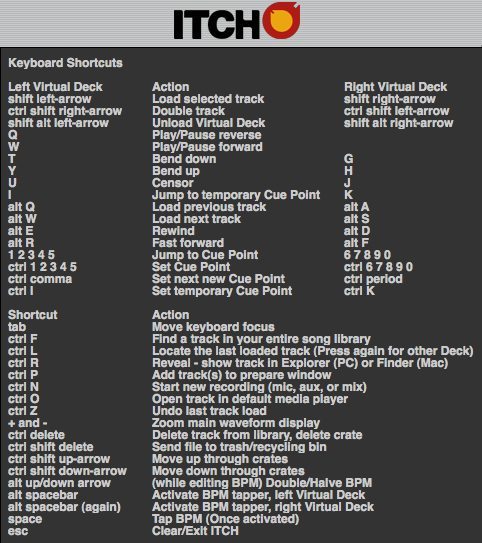
For the purpose of this example, we will map the keystrokes for hot cue points 1 to 4 for two decks, as well as the Find and Record buttons, to a Midi Fighter. To map these functions, we will need a midi-to-keystroke translator and possibly a midi watcher application to read the actual notes from our midi device, if they are not already known. The Midi Fighter notes are well documented, but I’ll show you this method so you can adapt it to any midi controller.

The Simple Path

For an easy and free conversion, I’ll use midiStroke for the translator and Midi Monitor for the watcher application.

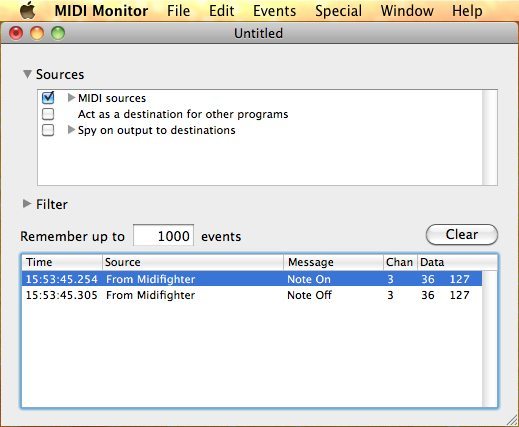
Using the watcher, I read the Note-On for the lower left button on the Midi Fighter to be note 36 on channel 3 (you will need to set “decimal” for the note output in Midi Monitor preferences to see the note as 36 and not as note C2).
Creating a new entry in the left screen of midiStroke, set “num” to 36 and the “chn” to 3, leaving the “value” blank (this is only needed for CCs).
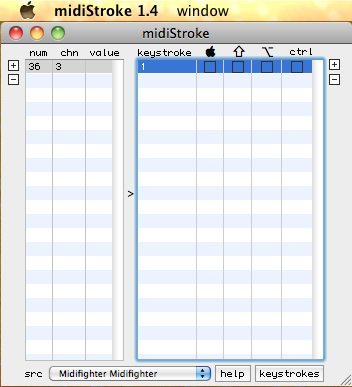
Now with our new left column entry still highlighted, create a new entry for it in the right column by clicking on the right “+”. Enter 1 in the “keystroke” column (leave the rest blank, but if you have the “use shift” enabled in Itch you will need to click the shift radio box beside the 1 you just entered). Repeat the process for the other buttons.

For the Find and Record functions, make sure you check off the Apple key box for the F and N respectively.

Choose MidiFighter as the source at the bottom of the midiStroke window.

Attached below is the midiStroke application and the mapping (start and close midiStroke, then paste the mapping into user>Library>Application Support>midiStroke to replace the default blank mapping, now start midiStoke again and select MidFighter as the source):

midiStroke (application and mapping)

With the mapping complete and the translator running, start up Itch. You will now be able to play your hot cues as mapped and have dedicate Find and Record buttons on your Midi Fighter. Note that Itch will need to be the program in focus, as keystrokes will apply to whichever application is in focus.

You will notice that you cannot play-from-hotcue with these buttons as midiStroke does not support key repeat, but you can juggle the cues (and set them if they are not already assigned) with a song that is already playing.

The Advanced Path

Armed with a more advanced midi translator, there are even more features we can exploit. Loops, tempo bending and moving cue points on the fly are all now available to us as well as play-from-hotcue. There are keyboard shortcuts that are not listed in the Itch documentation, a couple of which are employed in this mapping.

In this example, I’ll uses Bome’s Midi Translator (not a free application). Without getting into Bome’s programming, I have included a mapping file that has the following layout.
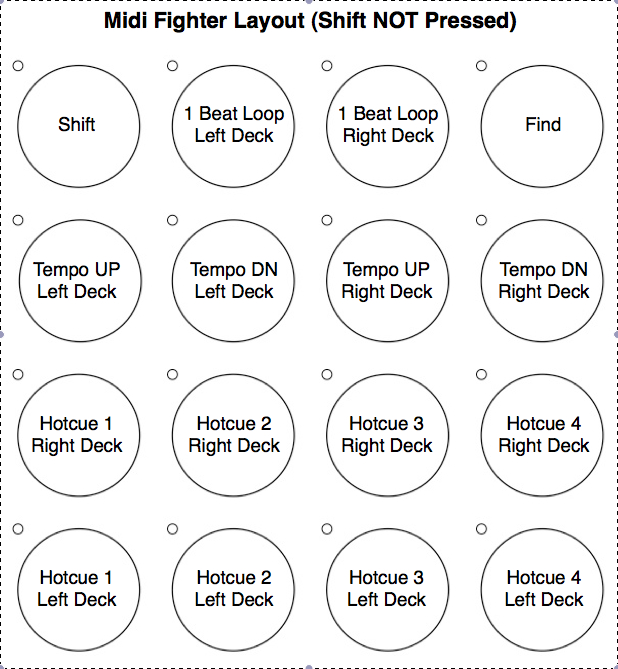
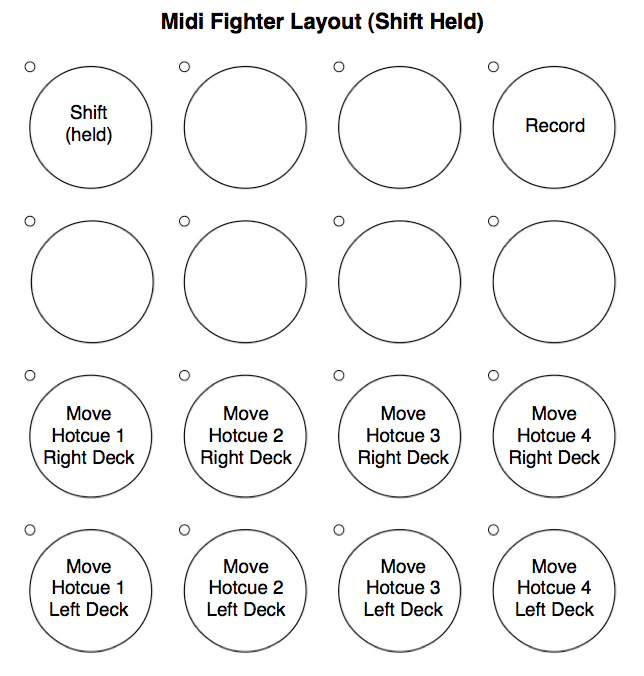
Bome’s Map for Midi Fighter

As can be seen from the layout, loop functions are available from the keyboard. ALT+5 to ALT+1 will provide loops from 1 beat down to 1/32 beat on the left deck, and ALT+0 to Alt+6 for the right deck. I mapped the 1 beat (ALT+5 and ALT+0) for this example on the middle top buttons.

There is another keystroke loop trick in Itch, ALT+T for the left deck or ALT+G for the right, that will give an automated descending loop length from 2 beats down to 1/128 beats.  It works a little strange in that it takes that last two beats that played as opposed to the next two beats as for all other loop functions.  Also it can only be released from the loop off button on the main Itch controller. Try it on the keyboard first and add it to the mapping if you like.

Going Further

The two attached mappings above are only the beginning of possibilities. Exploiting all 5 of Itch’s possible hot cues and adding more loop functions are just two obvious expansion directions.  With some creativity and a little keystroke mapping, layouts to suit your individual needs are not too far away, and – most importantly – on the controller of your liking!
Tags: controlleritchmappingMidi Fighterserato
ShareTweetShare
Previous Post

Allen & Heath Xone DX Review

Next Post

Pump Up The Jam – A DJs Guide to Mastering

Related Posts

The DJM-V5 from AlphaTheta: 3 channels, 4-band EQ, V10 sound – no Beat FX or crossfader.
Breaking News

The DJM-V5 from AlphaTheta: 3 channels, 4-band EQ, V10 sound – no Beat FX or crossfader.

January 20, 2026
Use your Midi Fighter Twister as an Audio-Reactive Visualizer
Ableton Live Tips

Use your Midi Fighter Twister as an Audio-Reactive Visualizer

June 23, 2025
Control an entire studio with Midi Fighter Spectra (like Mad Zach)
Finger Drumming

Control an entire studio with Midi Fighter Spectra (like Mad Zach)

May 9, 2025
Load More
Next Post
Pump Up The Jam – A DJs Guide to Mastering

Pump Up The Jam - A DJs Guide to Mastering

Want to reach DJTT's audience here?

Shoot an email to advertising@djtechtools.com

DJTT ads
DJTT newsletter
Midi Fighter
Chat with us
  • ABOUT DJTT
  • CONTACT
  • PRIVACY
  • MIDI FIGHTER HELP
  • ABOUT DJTT
  • JOBS
  • CONTACT US
  • ADVERTISE
  • PRIVACY POLICY
  • ACCESSIBILITY STATEMENT

© 2024 DJ Techtools all rights reserved by DJ TechTools on all content unless otherwise noted.

No Result
View All Result
  • Blog
    • DJ Gear
      • DIY Projects
      • Gear Reviews
      • New Products
      • Controllerism
    • Techniques + Tips
      • Beginner DJ
      • Advanced DJ
      • Producer
      • Finger Drummer
    • News + Culture
      • Editorials + Opinions
      • Artist Interviews
      • Performances + Routines
      • How I Play
    • DJ Software Tutorials
      • Serato Tips
      • CDJ Tips
      • Ableton Live Tips
  • Store
    • Run by real DJs, not a corporation
    • DJ Controllers
      • Midi Fighter Twister
      • Midi Fighter Spectra
      • Midi Fighter 64
      • View All
    • Accessories
      • Chroma USB Drive for DJs
      • Chroma Caps
      • Chroma Cables Audio
      • Chroma Cables USB-A
      • Chroma Cables: USB-C
      • DJTT Gift Card
      • Midi Fighter T-Shirt
      • Keyboard Covers
      • Earplugs by V-Moda
    • Production Gear
    • Soundcards & Mixers
  • Community
    • Popular Forums
      • General Discussion
      • Buy & Sell
      • Reviews
      • Mixes
      • Music Production
      • Show Your Setup
      • Off Topic
    • Handy Links
      • New Posts
      • Private Messages
      • Register
      • Search
    • Midi Maps
      • Traktor
      • Ableton
      • Serato DJ
      • Midi Fighter 3D
      • Midi Fighter Twister
      • Midi Fighter Spectra
  • Midi Fighter
  • Chroma

© 2024 DJ Techtools all rights reserved by DJ TechTools on all content unless otherwise noted.

This website uses cookies. By continuing to use this website you are giving consent to cookies being used. Visit our Privacy and Cookie Policy.